Icons
Summary
Section titled “Summary”People can easily misunderstand icons that don’t have a label. When icons convey meaning, they must have a text alternative. The best text alternative for icons is a visible text label, which helps everyone understand the icon’s purpose. When icons do not have a visible label, you must provide another type of text alternative in its place.
Other text alternatives include “alt” text and visually hidden text that is used by assistive technologies. Adding text alternatives like these ensures that everyone can understand icons, including people who rely on assistive technologies.
Overview
Section titled “Overview”Meaningful icons that convey information must have a descriptive text alternative to ensure people who rely on assistive technologies can understand them.
Ideally, icons that convey information should use a visible label as their text alternative to make their meaning clear to everyone. Only well-known icons, such as a house icon that indicates “Home,” should be used without accompanying visible text. In this case, you must provide another type of text alternative to describe the icon to people who cannot see the icon and rely on assistive technology such as a screen reader.
Icons that convey actionable information, such as a link or button, must have a text alternative that describes the icon’s purpose, not the appearance. For example, a button created using an icon of a magnifying glass usually has a text alternative of “search”.
You must hide icons from assistive technologies when they are decorative. Icons are decorative when:
- They do not convey information.
- They have a visible label associated with them.
- There is nearby text describing the icon’s meaning on the page.
Icons commonly use three types of images.
- Graphical images:
- These are standard bit-mapped images with file formats such as
.png,.jpg,.gif, etc. - Bit-mapped images are a matrix, or grid, of pixels that map a specific color to each pixel.
- These are standard bit-mapped images with file formats such as
- Scalable Vector Graphic (SVG) images:
- These are two-dimensional vector-based images that render cleanly at any size.
- Vector-based images use geometric coordinates, or points, to define shapes.
- Font icons:
- These are typefaces that use images instead of letters.
- Font icons are vector-based and scalable, and their appearance is controlled in the same manner as text.
Three methods can provide text alternatives for icons.
- Visible labels (preferred): used for all icons.
- Alternative or “alt” text: commonly used for graphical icons.
- ARIA attributes such as
aria-labelandaria-labelledby: commonly used for SVG and font icons.
Who is Helped
Section titled “Who is Helped”Icons with proper text alternatives help everyone.
- Icons mean different things to different people. Most people need visible text labels to understand icons.
- Icons mean different things in different cultures. A visibly labeled icon avoids any misunderstanding.
- Icons with proper text alternatives allow people who are blind, deaf-blind, have low vision, or have cognitive disabilities to understand the icon’s purpose.
Guidelines
Section titled “Guidelines”Basic Guidelines for Icons
Section titled “Basic Guidelines for Icons”Follow these basic guidelines to make icons accessible:
- For functional icons used as links or buttons, it is best practice always to have a visible text label to describe the icon’s function. In this case, treat the icon as decorative and hide it from assistive technologies.
- Only well-known icons, such as the magnifying glass that indicates “Search,” should be used without accompanying visible text. In this case, provide a text alternative for assistive technologies.
- Meaningful icons used as images should have a text alternative that describes their meaning, which may or may not coincide with their appearance.
- Hide purely decorative icons from assistive technologies.
Figure 1 below shows a navigation menu with three graphical icons above visible text labels. The text labels provide the icon’s text alternative and make the icons themselves decorative. In this case, the alt text for the icons is empty (alt="") to hide the icons from assistive technologies.

It is a best practice to avoid using icons within sentences or phrases. Placing icons at the beginning or end of the text is best. To understand why, compare these two sentences announced by a screen reader:
- Graphic checkmark This task is done.
- This task graphic checkmark is done.
The second sentence, with the icon in the middle of the sentence, is confusing. The first sentence is easier to understand.
Icons are created in different ways. Graphical images, SVG images, and font icons are all used to create icons. Icons that are graphical images are handled differently from SVG and font icons. Even SVG and font icons have some differences. The following sections explain these differences and how to code these different types of icons for accessibility.
Graphical Icons
Section titled “Graphical Icons”Graphical icons that convey content, like all other meaningful images, must have a descriptive text alternative. Either of these options can supply the text alternative:
- Adding a visible label next to the icon and treating the icon as decorative or
- Adding alt text to the icon’s code when there is no visible label.
Mark any graphical icons that do not convey content as decorative.
Example 1: Graphical icons used as a button
Section titled “Example 1: Graphical icons used as a button”Graphical icons used as buttons or links should have alt text describing their function or purpose, not their appearance.

<button onclick="..."><img src="images/upload.jpg" alt="upload"></button>Example 2: Graphical icon used as a meaningful image
Section titled “Example 2: Graphical icon used as a meaningful image”Graphical icons used as meaningful images that are not functional should have alt text that describes their meaning, which may or may not coincide with their appearance.

<img src="fimages/learning-head.png" alt="Learning Resources">Example 3: Graphical icon that is decorative
Section titled “Example 3: Graphical icon that is decorative”Graphical icons that are redundant or purely decorative should have empty alt text.

<img src="images/flower.jpg" alt="">SVG and Font Icons
Section titled “SVG and Font Icons”Icons that are font icons or Scalable Vector Graphic (SVG) images require different coding techniques.
Font Icons: A font icon set is added to a website like a typeface. A font icon’s size and color can be manipulated the same way as text. Font icons are usually added to a web page as background images using Cascading Style Sheets (CSS). CSS is used to style the appearance of an HTML element. One of the ways that CSS is used to alter the appearance of web content is by causing an object, such as a font icon, to appear before or after an element that is already on the page.
See Background Images for more information on using background images.
SVG Icons: Some SVG images can be added to a web page with the <img> tag. This is limited to simple SVG images, as an SVG added in this way cannot be animated or manipulated. SVG images that are added to a page in this way are specified as the source attribute for an image element, and the alt, aria-label, or aria-labelledby attribute is used to provide the text alternative. More complex SVG images are added directly to a web page using the <svg> element, embedded within an <iframe> or <embed> element, or referenced as the data attribute in an <object>. Of these four methods, only the <svg> element is well supported by assistive technologies. The other methods should be avoided.
See Embedded Content for more information on using SVG images.
ARIA and Icons: SVG and font icons are not typically coded using an image element. Font icons are usually added to a web page using <i>, <div>, or <span> tags. SVG elements are usually added to the page with an <svg> tag. These icons rely heavily on ARIA to be accessible. ARIA (Accessible Rich Internet Applications) is a set of roles and attributes used in coding websites that makes web content more accessible for people using assistive technology.
See the ARIA Overview for more information on using ARIA.
Follow these guidelines to code SVG and font icons:
- Assign a role of
imgto the icon. Assistive technologies will not reliably process information associated with these elements if they are not identified as images. - Use the
aria-hiddenattribute to hide decorative icons from screen readers. - Use either visible text,
aria-label,aria-labelledby, or visually hidden (screen reader only) text to provide a text alternative for meaningful icons. - The SVG
titletag can be used to supply a text alternative for SVG images. In this case, usearia-labelledbyto programmatically associate the SVG element with the title. Programmatic association ties these elements together via code so screen readers understand they are connected.
The following examples show some of the common methods used to code SVG and font icons recommended by the Web Content Accessibility Guidelines (WCAG). Coding icons with these methods ensures the icons are accessible to assistive technologies.
Example 1: Font icon that has meaning without visible text
Section titled “Example 1: Font icon that has meaning without visible text”In this example, the heart font icon appears before the span element when the class="fa fa-heart" is added to its code. Instead of an HTML attribute specifying a source image, the CSS class identifies a specific font icon. The role="img" is added to ensure that assistive technologies reliably process the font icon as an image. The aria-label attribute provides the text alternative.
<p>We<span class="fa fa-heart" role="img" aria-label="Heart" title="Heart"></span>You!</p>.fa-heart:before {content: "\f004";}Example 2: Font icon that has meaning with visible text
Section titled “Example 2: Font icon that has meaning with visible text”Visible text is used to make an icon accessible. In this case, assign a role of img to the icon and use the aria-hidden attribute to hide the icon from screen readers while leaving the visible text alternative (the label) accessible.
<p>Welcome!<span class="fa fa-smile" role="img" aria-hidden="true">Smiley face</p>Example 3: Font icon that has meaning with visually hidden text
Section titled “Example 3: Font icon that has meaning with visually hidden text”A CSS class hides text visually but still allows it to be detected by assistive technologies. This “screen reader-only” text provides the text alternative. For this example, assign a role of img to the icon and use the aria-hidden attribute to hide the icon from screen readers. This hides the icon from screen readers while allowing them to read text inside the <span> with the sr-only class.
<p>Welcome!<span class="fa fa-smile" role="img" aria-hidden="true"><span class="sr-only">Smiley face</span></p>Example 4: SVG icon that has meaning with visually hidden text
Section titled “Example 4: SVG icon that has meaning with visually hidden text”In this example, assign the role of img to the icon to ensure assistive technologies reliably process the SVG as an image. Use the SVG element’s <title> to supply the text alternative. Use the aria-labelledby attribute to tie the SVG element to the title. Use the aria-hidden attribute to hide the icon from screen readers.
<svg aria-hidden="true" role="img" aria-labelledby="svg-title" focusable="false" data-prefix="fas" data-icon="key" xmlns="http://www.w3.org/2000/svg" viewBox="0 0 512 512" class="svg-inline--fa fa-key fa-3x"> <title id="svg-title">Key</title> <path fill="currentColor" ... class=""></path></svg>Example 5: Font icon that is decorative
Section titled “Example 5: Font icon that is decorative”Assign a role of img to the icon and use the aria-hidden attribute to hide the icon from screen readers when it is purely decorative. Screen readers will not reliably process the aria-hidden attribute information without the addition of the role="img" attribute, so do not forget this step.
<p>Welcome!<span class="fa fa-smile" role="img" aria-hidden="true"></span></p>Example 6: SVG icon that is decorative
Section titled “Example 6: SVG icon that is decorative”Decorative SVG icons are coded similarly to decorative font icons. Assign a role="img" to the icon and use the aria-hidden attribute to hide the icon from screen readers. Again, screen readers will not reliably process the aria-hidden attribute information without the addition of the role="img" attribute, so do not forget this step.
<svg viewBox="0 0 16 16" width="1em" height="1em" role="img" aria-hidden="true" fill="currentColor" scale="1" icon="journals"> ...</svg>For more information:
- See Images that Convey Content for general information about making images accessible.
- See the W3C Tutorial on Functional Images and Functional Images for information about accessible images used as buttons or links.
- See the W3C technique on semantically identifying a font icon with role=“img” for more information about using the image role with icons.
- See Sara Soueidan’s article on Accessible Icon Buttons for information on different approaches to making font icons accessible.
How to Test
Section titled “How to Test”Icons are tested for some type of text alternative just like any other image, with the caveat that you need to visually inspect the page and identify the icons first, so that it will be noticeable if the screen reader or test tool does not find an existing icon.
The best recommendation is to use both the ANDI (Accessible Name and Description Indicator) test tool and a screen reader. ANDI is an accessibility bookmarklet providing information about how each tested element is coded and its ANDI Output. The ANDI Output is the information provided to assistive technologies and corresponds to the accessible name and description of the element. Note that ANDI only identifies font icons correctly when they have an “img” role.
See ANDI (Ta11y) for more information on understanding ANDI test results.
What ANDI (or any other accessibility test tool) tells you about an icon may not be the whole story, so you need to understand the principles behind using icons. When the icon is inside a link, button, or focusable object, verify that the text alternative (the ANDI Output) is correct for the link, button, or focusable object, even if the icon isn’t coded exactly per WCAG recommendations. If the results from an accessibility test tool are not certain, test the icon with a screen reader to verify the results.
Below are some examples using the ANDI accessibility test tool and showing its results.
Examples
Section titled “Examples”Example 1: GOOD - Correctly coded link containing a font icon and visible text.
Section titled “Example 1: GOOD - Correctly coded link containing a font icon and visible text.”This example from a test site shows a decorative font icon that is correctly hidden from assistive technologies. Both the icon and the visible text are included within the link. The link is read by assistive technologies, and the icon is hidden.
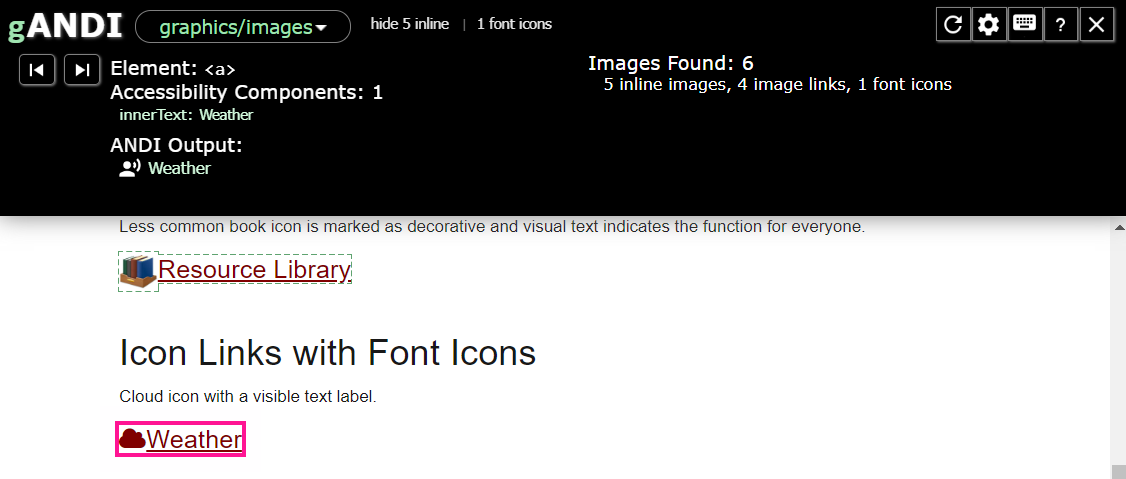
<a href="#" target="_blank"> <span class="fa fa-cloud" role="img" aria-hidden="true"></span> Weather</a>Example 2: GOOD - Correctly hidden decorative icon.
Section titled “Example 2: GOOD - Correctly hidden decorative icon.”The icon in this example from the Ta11y website is not a link. The SVG “shop” icon is purely decorative, and the nearby visible text “Improve my Organization” supplies all the information that is needed. Both the icon and the text are part of an <h2> tag. The heading is announced by screen readers, and the decorative image is ignored.
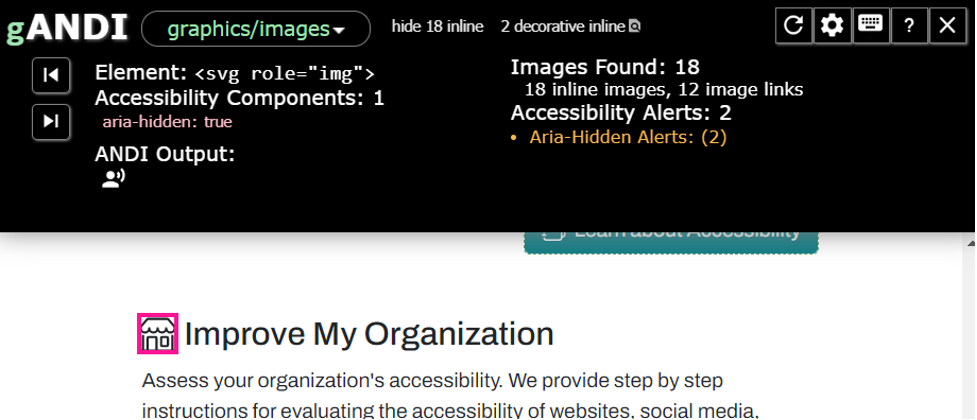
<h2> <svg viewBox="0 0 16 16" width="1em" height="1em" focusable="false" role="img" aria-hidden="true" xmlns="http://www.w3.org/2000/svg" fill="currentColor" class="bi-shop b-icon bi space-right" scale="1.1" icon="shop"> … </svg> <span>Improve My Organization</span></h2>Example 3: Correctly coded button with an incorrectly coded icon.
Section titled “Example 3: Correctly coded button with an incorrectly coded icon.”The Accessible Community search form’s “submit” button works with a screen reader because a text alternative is correctly added to the button. However, the icon embedded within the button does not have an <img> role assigned to it. The ANDI test results include the warning:
Screen reader will not recognize this font icon as an image; add an appropriate role such as [role=img].
When tested with the NVDA screen reader, the icon is not announced, but this behavior is unreliable. The image role must be added to the icon to prevent errors and ensure reliable behavior across all screen readers.
![ANDI test results show the SVG icon embedded in the search form. ANDI Output shows the form output "Search for: search here… Search button Search" followed by the warning "Screen reader will not recognize this font icon as an image; add an appropriate role such as [role=img]."](/.netlify/images?url=_astro%2Ffigure-7.DNP26bjF.png&w=977&h=458&dpl=69d826ef1db6600008fa32ef)
<button type="submit" class="is-search-submit"> <span class="is-screen-reader-text">Search Button</span> <span class="is-search-icon"> <svg focusable="false" aria-label="Search" xmlns="http://www.w3.org/2000/svg" viewBox="0 0 24 24" width="24px" class="" > ... </svg> </span></button>Example 4: GOOD - Correctly coded graphic icon link.
Section titled “Example 4: GOOD - Correctly coded graphic icon link.”The linked graphical home icon from a test site uses alt text to supply the text alternative to assistive technologies.
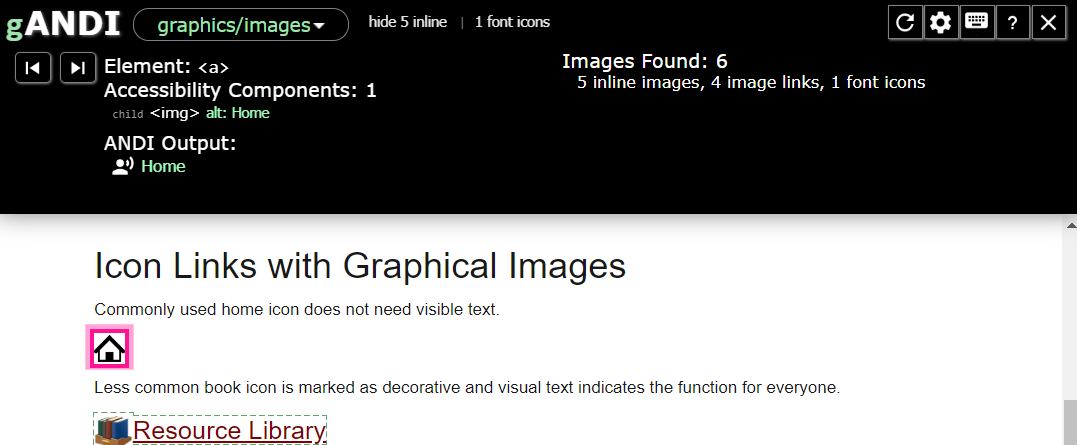
<a href="home.html"><img src="images/home.png" height="24" padding="0 .5em 0 0" alt="Home"></a>Example 5: BAD - Incorrectly coded font icon.
Section titled “Example 5: BAD - Incorrectly coded font icon.”The heart font icon in this example from a test site is not defined as an image and is not labeled in any way to supply a text alternative. Assistive technologies such as screen readers will only announce the text “we you” and leave users confused.
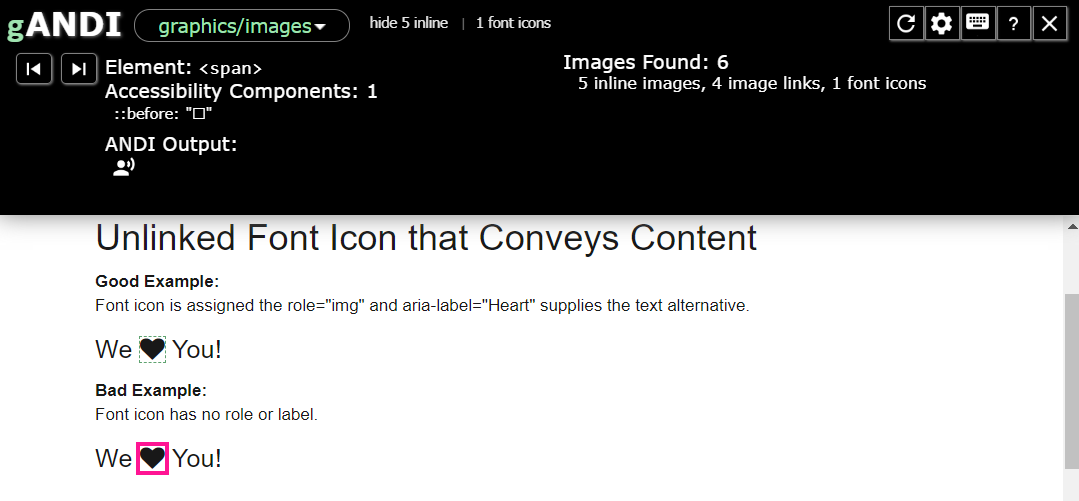
<p>We<span class="fa fa-heart"></span>You!</p>References
Section titled “References”- WCAG Success Criteria 1.1.1: Non-Text Content (W3C)
- WCAG Technique H36: Using alt attributes on images used as submit buttons
- WCAG Success Criteria 1.3.1: Info and Relationships (W3C)
- WCAG Technique ARIA24: Semantically identifying a font icon with role=“img”
- A11y-101: Icons and Links
- Accessible Icon Buttons (Sara Soueidan)
- SVG: Scalable Vector Graphics (MDN)