Background Images
Summary
Section titled “Summary”Documents and web pages display background images behind other elements, such as text. Background images are usually decorative, and assistive technologies can ignore them. But they can convey information.
Adding a text alternative to a background image is not possible. You must use another method to provide a text alternative when a background image has meaning. You can add visible text that everyone can see or hidden text used only by assistive technologies. Adding text alternatives ensures that everyone can understand background images.
Overview
Section titled “Overview”Images can be in the foreground or background of web pages and documents. For example, images added to Microsoft PowerPoint slides are foreground images, while images added to the master templates are background images. Visually, there is no difference between foreground and background images, but assistive technologies can only “see” foreground images. Because of this, you should avoid using background images that convey content when possible.
Sometimes, you must use background images that convey content. This situation presents a problem as background images cannot have text alternatives directly assigned to them. When a background image is informative or actionable, such as a button, you must use another method to describe the image in a way that is programmatically discernible by assistive technologies such as screen readers. The term “programmatically discernible” means that the underlying code connects the information describing the image to the image in a way that assistive technologies understand.
Background images often have text placed over them. In this case, the text must have good contrast when compared to the image behind it and to the page background behind the text when the image is disabled.
Who is Helped
Section titled “Who is Helped”Making the meaning of an informative or actionable background image available as programmatically discernible text lets people who use assistive technologies understand the image’s purpose.
People who are blind, deaf-blind, have low vision, or have cognitive disabilities all benefit when an informative or actionable background image has its meaning conveyed to them. This is particularly necessary for people who rely on assistive technology, as they would otherwise be unaware of the background images.
Guidelines
Section titled “Guidelines”These guidelines govern the use of background images:
- Avoid using background images to convey content.
- When informative or actionable background images are used, they must have a text alternative.
- Background images that are decorative do not need a text alternative.
- If a background image has text placed over it:
- The text must have good contrast over all parts of the image.
- A background color must be specified so that the text can still be read when the image is disabled.
Coding Background Images
Section titled “Coding Background Images”Foreground images are usually added to web pages using Hyper Text Markup Language (HTML), while background images are added using Cascading Style Sheets (CSS). CSS is used to style the appearance of HTML elements. For example, HTML adds a heading to a web page, and CSS makes the heading large, bold, and blue. One of the ways that CSS is used to alter the appearance of web content is by causing an image to appear before, after, beneath, or on top of an element that is already on the page.
Background images that are graphics are typically added to a web page with the background-image property. When a background image is added to an HTML element, it displays an image behind that element. A common use of this technique is to add an image behind text, as in this modified code example from the Accessible Community home page.
<div style="background-image:url('https://accessiblecommunity.org/uploads/cropped-hall-blue.png'); background-color:#041058;"> <div class="intro"> <h2 class="intro-title">Nurturing disability-inclusive communities through ethical technology</h2> </div></div>Background images are also commonly used to display font icons. Font icons are typefaces that use images instead of letters. Font icons are vector-based and scalable like text, and their appearance is controlled by CSS in the same manner as text. A CSS class adds font icons to the web page by causing the icon to appear before or after an element that is already on the page. When :before and :after are used in a CSS class like this, they are called pseudo-elements. These particular pseudo-elements are used with the “content” property to insert content into a web page - in this case, a font icon.
The following snippet of CSS causes the pencil font icon to appear before a link element’s text when the CSS class fa fa-pencil is added to the link. Notice there is nothing in the HTML code identifying a source image. Instead, the CSS class identifies a specific font icon.
.fa-pencil:before {content: "\f040";}<a href="#"><span class="fa fa-pencil" role="img" aria-hidden="true"></span>Edit</a>Avoid Using Background Images for Content
Section titled “Avoid Using Background Images for Content”Background images are not part of a web page’s HTML, so they cannot be detected by assistive technologies like screen readers. Instead, background images are added to the page using styles, with an inline style or CSS. They are intentionally hidden from assistive technologies, as background images are meant to be decorative. Because they are so effectively hidden from assistive technologies, you should avoid using background images that convey content.
Provide Text Alternatives for Background Images With Content
Section titled “Provide Text Alternatives for Background Images With Content”Sometimes, you must use background images that convey content. An informative or actionable background image needs a text alternative to be provided as programmatically discernible text in the HTML code. Coding methods that effectively provide this information to assistive technologies include:
- Use the
aria-labeloraria-labelledbyattribute. ARIA (Accessible Rich Internet Applications) is a set of roles and attributes used in coding websites that makes web content more accessible for people using assistive technology. See the Introduction to ARIA for more information on using ARIA. - Add text directly to link or button elements. This can be visible text (preferred) or visually hidden text available to assistive technologies.
Examples 1 and 2 below contain an actionable (functional) background image of a YouTube icon that functions as a link. Example 3 is an informative image that conveys meaning. All of the examples are displayed on the web page using a CSS class. Different methods are used in each example to ensure that assistive technologies can understand the meaning of the images.
Example 1: Link using aria-label to provide alternative text
Section titled “Example 1: Link using aria-label to provide alternative text”In this first example, a YouTube icon is a link to a YouTube page. The aria-label attribute added to the link’s HTML code provides programmatically discernible text that allows assistive technologies to connect the image to its meaning. The term “programmatically-discernible” means it is detectable in the code by assistive technologies.
<a href="https://www.youtube.com/" class="youtube-icon" aria-label="YouTube"></a>- The
classadds the YouTube logo image as a background image to the page. - The
aria-labelattribute links the image to its meaning by providing programmatically discernible text. Without the code, screen readers would only read “link” instead of “Link YouTube.”
Example 2: Link using visually hidden text to provide alternative text
Section titled “Example 2: Link using visually hidden text to provide alternative text”Example 2 is the same as Example 1, except it uses visually hidden text instead of an ARIA attribute to supply a text alternative for the image. “Visually hidden” or “screen reader only” (sr-only) text hides the text from sighted users but is still available to screen readers and other assistive technologies.
<a href="https://www.youtube.com/" class="youtube-icon"> <span class=”visually-hidden”>YouTube</span></a>- The
visually-hiddenclass will hide the text from a sighted reader, however it must be implemented correctly.
Example 3: Informative image using aria-label to provide alternative text
This example is an informative background image that is displayed on the page with a CSS class and uses the aria-label attribute to provide an alternative text.
<span class="warning-image" role="img" aria-label="Warning!”> </span>- The
classadds the image of a “Warning!” message to the web page’s background. - The image role is added to assistive technologies interpret the span as an image. This is needed to ensure assistive technologies will reliably process the
aria-labelattribute in the span. - Adding the
aria-labelattribute to the code links the image to its meaning by providing programmatically discernible text. Without this code, screen readers would only read “image” instead of “image Warning!”.
Text Contrast to Background Colors and Images
Section titled “Text Contrast to Background Colors and Images”Text is often placed over background images, such as photographs that are multi-colored. Two issues can arise when text is placed over a background image:
- The text color must have good contrast over all parts of the image.
- The text color must have good contrast against the background color when the image is disabled.
Finding a text color that provides good contrast over all parts of an image like this can be difficult.
- Use techniques like borders, drop shadows, and semi-transparent contrast layers to ensure text has good contrast when placed over a multi-colored image that contains both dark and light values.
The following image from the U.S. Government FBI.gov website illustrates the use of a semi-transparent contrast layer between the text and the image to ensure good contrast.

The other criterion for background images with text over them is that the text color must have good contrast against the background color when the image is disabled. This means that a background color must be specified to ensure good contrast with the text. This can be done using CSS to specify a background color for:
- the element that references the image.
- a parent element that contains the element referencing the image.
This code example from the Accessible Community home page shows how CSS can be used to specify the background color for a background image. The screenshot illustrating this code example is shown in Figure 8.
<section class="intro-container"> <div class="intro-special"> <div class="intro"> <h2 class="title">Nurturing disability-inclusive communities through ethical technology</h2> </div> ... </div></section>.intro-container {background-color: #041058;}.intro-special {background-image: url('https://accessiblecommunity.org/uploads/cropped-hall-blue.png');}- The
<section>element uses the CSS classintro-containerto define the section’s background color as a dark blue. If the background image is disabled, this is the color that replaces it. - The
<section>element contains a<div>that uses the CSS classintro-specialto specify the background image displayed on the Accessible Community home page. - This prevents the white text that is placed over this image from appearing on a white background if images are disabled.
How to Test
Section titled “How to Test”These key considerations must be kept in mind when testing background images:
- It is best practice to avoid any background image that conveys meaning.
- If it cannot be avoided, alternative text must be provided for background images that convey content.
- If there is text over a background image:
- the text must have good contrast against the image and
- a background color must be specified.
Many accessibility test tools are used when checking background images. Because of the different ways that background images are added to web pages, no one tool provides all the information needed for all background images. The strengths of each tool are discussed in the following examples.
Identify the Presence of Background Images
Section titled “Identify the Presence of Background Images”To identify the presence of background images, use a mouse to click and drag the cursor over a page.
- Images that are highlighted as a block are foreground images.
- Images that are not highlighted are background images.
- Embedded SVG images are the one exception to this. Embedded SVG images are not highlighted with this check, even though they are foreground images. You can use the Browser Inspect tool or any accessibility test tool that reveals the code to quickly identify an
<svg>element.
Accessibility test tools such as ANDI and the ARC Toolkit can also be used to inspect background images for text alternatives. Of these two tools, only the ARC Toolkit identifies background images inside an iFrame. For example, the placeholder images for YouTube videos (the image you see before the video starts) are background images within an iFrame.
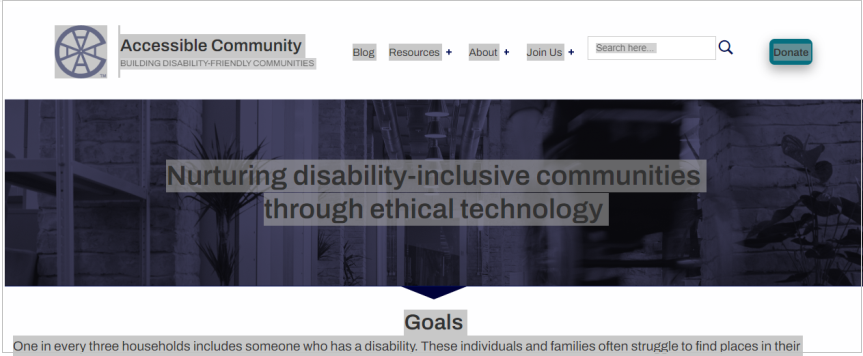
Figure 2 illustrates the dragging method of checking for background images. In this figure, a mouse has been used to identify the presence of background images on the Accessible Community home page. Two images are not highlighted when the cursor is dragged over the page:
- The search icon, which is an embedded SVG foreground image, cannot be identified by dragging the cursor over the page.
- The image behind the white text. This image is a decorative background image.
Once you have identified the presence of background images, there are multiple methods that can be used to check the background images for an appropriate text alternative.
- Screen readers can be used to verify that a text alternative is present for background images. Note that background images do not appear in a screen reader’s list of images. You must listen to the page to confirm that an appropriate text alternative is present.
- The ANDI (Accessible Name and Description Inspector) bookmarklet can be used to see text alternatives that may be provided for background images. (A bookmarklet, or favelet, is a bookmark containing JavaScript commands that add new features to the browser. The ANDI bookmarklet provides automated detection of accessibility issues and reveals what a screen reader will say for the elements it encounters on a web page.)
- Use the ARC Toolkit accessibility test tool (browser extension) to identify background images. This tool identifies all background images on a page, including background images contained in an iFrame.
- The Browser Inspect / DevTool can be used to check the code.
Use a Screen Reader
Section titled “Use a Screen Reader”- Use the mouse to highlight the web page content and check for background images. Background images are not highlighted.
- Next, listen to the page using a screen reader to confirm that all informative and functional background images are announced correctly. Screen readers should ignore decorative background images.
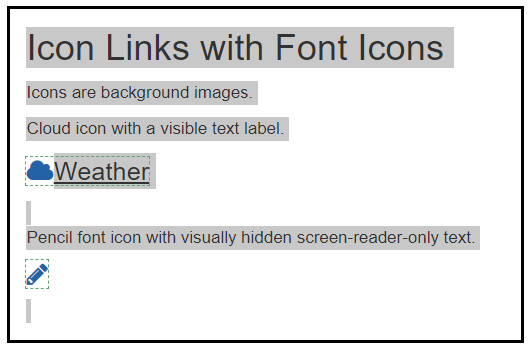
The test page in Figure 3 includes two font icons that are not highlighted when the page is tested for background images. Both icons are functional images that are links.
Both of the links have text alternatives that make sense and are correctly announced by the screen reader.
- The “Weather” link has a visible label that supplies the text alternative.
- The “Edit” link has hidden text that supplies the text alternative to assistive technologies.
See Using a Screen Reader (Tally) and Testing with a Screen Reader (Ta11y) for more information.
Use the ANDI Bookmarklet
Section titled “Use the ANDI Bookmarklet”ANDI Example 1
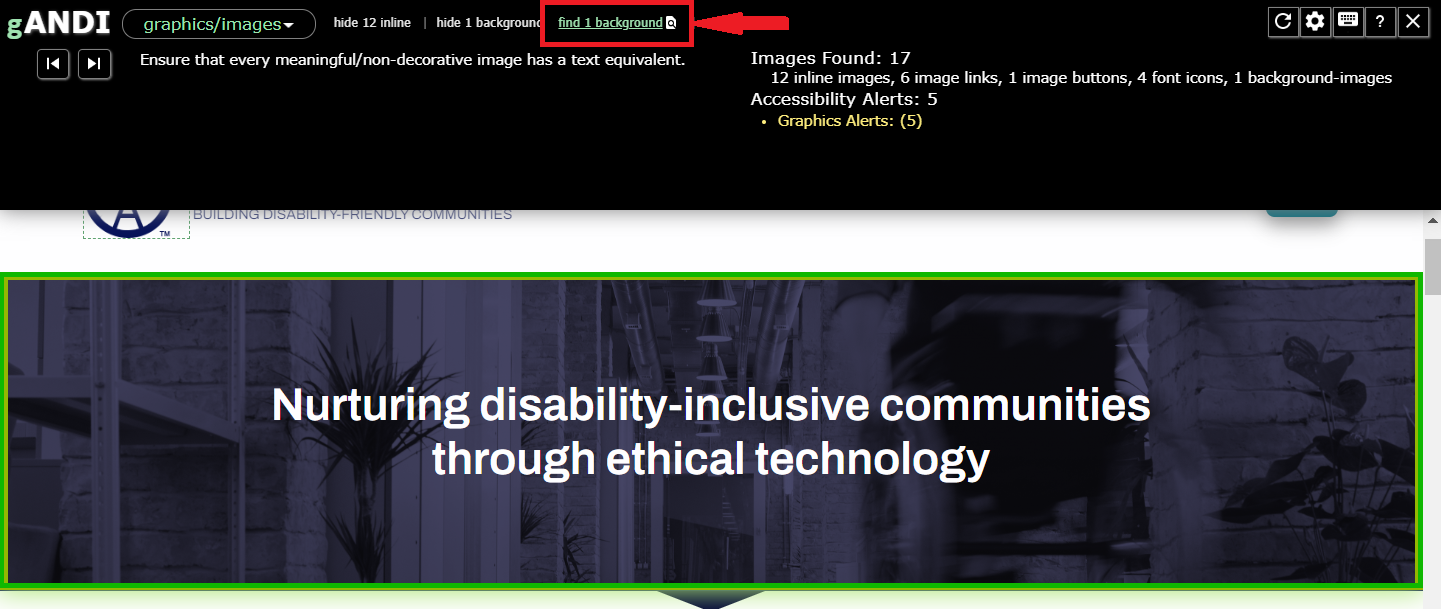
Section titled “ANDI Example 1”You can use the ANDI “find background” option to test background images added to the page with the CSS background-image property. A different option is used to find background images added to the page with the CSS pseudo-elements :before and :after, as is commonly done for font icons.
- Open ANDI and select the “Graphics/Images” module.
- Select the “find background” option. This option is only available when ANDI detects the presence of background images. All background images that use the CSS
background-imageproperty will have a green border added to identify them.
In this example of the Accessible Community home page, only the decorative image behind the white heading text is identified as a background image. A text alternative is not provided for this image, and it is not identified as an image. This confirms that it is correctly coded as a decorative background image.
ANDI Example 2
Section titled “ANDI Example 2”Use the ANDI “font icon” option to identify font icons added to the page as background images with the CSS pseudo-elements :before and :after. Any font icons missing the image role assignment are identified with this check. Font icons that have the image role assignment are identified as images by ANDI.
- Open ANDI and select the “Graphics/Images” module.
- Select the “font icon” option. This option is only available when ANDI detects the presence of font icons. All font icons without an image role assignment will have a green border added to identify them.
This example from a test page has two “heart” font icons. Only the second heart font icon has a green border identifying it as a font icon. The first heart font icon is coded with the role="img" assignment and treated as a regular image by ANDI. The second heart font icon is not assigned an image role and is identified as a font icon.
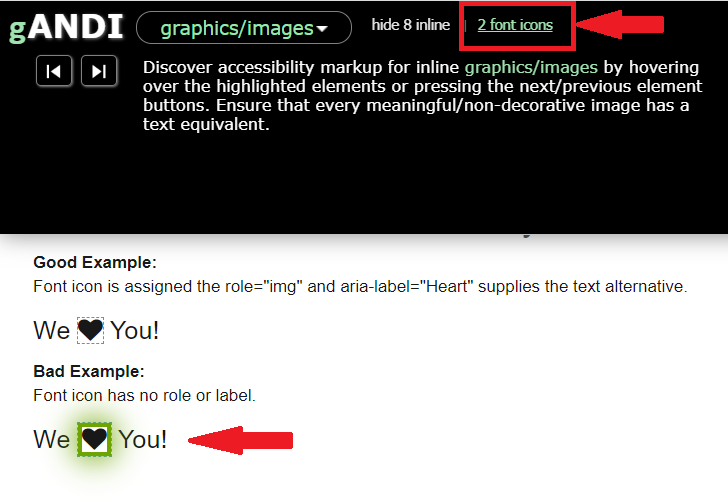
A screen reader will announce the first sentence with a heart icon, “We graphic heart you!” and the second sentence, “We you!” The second sentence makes no sense.
See ANDI (Tally) for more information on using this tool.
Use the ARC Toolkit Browser Extension
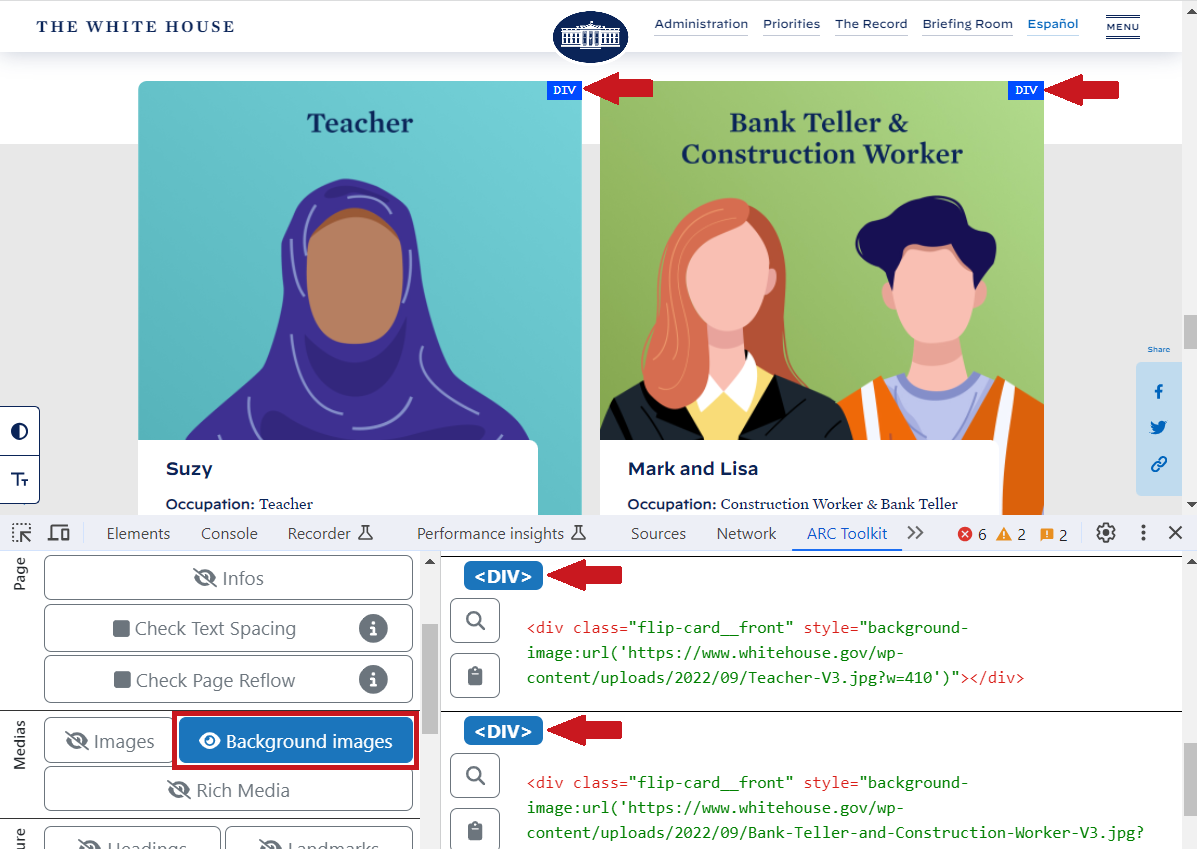
Section titled “Use the ARC Toolkit Browser Extension”Use the ARC Toolkit “background images” option to test background images added to the page with the CSS background-image property. Unlike ANDI, the ARC Toolkit can identify background images within iFrames, such as the placeholder images used for YouTube videos.
- Open the ARC Toolkit in the browser’s DevTools and select the “Highlight” option from the “Run Tests” pane.
- When it opens, select the “background images” option from the “Highlight” pane. Any background images on the page are marked with a small blue square that identifies the element associated with the background image.
This example from a White House web page shows two cards that are identified as background images for <div> elements. The ARC Toolkit identifies the two <div> elements on the web page and shows the snippet of code containing the background image attribute for each div. The text on the page provides important information about the images, so the images are treated as decorative.
See ARC Toolkit (Tally) for more information on using this tool.
Use the Browser Inspect / Developer Tool (DevTool)
Section titled “Use the Browser Inspect / Developer Tool (DevTool)”This Browser Inspect / DevTool is often used by developers to check a web page’s code. Testers who are comfortable reviewing code can use it to inspect background images and verify they are coded correctly.
- You can open the browser’s DevTool directly by pressing:
- Ctrl+Shift+I (Windows, Linux)
- Command+Option+I (macOS)
- the F12 key (Windows)
- Alternatively, you can open the DevTool to inspect a specific element on a web page. Right-click the element you want to inspect, then select the “Inspect” option from the context menu. This opens the browser’s DevTools.
Figure 7 shows the context menu options available after right-clicking on the Accessible Community home page. Note that these options vary based on where you click and the browser.
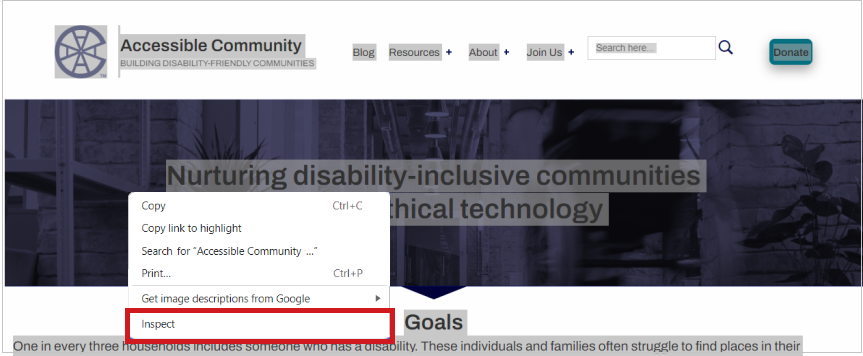
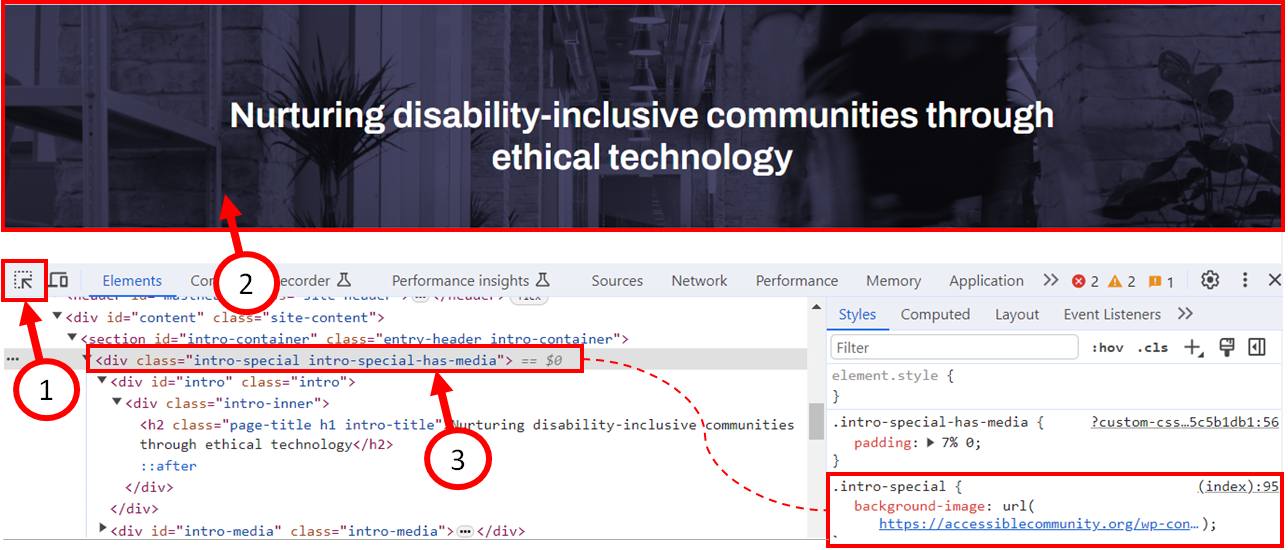
Figure 8 shows how to inspect the background image on the Accessible Community home page after launching the browser’s dev tools.
- Open the browser’s DevTools and click on the Inspect icon (the select icon on the far left of the toolbar).
- Click on the image to inspect it. The code for the selected element is then highlighted in the DevTools “Element” pane.
- Review the HTML code to ensure it is correct. In this example, the div element containing the background image uses a CSS class to display the background image. The text displayed over the image provides important information, so the background image is treated as decorative.
See Browser Inspect / DevTool (Tally) for more information on using this tool.
Background Images with Text Over Them
Section titled “Background Images with Text Over Them”There are two checks testers must make when text is placed over a background image:
- The text must have good contrast against the background image.
- The text must have good contrast against the background if the image is disabled.
To verify that the text has good contrast against the background image, the best tool to use is the Text on Background Image A11y Check. After uploading the image in the tool and entering the text color, size, and weight, the text is checked against eight colors from the image, and the accessibility is reported for each of the eight colors.
To verify that the text has good contrast against the background, if the image is disabled, either the ANDI bookmarklet or the Web Developer browser extension is the best choice. Both of these tools provide an easy way to disable background images so that testers can check the color contrast.
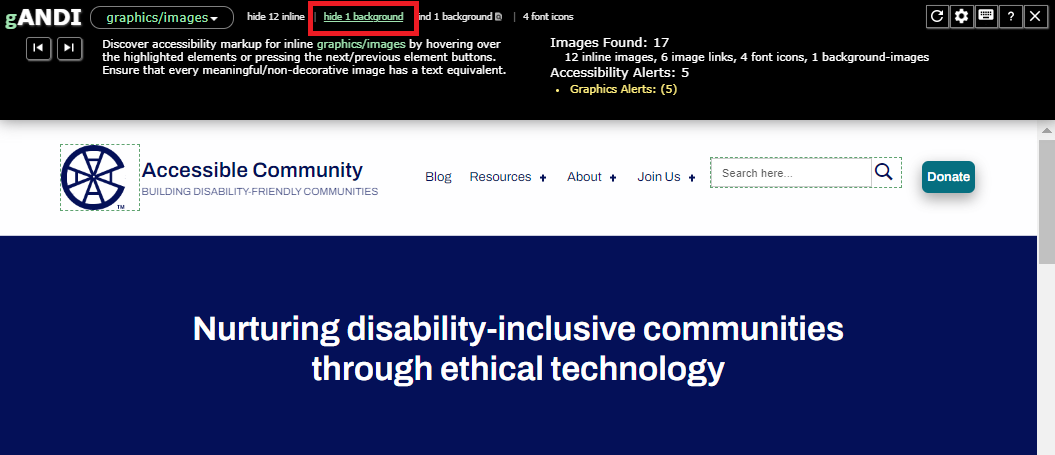
This example uses the ANDI bookmarklet to disable the background image on the Accessible Community home page.
- Open the ANDI bookmarklet.
- Select the “Graphics/Images” module and then select the “hide background” option. This turns off all background images.
- Inspect the page. Any text over a background image, like the white hedging text in this example, should still be legible and have good contrast to the background color. The white text against the dark blue background has a contrast ratio of 18 to 1 when the background image is disabled. It is easy to read the heading, “Nurturing disability-inclusive communities through ethical technology.”
References
Section titled “References”- WCAG Success Criteria 1.1.1 Non-Text Content, Level A
- WCAG Technique F3: Failure of Success Criterion 1.1.1 due to using CSS to include images that convey important information
- CanAdapt: Alternate text for background images
- CanAdapt: Test CSS Background images
- BBC Mobile Accessibility Guidelines: Background images
- Colour Contrast for Text, ADG
- Text on Background Image A11y Check
- Busy Background Breaks Bulletin, Andrew Somers, Tangled Web