Headings
Headings help people find the information they need. People can quickly scan a page and understand the content when headings are descriptive and logically organized. A good heading structure reduces cognitive load and provides clear way-finding cues for everyone.
Overview
Section titled “Overview”A well-designed document or web page is similar to a well-designed newspaper. It’s easy for people to see a newspaper’s organization. There’s the newspaper’s name in large print at the top of the page, the main story with a large headline and an eye-catching image on the left side of the page immediately below the newspaper’s name, and less important stories with smaller headlines to the side of the main story. Readers can quickly understand:
- what they are looking at,
- what is most important,
- whether or not they want to read the stories.
That doesn’t happen by accident. Many elements work together to make content scannable, and headings play a significant role.
- The increased scannability of distinct and descriptive headings decreases the cognitive load needed to understand information.
- A clear visual hierarchy gives sighted users cues about the content’s organization and the location of specific content.
- Having the visual hierarchy reflected in the underlying page structure provides assistive technology users with the same wayfinding cues.
When you design headings that visually and structurally align with the content, people with disabilities can understand the structure of the content and the hierarchical relationships between sections of content with the same ease as everyone else.
Who is Helped
Section titled “Who is Helped”- People who are blind and using a screen reader to access content rely on headings as a primary means of orientation and navigation. Screen readers let users get a list of headings or use shortcut keys to go directly to a particular heading.
- For many people who are blind, getting a list of headings is the first step when exploring new content, either on the web or in a document. It is difficult for the user to understand the content if there are no headings or the headings don’t make sense.
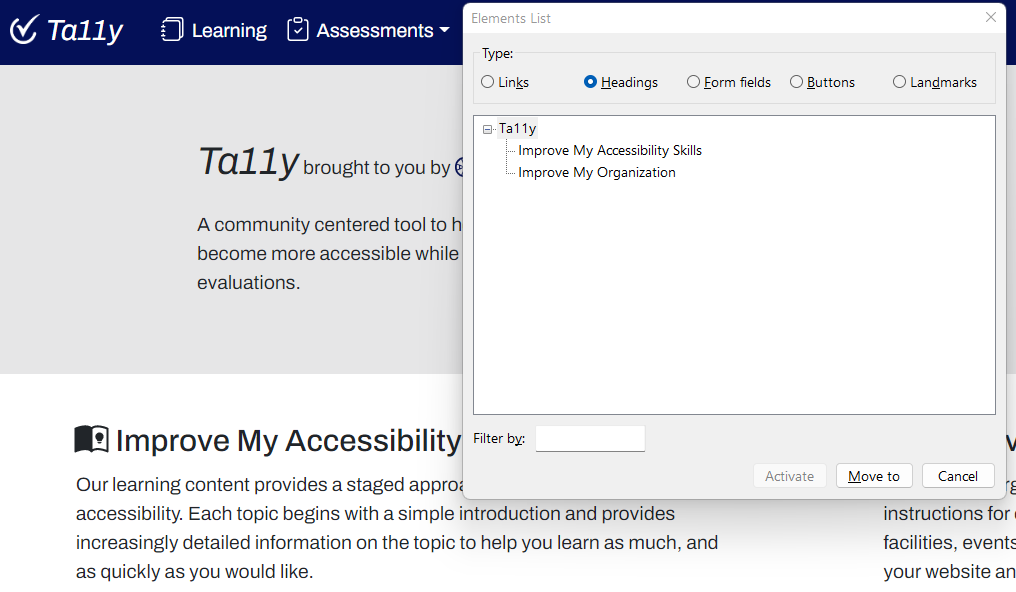
Figure 1: Screen Reader Generated List of Headings, Ta11y Home Page
- For many people who are blind, getting a list of headings is the first step when exploring new content, either on the web or in a document. It is difficult for the user to understand the content if there are no headings or the headings don’t make sense.
- Sighted keyboard navigators also rely on headings to understand the organization of websites, applications, and documents.
- People with motor disabilities who rely on voice control or other alternative input devices can easily navigate to specific sections of content using headings.
- Some people who are neurodivergent can leverage heading structure to obtain needed organizational and wayfinding cues.
- Recognizable headings help people with low vision quickly locate and orient themselves within a page.
- Ultimately, having a clear structure provides better wayfinding cues for everyone.
Guidelines
Section titled “Guidelines”Clear headings help people locate and focus on the information they need by increasing scannability. Most people don’t look at a web page and read it word-by-word. Instead, they quickly look over the entire page, trying to pick out what type of information is on the page, how it is organized, and what is important to them. This process is known as scanning.
The following two images show the same document with and without headings. The actual text in this document is meaningless, so focus on the headings. What do the headings add to the document, and what is lost without them?
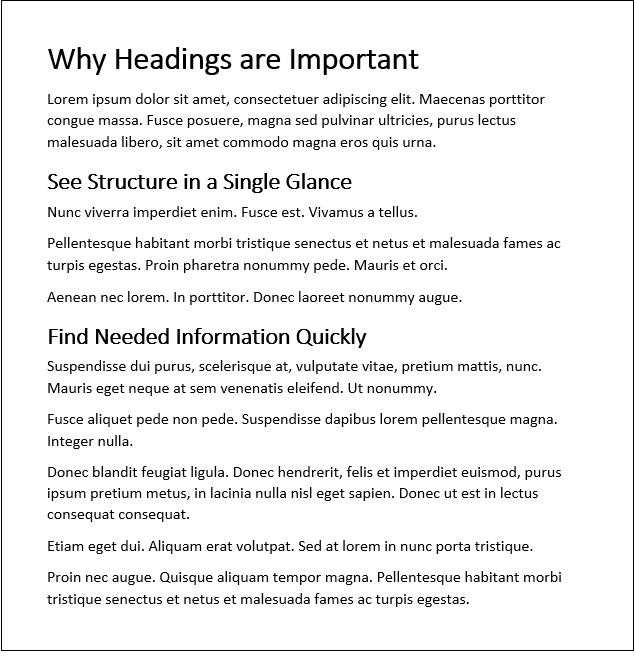
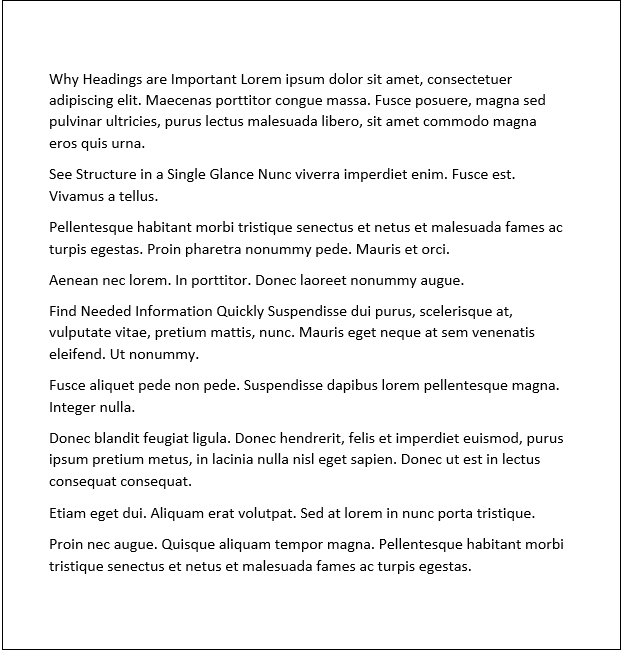
Users will slow down when they don’t have clear headings to structure content and help find information. They must read every word on the page to understand the content and find information.
The criteria defined by the Web Content Accessibility Guidelines (WCAG) for headings reinforce this concept. First, WCAG requires headings to be descriptive to help people understand the information on a page and its organization. Second, WCAG requires that headings must be coded correctly as headings. This requirement ensures that people using assistive technology to access the page derive the same level of understanding from the headings as all other users. In addition to the WCAG requirements, there are many best practices regarding headings that improve accessibility.
Provide Descriptive Headings
Section titled “Provide Descriptive Headings”Headings should be meaningful text that succinctly and accurately describes the following content.
- Headings should be definitive enough to organize content into meaningful groups of information.
- Headings should be descriptive enough to reveal the relationships between similar groups of information.
- Headings should be unique enough to distinguish between different groups of information.
- Headings should not be repeated.
- Headings should not be empty.
- Headings should be visible.
Provide a Logical Heading Structure
Section titled “Provide a Logical Heading Structure”Headings are an essential navigation and orientation tool that reveals the substance and structure of content. All content should fit into a hierarchical heading structure. Hierarchical means content is arranged in order from most important to least important.
- Headings should define groups of information or sections of an application.
- There should be a logical heading structure that reflects the visual hierarchy.
- The order of the headings should reflect the organization of the content.
You should be able to map out a heading structure to look like an outline for a document.
Example of a Content Outline
h1: Page Title/Main Heading (heading level 1)h2: Subheading (heading level 2)h2: Subheading (heading level 2)h3: Subheading (heading level 3)h3: Subheading (heading level 3)
h2: Subheading (heading level 2)h2: Subheading (heading level 2)
A second examination of a newspaper illustrates the practical application of a logical heading structure to organize the newspaper’s content. The newspaper uses headings of different sizes to create a clear visual hierarchy for the content.
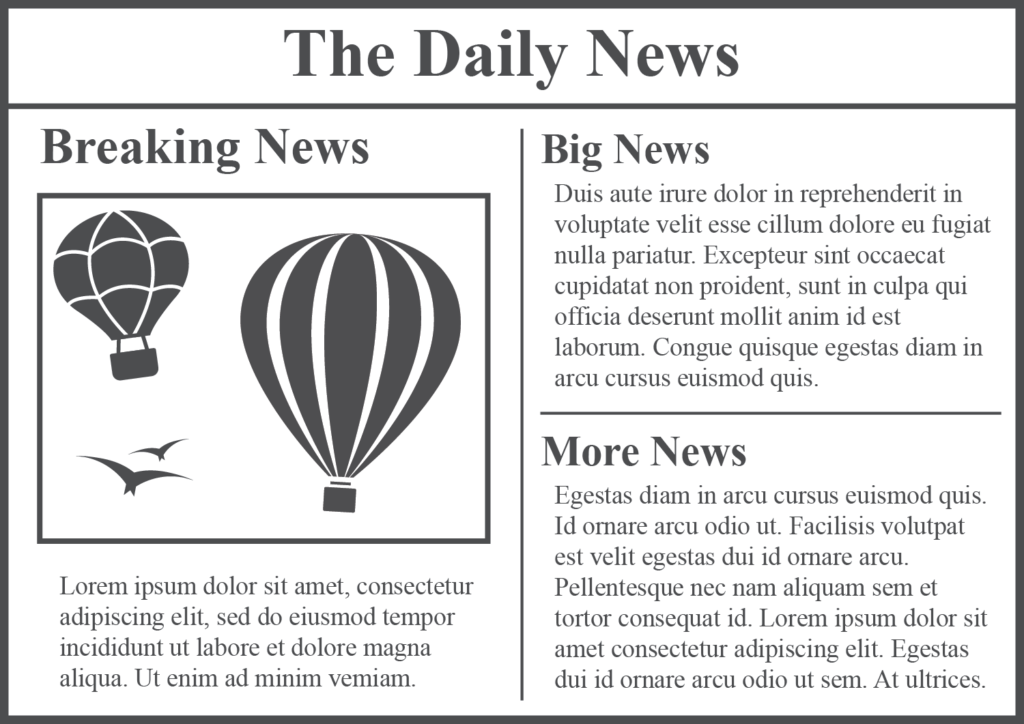
In the newspaper mock-up, it’s easy to identify:
- The newspaper’s name (The Daily News).
- The most important story (Breaking News).
- The two secondary stories (Big News and More News).
Markup Headings Correctly in the Code
Section titled “Markup Headings Correctly in the Code”You must apply semantic markup correctly to headings when creating content. Semantic markup for headings is applied to web pages through the code and to documents through styles. For web pages, semantic markup structures code in a way that reinforces the meaning of the content. Assistive technologies like screen readers rely on correct markup to convey meaning to users, so code must be semantically correct.
Using heading tags to markup code makes the meaning of heading elements clear to assistive technologies. Mismarking headings causes confusion. For this reason, you should not use heading tags for cosmetic purposes or visual styling to make regular text look like a heading.
- Is a section of large bold text a heading, or are you trying to draw the reader’s attention to an important paragraph? Always use heading tags to identify headings, and don’t rely on visual styling.
- Use:
<h3>Here is a Heading</h3> - Use:
<p>Here is some <strong>important text</strong></p>
- Use:
- Never use heading tags for text that isn’t a heading. Instead, use styles to emphasize important text that isn’t a heading.
- Use:
<p style="font-size:14pt; font-weight\:bold;">Notice Me! I'm not a heading, but I'm important.</p> - Avoid:
<h3>Notice Me! I'm not a heading, but I'm important.</h3>
- Use:
- HTML markup for heading elements must use H1 through H6 tags.
- Use:
<h2>This is a level 2 heading</h2>
- Use:
- In cases where native HTML cannot be used, the ARIA role of “heading” and property “aria-level” can be applied to elements to change the semantics. For example,
<div aria-role=”heading” aria-level=”1”>Resources</div>. Refer to Building Elements with ARIA (Ta11y) for more information. - Heading tags must not be empty. Empty headings don’t have a visual impact on the web page. However, assistive technologies still announce them as empty headings, which can confuse screen reader users.
- Avoid:
<h2></h2>
- Avoid:
- Heading tags should be visible. Web authors occasionally add visually hidden headings to web pages specifically to help screen reader users navigate. This practice deprives other groups of people with disabilities of the benefits derived from headings. Web authors must be careful about adding features that benefit one group of people with disabilities while disadvantaging others.
- Avoid:
<h2 style=”screen-reader-only”>Contact Form</h2>
- Avoid:
Best Practices for Headings
Section titled “Best Practices for Headings”These are not WCAG requirements or hard and fast rules but best practices that provide a better understanding of page content and structure. They can be especially helpful for individuals who rely on assistive technology and individuals who are neurodivergent or have cognitive or learning disabilities and rely on having a simple, logical structure.
-
Use headings!
- Headings are not a WCAG requirement, but most web pages need headings to be usable, scannable, and understood by people using assistive technology.
-
Most web pages should only have one H1 heading.
- The H1 and the page title should usually be the same for web pages. See Page Titles for more information.
- The H1 heading should describe the purpose of the page.
- Except for a website’s home page, the H1 heading should not be the site’s name.
- The site logo should not be used as the H1 heading for the page.
-
For most web pages, a maximum of 3 heading levels is optimal (H1-H3).
- Heading levels H4-H6 are typically unnecessary on web pages.
- Consider splitting content into multiple pages rather than adding more heading levels, especially H5 and H6 headings. This level of complexity can make content confusing for some individuals.
-
Try to use no more than 20 headings on a web page.
- The purpose of headings is to help describe and organize information for people. Too many headings can have the opposite effect and confuse people about the content. It’s hard for people to find what they’re looking for when there are 200 headings to review.
-
Heading levels should be appropriately nested.
- Avoid skipping heading levels, such as jumping from H1 to H3.
- Skipping levels make it difficult for a screen reader user to understand a page’s organization.
- If sighted users see a jump in heading levels, they may be confused and wonder if there is any content they have missed.
-
Heading tags should not be empty.
- Empty headings don’t have a visual impact on the web page. However, assistive technologies still announce them.
-
Headings should be understandable out of context.
- Headings from one web page are often used out of context on other pages - to list articles on a home page, in menus or a site index, in search results, or on other websites.
-
Headings should be concise and start with keywords.
- Keep headings short and start with what matters most to support scanning.
How to Test
Section titled “How to Test”Visual Inspection
Section titled “Visual Inspection”Start with a visual inspection. When assessing the heading structure of a page, ask yourself these questions:
- Are headings used to group related information?
- Are headings concise and descriptive of the following content?
- Are the headings used to organize content logically?
Note all text that appears to be a heading during the visual inspection. Use an automated test tool, as discussed in the next section, to verify that visual styling is not used to make text look like a heading.
Automated Test Tools
Section titled “Automated Test Tools”Nearly all accessibility test tools (browser extensions) such as WAVE, ANDI, aXe devTool, ARC Toolkit, and many others check website heading structure.
WAVE is a good choice to test headings as it provides a very clear, outline-like view of the heading structure on a web page. Follow the instructions in WAVE to install and use WAVE.
To see the heading structure test results in WAVE, go to any web page:
- Select the WAVE icon from the browser toolbar, then select the Structure tab in the resulting left panel.
- You will now see a summary list of Headings in the left panel. You will also see that markup is added to the web page with blue circles indicating each heading by level (H1, H2, etc.).
- WAVE also shows other structural elements like ARIA landmark regions. See Landmark Regions for more information on landmarks.
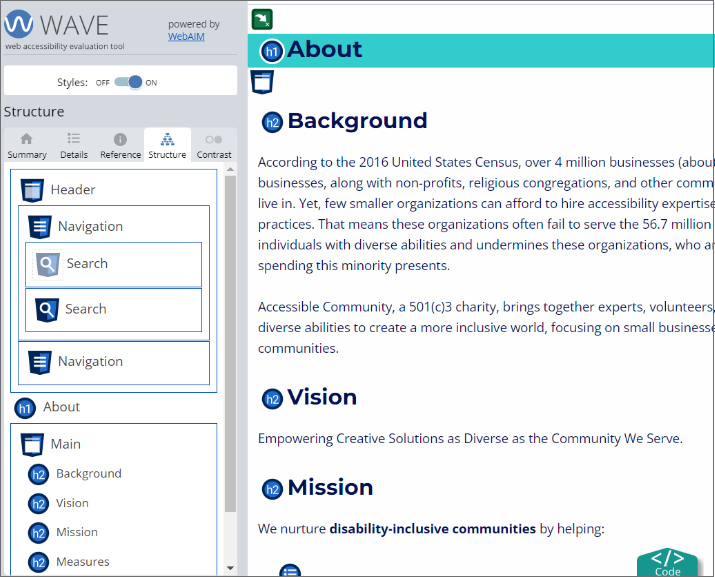
In the WAVE Test Results for the Accessible Community “About” page:
- The test results panel on the left shows:
- One H1 heading (About)
- Four correctly nested H2 headings (Background, Vision, Mission, Measures)
- The web page on the right has markup added by WAVE, showing the location of each heading.
- The test results make it easy to see that:
- The visual heading structure is the same as the coded heading structure.
- There is only one H1 heading.
- Heading levels are not too deep.
- There are not too many headings.
- Headings are descriptive.
- Headings are not repeated.
- Headings levels are not skipped.
- There are no empty heading tags.
References
Section titled “References”- WCAG Success Criteria 1.3.1 Info and Relationships, Level A (W3C)
- WCAG Success Criteria 2.4.6 Headings and Labels, Level AA (W3C)
- WCAG Success Criteria 2.4.10 Section Headings, Level AAA (W3C)
- Making Content Usable:
- Heading off confusion: When do headings fail WCAG?, TPGi
- Accessible Heading Structure, The A11y Project
- How People Read Online, Nielsen Norman Group
- Applying Writing Guidelines to Web Pages, Nielsen Norman Group
- 5 Heading Accessibility Issues and How To Fix Them, PopeTech
- How To Create Better Heading Structures, PopeTech (video)
- Content Design London Readability Guidelines
- World’s Best Headlines: BBC News, Nielsen Norman Group
- Concise, SCANNABLE, and Objective: How to Write for the Web, Nielsen Norman Group