Decorative Images
Summary
Section titled “Summary”Images are a great addition to written content. They reinforce the content, keep readers engaged, and help break up walls of text. Some images convey information, but others may be purely decorative or redundant.
- Decorative images do not convey any meaning or information.
- Redundant images described in nearby text are also considered decorative.
Decorative images are a distraction for people who cannot see them. When formatted correctly, assistive technologies like screen readers ignore these non-essential images.
Overview
Section titled “Overview”Decorative images do not convey content or context. They provide visual interest, and no loss of meaning occurs when they are omitted. Deciding whether an image is decorative can be difficult. A general guide is if you can remove an image without the reader missing the information or context; it is decorative.
Redundant images present information already included in the text. In most cases, these images are also considered decorative. Examples include:
- A text link paired with an icon.
- An image with a descriptive caption.
To decide if an image is decorative or redundant, ask if the page content and context are understandable without the image. Try turning images off temporarily. Is all information understandable without the image? Is any of the mood or context lost without the image? If the meaning and context of the page are the same, the image is considered decorative.
You can identify decorative or redundant images through an application’s image formatting options or via code on a website. Correctly marking images as decorative tells assistive technologies to ignore these non-essential images.
There are many types of decorative and redundant images. Examples include:
- Images used within links to increase the clickable area
- Images next to or within links that are fully described by visible text
- Images with nearby text descriptions
- Spacers, corners, and borders
- Images that are fully described or identified by the text on the page
- Images used for ambiance
Who is Helped
Section titled “Who is Helped”Screen readers and refreshable braille displays rely on proper alternative (alt) text to convey the meaning of images to people who are blind, have low vision, are deaf-blind, or have cognitive disabilities that impact their ability to process visual information.
- When an image’s alternate text is marked (coded) as decorative, a screen reader or refreshable braille display will skip the image.
- Screen readers and refreshable braille displays usually read the file name when an image’s alt attribute is absent. Most file names are meaningless and will confuse rather than help the user.
- Screen reader
- A program that provides the user with a text-to-speech version of a website.
- Refreshable braille display
- A device that translates text into braille. Braille is a tactile system that allows reading by touch.
Guidelines
Section titled “Guidelines”Assistive technologies use the image’s alt text to either describe an image or to skip the image altogether. Without an alt attribute, the assistive technology will read the file name, which can confuse the user.
The alternative text must be null (empty) for images that are:
- Decorative (image does not convey content or context)
- Redundant (nearby text on the page describes the image)
Use an empty alt text attribute (alt="") to add a null value to the alt text.
<img src="flower.jpg" alt="" \>You should always consider why an image was added to a page when deciding if it is decorative. If the image adds value for sighted individuals, it will add value for people who are blind, and you should provide a description. The W3C Alt Decision Tree is a good resource to help decide whether an image is decorative. It describes how to use the alt attribute in different situations. The Alt Decision Tree is a series of simple questions that start with, “Does the image contain text?” If the answer is yes, it next asks if the text is also present as real text in the paragraph nearby. Each question has a “Yes” or “No” answer and will guide you to make the proper alt-text decision for your image.
Craig Abbott’s article, How to write good alt text for screen readers, explains why you must take care when deciding that an image is decorative.
Examples
Section titled “Examples”Example 1: Images that are next to links and do not add any information
Section titled “Example 1: Images that are next to links and do not add any information”
Example 1 is an image of orchids immediately followed by a link to a web page on “Orchid Care.” There is a border around both elements. Ask yourself what is important about this image. Do people need to know what the orchids look like? Would describing the orchids provide a context for the link? Or is the image only there to catch the eye?
In this example, the link’s text is considered the important element, and the image is redundant. That means the alt attribute of the image should be empty.
Code Example:
<a href="https://www.flowers.org/orchids/orchid-care.html" style="card"> <img src="orchids.jpg" alt="" \> Orchid Care</a>See Functional Images (Ta11y) for more information on handling linked images.
Example 2: Images that function as spacers, corners, borders, and rules
Section titled “Example 2: Images that function as spacers, corners, borders, and rules”
Example 2 is a decorative image of a fancy horizontal rule. Its alt attribute should be empty. Treating a horizontal rule as decorative is usually a straightforward decision. Horizontal rules indicate two differing content sections but should only be used to reinforce headings.
Code Example:
<img src="fancy-rule.png" alt="" \>Example 3: Images described or identified by the text on the page.
Section titled “Example 3: Images described or identified by the text on the page.”
The sleeping dog: On average, most dogs spend about 50% of their day sleeping.
Example 3 is an image of a sleeping dog next to text that explains the image. It is at the beginning of an article about why dogs sleep so much. Due to the context, this image is considered redundant. The alt attribute should be empty as the article’s title describes what is important about the image.
Code Example:
<img src="sleeping-dog.jpg" alt=""><p>The sleeping dog: On average, most dogs spend about 50% of their day sleeping.</p>Example 4: Images used for ambiance
Section titled “Example 4: Images used for ambiance”Visit the Tropical Forest Greenhouse with examples of plants from around the world.

Example 4 is an image of a tropical forest greenhouse used to add a feeling or ambiance to a page. When images add ambiance, deciding if the image is decorative can require some thought. Ask yourself why the image is on the page in the first place. Is part of the page’s context missed by people who can’t see the image if you treat it as decorative? This image could be either meaningful or decorative based on its context.
If you treat the image as decorative, mark the alt attribute as empty.
Code Example:
<p>Visit the Tropical Forest Greenhouse with examples of plants from around the world.</p><img src="greenhouse.jpg" alt="" \>If you treat the image as meaningful, use the alt attribute to set the mood for people who cannot see the image.
Code Example:
<p>Visit the Tropical Forest Greenhouse with examples of plants from around the world.</p><img src="greenhouse.jpg" alt="The greenhouse is a magical forest filled with exotic plants in every shade of green that will tantalize your senses with their fragrance and beauty." \>How to Test
Section titled “How to Test”Several options are available to check if images are marked as decorative or have alternate text. Start by identifying all decorative or redundant images on the page.
-
Some screen readers, such as JAWS, will generate a list of images. Open a page with the screen reader turned on. For JAWS, use Insert + F3 and select “Images” to see a list of images. Decorative images correctly coded with the null
alttext value (alt=””) will not appear in the list. -
Use a screen reader to navigate to each image (shortcut key = g) and hear its description. The screen reader should bypass the image without saying anything if the image is decorative.
This video from Communify is a screen reader demonstration of image ALT text and includes checking a decorative image.
-
Inspect the image using any browser by using the developer tools Inspect feature. See Browser Inspect / DevTool (Ta11y) for information on how to use this feature. The image tag should contain the null
altvalue if the image is decorative. This method of testing requires an understanding of the code. -
Inspect the image
altvalues using an accessibility test tool (browser extension) such as WAVE or ANDI. See WAVE (Ta11y) and ANDI (Ta11y) for more information on using these test tools.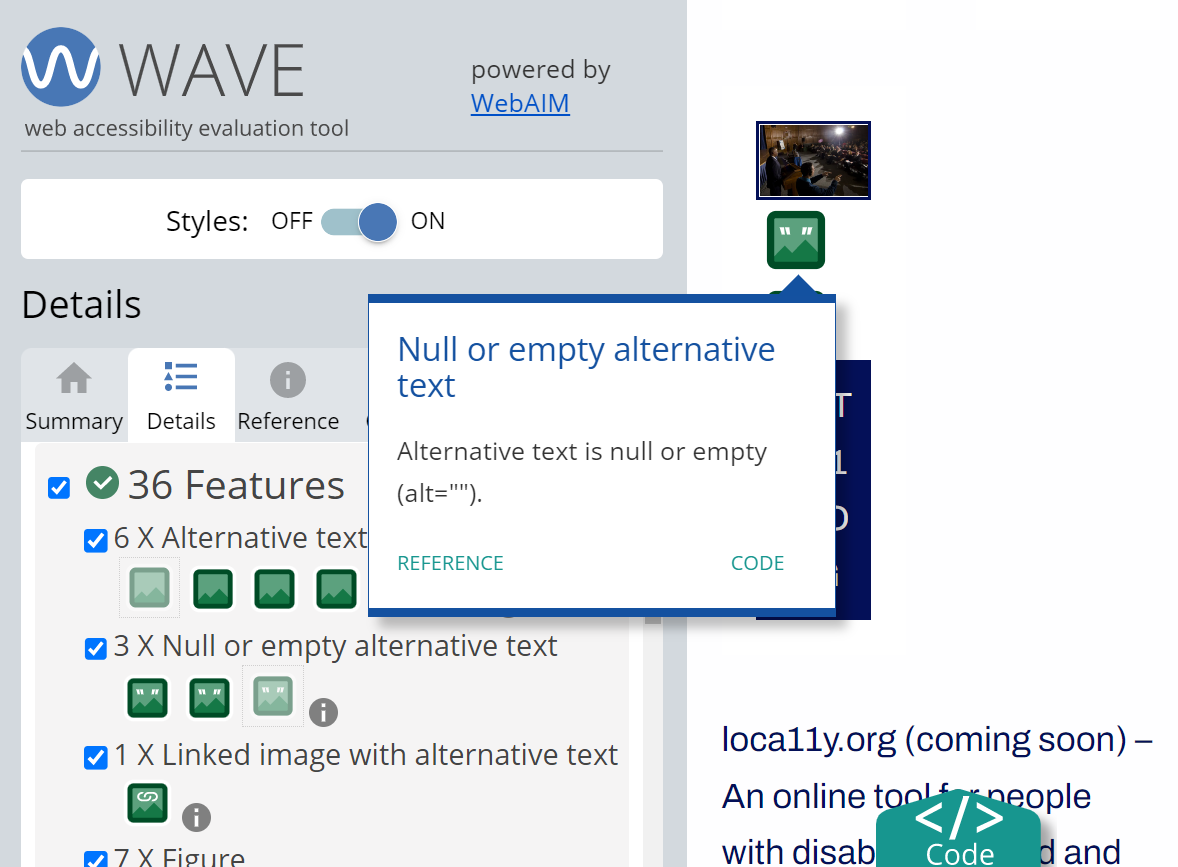
Figure 1: Using WAVE to Inspect Decorative Images
See this video from Santa Rosa Junior College on Accessibility Testing Tools 2: WAVE for information on installing and using WAVE.
References
Section titled “References”- WCAG 2.1 Success Criteria 1.1.1 Non-text Content Level A
- An Alt Decision Tree | Web Accessibility Initiative (WAI) | W3C
- Screen reader demonstration of image ALT text using VoiceOver on MacOS (video)
- Accessibility Testing Tools 2: WAVE (video)
Image Source List
Section titled “Image Source List”Image 1 (Orchids) Image by Ralph from Pixabay https://pixabay.com/service/license/ Image 2 (Dog) Image by Anna from Pixabay https://pixabay.com/service/license Image 3 (Garden) Image by Achin Scholty from Pixabay https://pixabay.com/service/license