Complex Images
Summary
Section titled “Summary”Graphs, charts, maps, and infographics are just a few examples of complex images. Complex images must have detailed text descriptions or other text alternative in addition to the required alternative (alt) text that provides a short description of the image. The short alt text and more detailed text description combine to provide an equitable experience to people who cannot see or understand an image.
Overview
Section titled “Overview”Complex images such as maps or charts need a longer description than the sentence or two that is provided by alt text. A two-part approach combines the alt text with a more detailed description to provide a complete text alternative:
- Short description - The short description identifies the image. It is added to the image as alt text and is about 150 characters long. The alt text can direct the reader to the longer text description when needed.
- Detailed description - The detailed description fully presents all of the image’s essential information. This is also called a “long description.”
The short alt text combined with the detailed text description provides a complete text alternative for people who cannot see or understand the image.
Who is Helped
Section titled “Who is Helped”- Complex images are not understood by people who cannot see without a detailed description. People who are blind and use screen readers or other text-to-speech software rely on detailed text descriptions to understand complex images.
- When a detailed text description is available, people who use screen readers, Braille readers, and screen magnification software are able to make sense of complex images.
- In the absence of a detailed text description, screen readers read the short alt text and move on to the rest of the content, leaving the individual who relies on a text description without an understanding of the complex image’s full meaning.
- Text descriptions can also help some people with cognitive disabilities who may understand a text description better than an image. For example, a person with a brain injury who cannot process visual information can use text-to-speech software and understand the image by listening to the text description.
Guidelines
Section titled “Guidelines”Writing Alternative Text (Ta11y) provides guidance about writing alt text for images in general, but complex images require more than alt text to fully explain their meaning. Complex images need both the short alt text and a longer, more detailed text description.
The short alt text identifies the image.
- Keep the alt text as concise as possible so listeners can quickly get to the longer text description.
- Inform users about the location of the full description if it is not connected programmatically (linked via code) to the image.
The longer, detailed text description provides a breakdown of the image’s full meaning and content. There are four types of information commonly used to describe a complex image:
- Title - provides context and sets expectations for what the image will convey.
- Overview - purpose of the image, may include trends, impacts, or conclusions, or detailed descriptions if contextually appropriate.
- Values - information contained in the image, often shown as a table for charts or complex maps.
- Presentation - type of image and how information is organized (visual layout).
This information is usually divided between the image’s alt text and text description. The title may be the alt text. The title and overview may also be text that is added before the image. In some instances, text may be included as part of the image although this should be avoided whenever possible.
Exactly what information is provided in the alt text and detailed text description can vary and can be very subjective, but the end result must fully explain the image to a person who cannot see it.
The following example shows one approach to describing a complex bar chart. A detailed text description is added as text after the image. The alt text for this chart reads, “Bar chart of Pet Preference in the USA. Text description follows.”
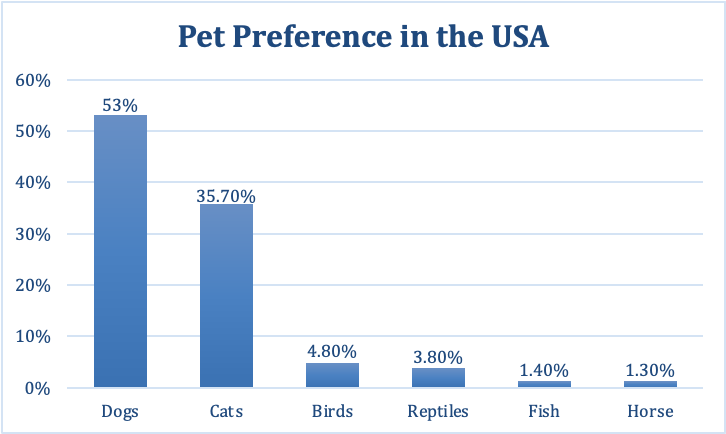
This bar chart of “Pet Preference in the USA” shows the six most preferred types of pets in the United States of America, from most preferred to least preferred. The most preferred type of pet to own is a dog.
- The highest bar shows 53% of Americans prefer dogs as pets.
- 35.7% of Americans prefer to own cats.
- 4.8% of American residents prefer to own birds.
- 3.8% of Americans prefer to own reptiles.
- 1.4% of American residents prefer to own fish.
- 1.3% of Americans prefer to own horses.
See Images that Convey Content (Ta11y) and Images of Text (Tally) for information about providing alt text for these other image types.
How to Add Text Descriptions
Section titled “How to Add Text Descriptions”There are several methods to provide detailed text descriptions:
- Provide a link to a text description on another page via a normal link text.
- Provide a text description in the content of the web page, either immediately before or after the image is best.
- Provide a button that expands a collapsed region that contains the text description.
- Provide a button to open a dialog that contains the text description. Note that the dialog must also be accessible.
- On a document, provide the text description following the image, or in an appendix.
- You can also provide “screen reader only” text that contains the text description. However, this is not a recommended option as it only helps people using assistive technology.
When the text description is external to the image, such as when added as text on the web page, it should be programmatically associated with the image. In other words, it should be explicitly linked to the image in the code. One method of doing this is to use the “figure” and “figcaption” tags.
ARIA (Accessible Rich Internet Applications) can also be used to connect a text description to an image. ARIA is a set of roles and attributes used to code websites that makes web content more accessible for people using assistive technology. The “aria-describedby” attribute can be used to connect the text description to an image in the code. The “aria-labelledby” attribute can be used in the same way to provide an accessible name by connecting a text title to an image. Note that the content pointed to by the “aria-labelledby” attribute will override the content of the alt text.
If for some reason the image cannot be tied to the text description in the code, then the alt text should identify the location of the text description.
The following code examples can be used on web pages:
Code Example 1: Using figure and figcaption
Section titled “Code Example 1: Using figure and figcaption”<figure role="group"> <img src="chart.png" alt="Short description of chart"> <figcaption> <a href="chart-text-description.html">Detailed text Description of Chart</a> </figcaption></figure>Code Example 2: Using ARIA
Section titled “Code Example 2: Using ARIA”<p id=”chartTitle”>Chart Title and Overview</p><img src="chart.png" alt="replaced by aria-labelledby contents" aria-labelledby=”chartTitle” aria-describedby=”textDesc”>...<p id=”textDesc”>Detailed text description goes here.</p>Code Example 3: Identify Location in Alt Text
Section titled “Code Example 3: Identify Location in Alt Text”<img src="chart.png" alt="Short description of chart goes here. Full description of the chart is in the following text."><p>Detailed text description goes here.</p>What to Include in Text Descriptions
Section titled “What to Include in Text Descriptions”The specific content needed in a detailed text description will vary based on the type of image and its context. Exactly what information is needed is always a judgment call, but keep in mind that the text description should provide an equivalent experience to users who cannot see the image.
Text descriptions need to consider the context. For example, a line graph used in a newspaper article to indicate current trends for prescribing medications might only need to have the general trends explained in the text description. The same graph used in a medical journal might need to have every data point included in the text description.
The specific information included in the text description also depends on the construction of the image. It is a best practice to include as much information as possible about an image as text rather than as an image of text. For example, the title in Figure 2 below could easily be real text instead of part of the image. The overview, when included, is often presented as text below the title.
It is also common to see buttons next to charts that switch between a chart view and a table view, as the best alternative for a chart is often a table. If the image’s title and overview are text and the alt text describes the chart’s presentation, then the table view may be the only information needed for a detailed text description. This alternative is also helpful for maps that contain numerical information, such as chloropleth maps.
This video from the University of Southampton, UK, titled What is alternative text? How do I write it for images, charts, and graphs? includes examples of writing descriptions for very complex diagrams, graphs, and other types of complex images.
Examples of Detailed Text Descriptions
Section titled “Examples of Detailed Text Descriptions”Chart Example
Section titled “Chart Example”This example takes another look at the bar chart for “Pet Preferences.” In this example, the chart uses a link below the image to access a text description on another page. The text description in this example fully explains the chart by including the title, an overview, the chart’s values (shown as a table), and describing the chart’s presentation. The alt text for the chart is, “Bar chart with a link to the text description.”
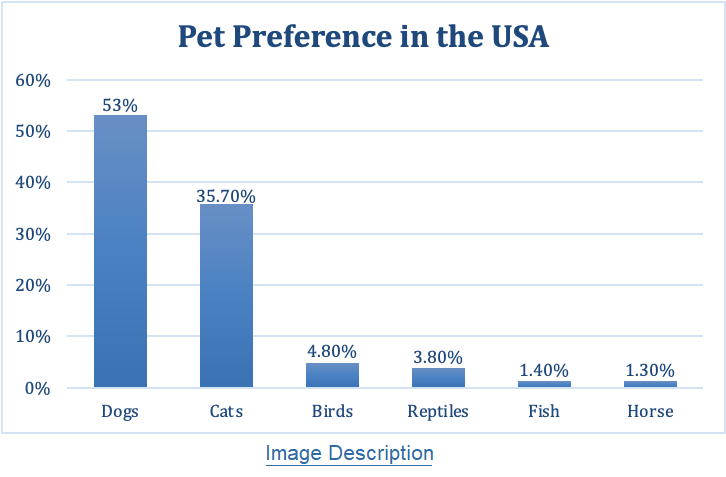
Below is the detailed text description of the chart. First is the chart’s Title followed by an Overview explaining the purpose and general content of the chart. Next, under Values, there is a numerical representation of the data in a table format. Lastly, under Presentation, there is a description of the chart’s visual organization. In this example, the text description would be located on another page.
Detailed Description of the “Pet Preference in the USA” Chart
Section titled “Detailed Description of the “Pet Preference in the USA” Chart”Title: Pet Preference in the USA
Overview: This chart of “Pet Preference in the USA” shows that the preferred type of pet to own in the United States of America is a dog. The highest bar shows 53% of Americans prefer dogs as pets. The second most preferred type of pet is a cat. 35.7% of Americans prefer to own cats. 4.8% of American residents prefer to own birds. 3.8% percent of Americans prefer to own reptiles. 1.4% of American residents prefer to own fish. 1.3% of Americans prefer to own horses.
Values: Numerical values are presented in the image, and shown as a table.
| Pet Type | Preference in the USA |
|---|---|
| Dogs | 53% |
| Cats | 35.7% |
| Birds | 4.80% |
| Reptiles | 3.80% |
| Fish | 1.40 % |
| Horse | 1.30% |
Presentation: The bar chart presents the top 6 preferred types of pets in the USA, from most to least preferred. Pet types are represented on the x-axis. The percentage of people who prefer each type of pet is represented on the x-axis.
Map Example
Section titled “Map Example”The appropriate text alternative for the map will depend on its context and the user’s intention. For directions, a map should describe each step from the initial location to the final destination. For exploring a theme park, a more detailed description of the site that includes places to shop, places to eat, type of rides and where to find them, and so on is needed.
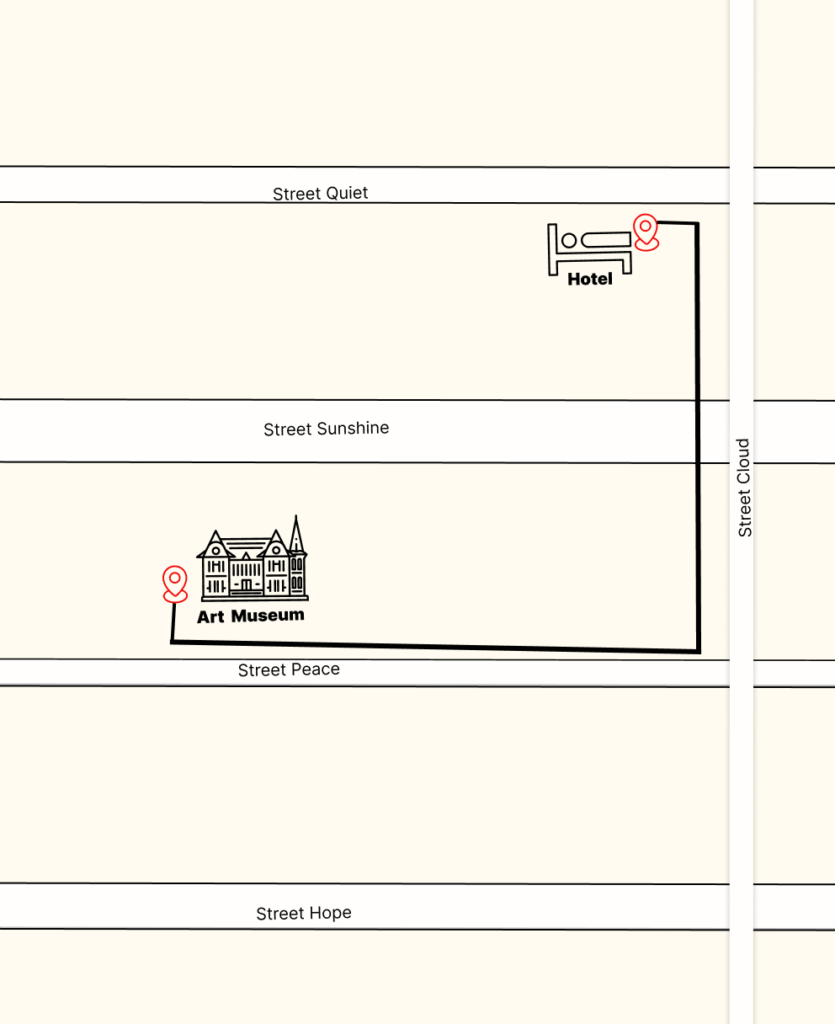
The example below presents walking directions from a hotel to a restaurant located inside an Art Museum. The alt text is, “Map displaying the path to walk from the Hotel to the restaurant inside the museum. Detailed directions are provided in the text below the map.”
Map Description
Section titled “Map Description”Directions to Restaurant:
- 5 min (0.2 mile) - via Street Quiet and Street Cloud
- The surface is mostly flat
- Your starting address is Hotel at 700 Street Quiet, Some Town, ST 2000, and your final destination is the restaurant at Art Museum, 11 Street Peace, SP
- To start your walk, head southeast for about 102 feet on Street Quiet toward Street Cloud
- Next, turn right onto Street Cloud and walk about 0.1 mile until the next street on the right.
- Finally, turn right onto Street Peace. Walkabout 0.1 mile and your destination will be on the right.
Infographic Example
Section titled “Infographic Example”It is important to describe all text that is inside the infographic and to describe any images inside the infographic if they are important for context or understanding. Also, describe the tone or the look of the infographic if it adds to the understanding.
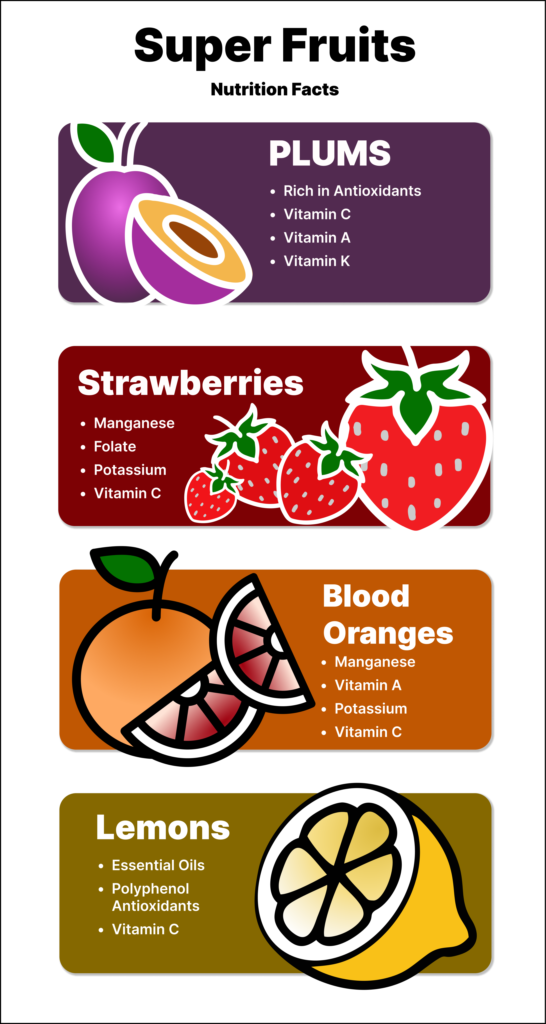
The infographic example has text below the image describing all the information from inside the infographic. The alt text reads, “Infographic describing the nutrition value of plums, strawberries, blood oranges, and lemons. Full description is in the following text.”
Infographic Description
Section titled “Infographic Description”Super Fruits Nutrition Facts: Plums
- Rich in antioxidants
- Vitamin C
- Vitamin A
- Vitamin K
Strawberries
- Manganese
- Folate
- Potassium
- Vitamin C
Blood Oranges
- Manganese
- Vitamin A
- Potassium
- Vitamin C
Lemons
- Essential oils
- Polyphenol antioxidants
- Vitamin C
How to Test
Section titled “How to Test”The key criteria to look for when testing complex images is to ensure that there is both a short description (the alt text) that identifies the image’s content and a detailed text description that provides a sufficient understanding for users who cannot see the image. Both the short alt text and the longer text description should be programmatically associated (linked through the code) with the image. If the image isn’t connected to the text description in the code, then the alt text should identify the location of the text description.
There are several ways to check if your images have a text alternative for both the short alt text and the longer text description. Start by identifying all complex images on the web page or document.
Method 1: Use an Accessibility Test Tool (Browser Extension)
Section titled “Method 1: Use an Accessibility Test Tool (Browser Extension)”Inspect all complex images using an accessibility test tool (browser extension). ANDI is one of the best options for this particular check. ANDI will identify the alt text, and will also identify the text description if the description is programmatically connected to the image. If the text description is not programmatically tied to the image, then you will need to explore the page to find it.
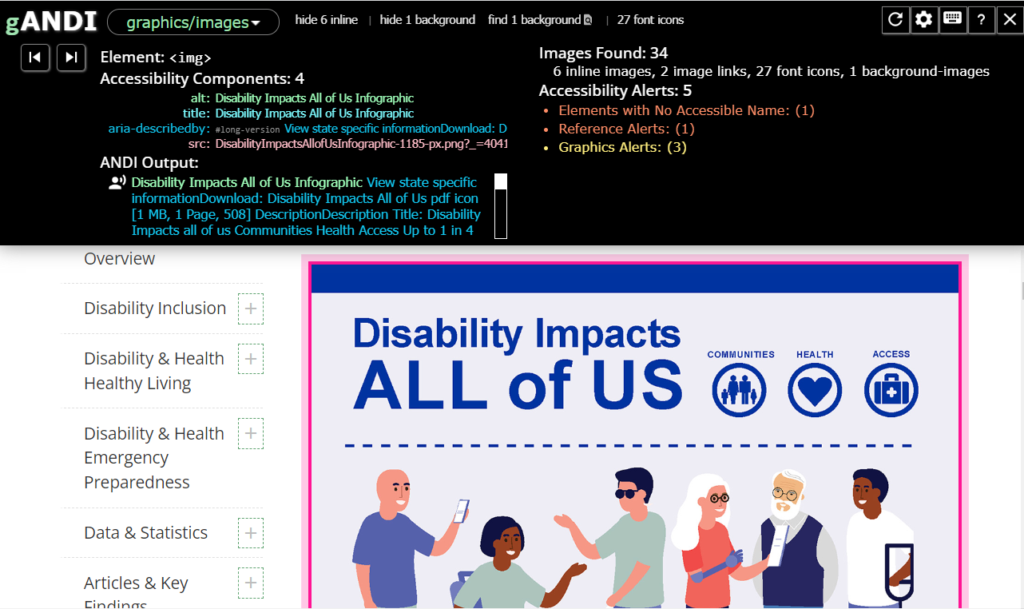
This page from the U.S. Centers for Disease Control (CDC) shows a complex infographic of U.S. Disability Statistics. The ANDI test results for the infographic identify both the alt text (the image’s title, “Disability Impacts all of Us”) and the text description (includes all text in the infographic) for this image in the ANDI Output. It also shows that the code for this image uses “aria-describedby” to link the image to the text description below the image. This ensures that assistive technologies like a screen reader render the image’s text description to users as part of the image element.
Method 2: Use a Screen Reader
Section titled “Method 2: Use a Screen Reader”Use a screen reader to navigate to all complex images and listen to how they are described. The description should fully explain the image in a way that is appropriate for its context. The full description should include a combination of the short description in the alt text and the longer text description. Remember that the text description can be located elsewhere on the page or can be a link to another page. If the text description is programmatically linked to the image, then the screen reader will read it as part of the image. If not, then you will need to explore the page to find it.
Method 3: Use the Browser Inspect / DevTool
Section titled “Method 3: Use the Browser Inspect / DevTool”Inspect the code for complex images with any browser using the developer tools Inspect feature. See Browser Inspect / DevTool (Ta11y) for information on how to use this feature. There should be a short alt text and longer text description for all complex images. You may need to explore the code to find the text description. It may be present as part of the image element or it may be located elsewhere on the page, a button may reveal the full description, or a link to another page may access the full description. Preferably, the text description should be programmatically linked to the image. This method of testing requires an understanding of the code.
Method 4: Manual Examination
Section titled “Method 4: Manual Examination”On documents, check that complex images have:
- Alternative text that indicates where the detailed description or long description is found
- An accurate detailed or long description in the indicated location
The method to do so varies based on the document software. Learn more in Common Concerns for Document Accessibility (Ta11y).