Auto-updating Content
Summary
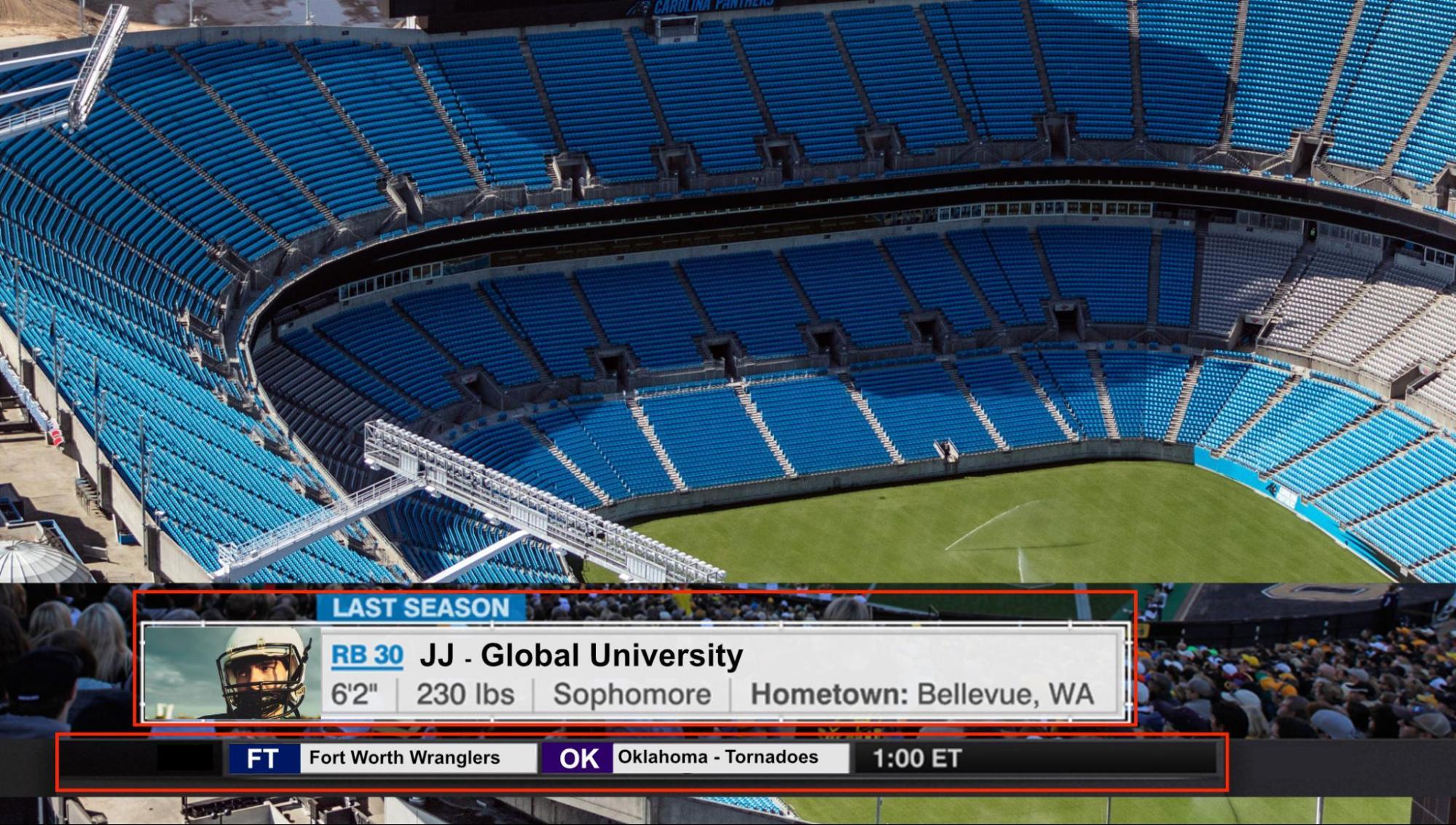
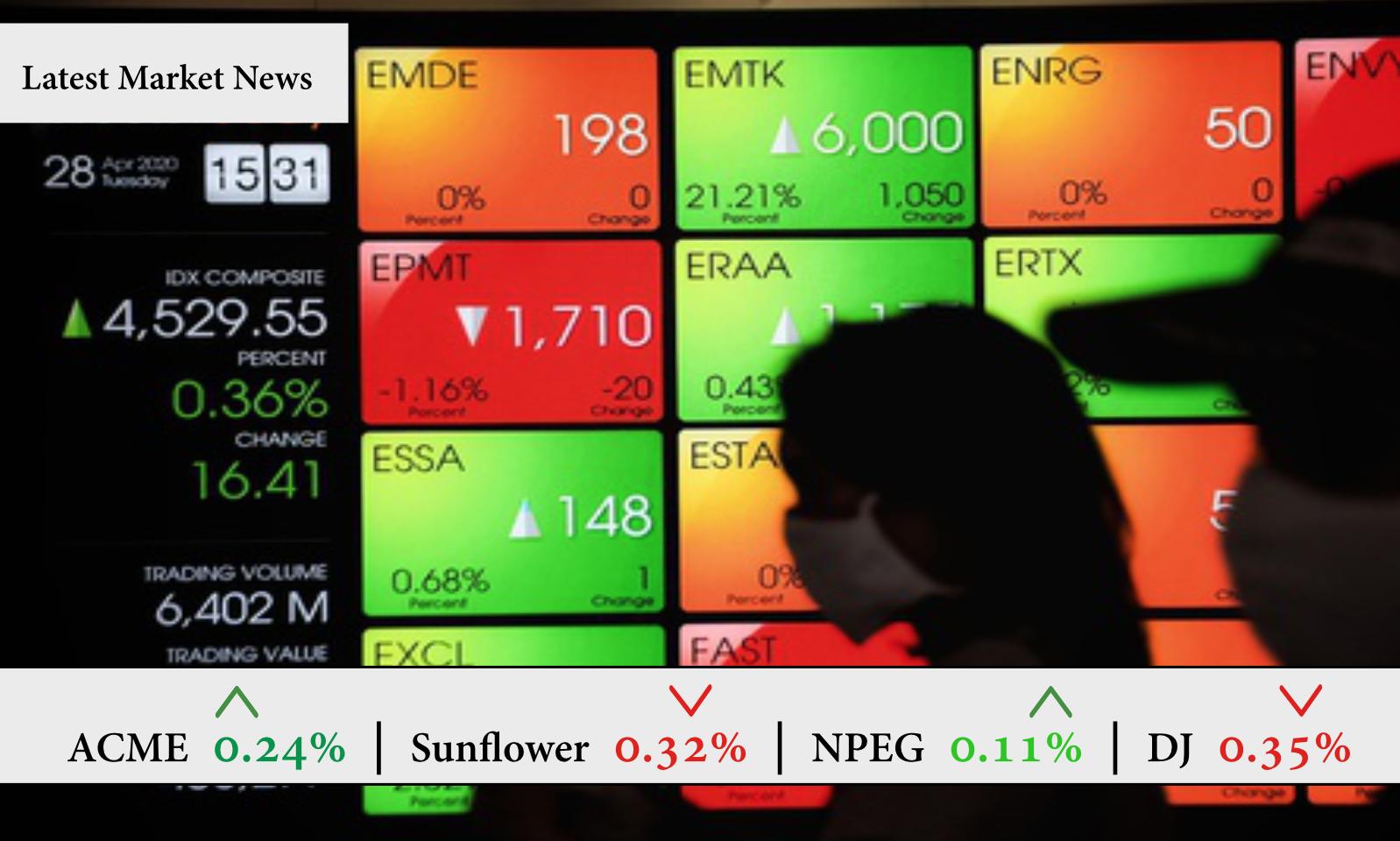
Section titled “Summary”Today it is very common to see situations where content is constantly updating itself. Some examples might be stock tickers, live sports scoreboards, and weather radars.
Automatically-updating information can distract users while they are interacting with the content or prevent them from focusing on other information on the page. It is important to give individuals control over auto-updating content. People should have the ability to pause, stop, or hide the auto-updating content or be able to control the frequency of the updates.
Overview
Section titled “Overview”The ability to see the latest news headlines, stock prices, equipment status, or project updates might be very useful, but these auto-updating features can distract users while they are interacting with other content. For some individuals, this type of movement can be so distracting that they may not be able to focus on other information on the page. Other individuals may not be able to read quickly enough to process moving content.
Media like websites or presentations that contain these features must give readers the ability to pause, stop, or hide the auto-updating content. Alternatively, they may be given the ability to control the frequency of the updates.
Who is Helped
Section titled “Who is Helped”Auto-updating content can be a distraction and cause difficulties in understanding content for certain groups of people.
- Constant movement on a page is distracting for everyone. For people with learning disabilities such as attention deficit disorders, this type of movement can be so distracting that they may not be able to focus on other information on the page. Giving people control over automatically updating content is the best solution to this problem.
- People that have trouble reading text quickly or tracking moving objects will have trouble understanding this information and need to have control over automatically-updating content.
- Auto-updating content can cause problems for people using screen readers and other text-to-voice software as it can be difficult for this type of assistive technology to access changing content. Any updating content that includes an audio component and runs automatically will also cause problems for these individuals as it is almost impossible to understand screen readers or similar software over running audio.
Guidelines
Section titled “Guidelines”Common examples of automatically-updating content include stock tickers, live sports scoreboards, weather radars, and dashboards containing charts and tables that track project updates, equipment status, or other vital information. While providing this information can be helpful for some people, it can have a negative impact on other individuals.
To limit the negative impacts of auto-updating content it is best to limit its use.
- A basic rule of thumb in good design is to start with content and then add other features only if they add value to the content. Before adding a feature such as auto-updating content, always stop and ask, “What value does this add to the content?”
The other critical component needed to limit the negative impacts of auto-updating content is to give individuals control over the updating process.
- Provide controls that let people start, stop, or pause the updating process.
- Provide controls that let people control the frequency of the updates.
- Preferably have all auto-updating initially disabled.
The Web Content Accessibility Guidelines require that controls be provided for any content that:
- automatically updates,
- starts automatically, and
- is located with static content.
This means that auto-updating content that does not start automatically and is not located on the page with static content is not covered by these requirements.
The guidelines for any content that is automatically updated and is presented concurrently with other content on a page are as follows:
- When possible, let users start the auto-update process themselves instead of having it run when the page loads. This is especially important if there is an audio component to the updating content as people who use screen readers will not be able to listen to the screen reader at the same time as they listen to any other audio.
- Provide the user with a mechanism that allows the content to be paused, stopped, or hidden or that allows the frequency of the updates to be controlled.
- When content that is streamed or auto-updated in real-time is paused, stopped, or hidden, it is usually best to restart the process using the most current data. Resuming the updating process from the time of pausing could confuse the user.
- Example: Tracking storm updates or a stock ticker is not helpful if the information is not the most up-to-date.
The mechanism used to control the auto-update process can be a button, slider, or anything other control that allows the user to pause, stop, or hide the content or control the frequency of the updates.
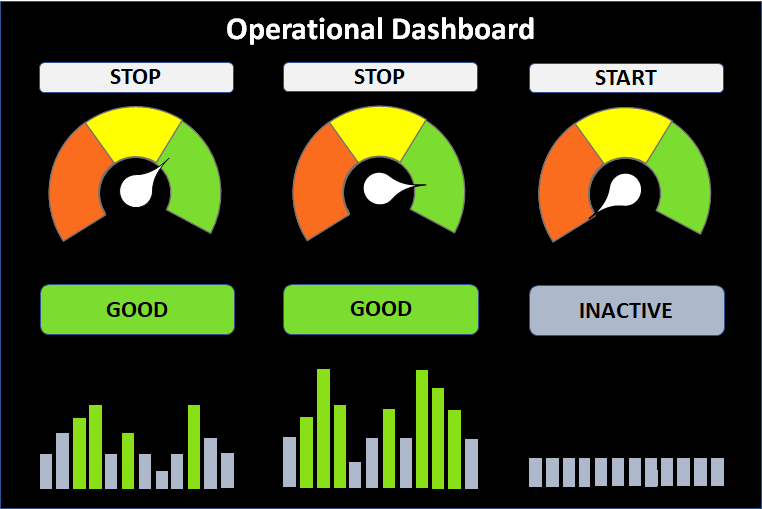
In this example, an online operational dashboard tracks the status of three pieces of equipment. The status is automatically updated in real time.
- Each piece of equipment has a button that starts and stops the automatic updating of status information for that equipment.
- The automatic updating process is initially disabled when the dashboard first loads on the page.
- If auto-updating is stopped and then restarted, it will show the most current status of the equipment when it’s restarted.
Automatically updating content can be so distracting for some people that it can stop them from accessing any other content on the screen. Because failure to meet this requirement could interfere with an individual’s ability to use the whole page, the Web Content Accessibility Guidelines (WCAG) for Success Criterion 2.2.2 state that “all content on the web page must meet this success criterion.”
Note: It is important that blind and low vision users are made aware when content is automatically updated on a page. Without some type of audible cue, these individuals will not see the changing content until they discover it as they navigate the page. For example, a note at the beginning of the page can tell users that there is a table with data that automatically updates every minute. This lets low-vision users using high magnification know to look for the table. Immediately prior to the table buttons can let the user control when an update occurs. A screen reader user can get the latest update, read the data in the table, and then get the next update if desired.
Exception
Section titled “Exception”The only exception to this rule is when the auto-updating content is part of an essential activity. These include activities such as when a user has submitted a form, purchased an item, or is downloading a file and a live status bar gives the user feedback to ensure they can track the status of this essential activity. Not showing where in the process they are might confuse the user and cause them to think the activity is not working.

For example, if an individual did not know a payment was taking several seconds to process, they might send a payment multiple times due to a lack of feedback. A popup window with a progress bar indicates that the transaction is in process and prevents any confusion. User control does not need to be provided for this type of auto-updating.
How to Test
Section titled “How to Test”To test if a website has a mechanism to stop any content from auto-updating, do a manual audit:
- Go to the website in question and visually inspect (manually audit) the content for any content that is automatically updating.
- If there is any content that is automatically updating:
- Are there any controls that allow the user to pause, stop or hide the updating content or control the frequency of updates?
- If yes, are the controls accessible and easy to find?
It is important to note that the mechanism used to pause the content from automatically updating should not affect the rest of the page functionality.
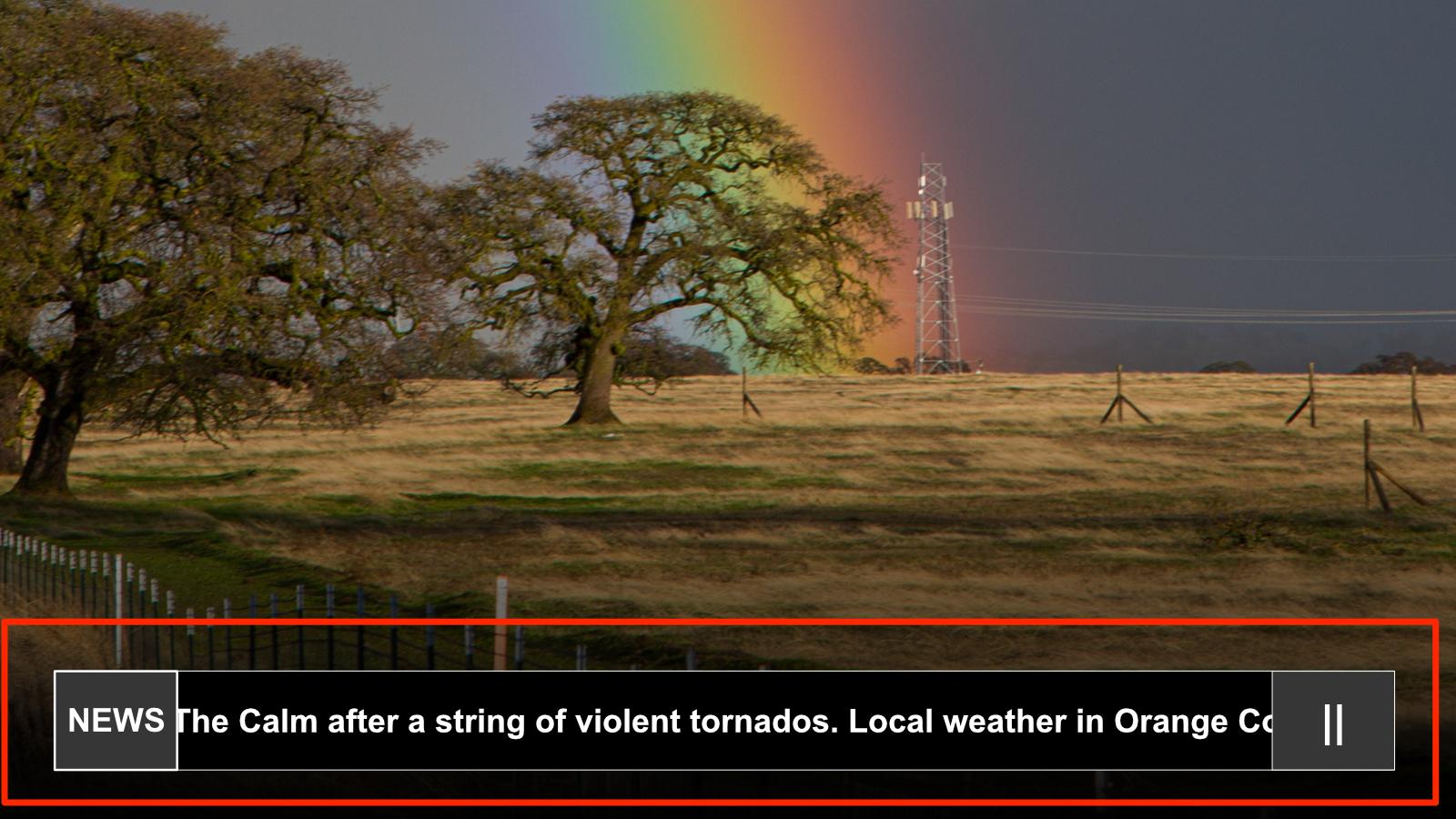
Figure 5 shows a live weather update that provides a button for the user to pause or re-start the scrolling weather information.
References
Section titled “References”- WCAG 2.1 Success Criterion 2.2.2 Pause, Stop, Hide (Level A)
- Understanding SC 2.2.2 Pause, Stop, Hide
Image Sources
Section titled “Image Sources”Figures 1, 2, and 5 were made by Eve in Illustrator using The Noun Project photos.
Figures 3 and 4 were made by Ellen using PowerPoint.