Identify Page Language
Summary
Section titled “Summary”The primary human language of a page must be defined to ensure that content is accurately processed and presented to assistive technologies and browsers. This allows:
- Screen readers and text-to-voice software to correctly pronounce the content, and
- Software such as browsers and text editors to correctly display font characters.
Overview
Section titled “Overview”Setting the primary human language for a page allows assistive technologies, such as screen readers and text-to-voice software, to present content using the correct pronunciation and rules for that language.
Most modern screen readers support multiple languages. When a screen reader user configures their software, they can install different languages. However, they must choose a default language.
When a screen reader encounters content where the language for a page has not been defined, it will announce the content using the rules and pronunciation for its default language. For example, if a screen reader user has set their default language to French and the page is written in German without the language defined, the screen reader will announce the contents with French pronunciation and language rules. This can make it extremely difficult for users of assistive technology to understand the content.
When a screen reader encounters content within a page where the language is defined as something different from the defined language of a page, it can switch to the correct rules and pronunciation for that language. If the screen reader doesn’t support that language, it will often announce the language to the user, for example, “Latvian.” See Identify Changing Languages within Content (Ta11y) for more information.
Steve Faulkner has made a great short video example of this - Effect of the lang attribute on screen readers.
Who is Helped
Section titled “Who is Helped”People who use screen readers or speech-to-text software, such as users who are blind or have a visual disability and people with certain cognitive, reading, or learning disabilities, all benefit when languages are pronounced correctly.
People who rely on captions can also be impacted when the language is not defined.
Setting the language of the page ensures browsers render text more accurately. This is especially important when using right-to-left languages or rendering in a language that uses a different alphabet. Specifying the language also assists browsers in returning language-specific search results and the automatic translation of content using tools like Google Translate.
Guidelines
Section titled “Guidelines”Set the “lang” attribute on the HTML element for each page using a valid ISO language code.
Code example (English):
<html lang="en">Languages that read right-to-left need to also include the dir attribute with a value of rtl.
Code example (Arabic):
<html dir="rtl" lang="ar">Best Practices
Section titled “Best Practices”It is possible to add multiple subtags to the lang attribute (for example, region and script). However, it is best practice to keep the language tag as short as possible.
Further information on language identification can be found in the resource W3C Internationalization - Learn to Internationalize.
How to Test
Section titled “How to Test”Check for the lang attribute of a web page using either the browser inspect tool or an accessibility test tool browser extension such as WAVE or the ANDI Bookmarklet.
Regardless of the method used, check that the value of the “lang” attribute is a valid ISO language code. You can use the language subtag lookup tool or refer to the HTML ISO Language code reference or IANA language subtag registry.
Using the Browser Inspect Tool
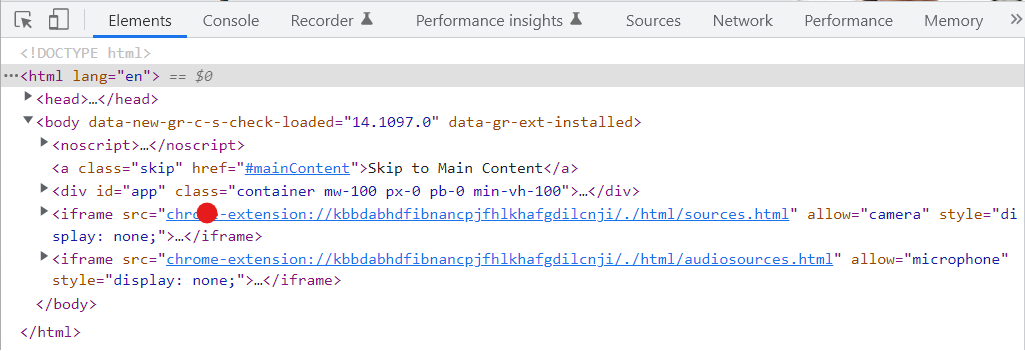
Section titled “Using the Browser Inspect Tool”Check the source code for each page using the Browser Inspect / DevTools (Ta11y) to view the code for the web page.
- Select the F12 key. This will display the code for the page.
- Check that there is a
langattribute value for the<html>element. For example,<html lang="es">. This is usually the second line of code for the web page.
Using an Automated Accessibility Test Tool
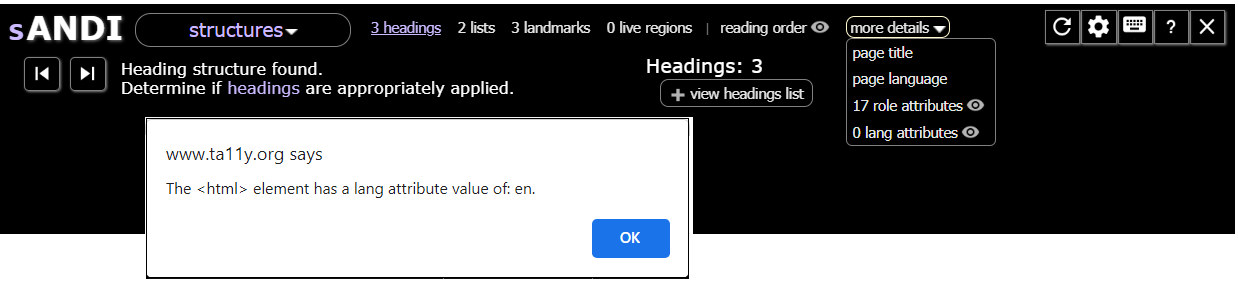
Section titled “Using an Automated Accessibility Test Tool”Use the ANDI Bookmarklet (Ta11y) or a similar accessibility test tool to verify the correct language attribute is on a web page. To do this using ANDI:
- Open the ANDI bookmarklet.
- Go to the Structure module.
- Select “More Details” and then select “page language.”
- A popup window displays the “
lang"attribute value of the<html>element, if present.
References
Section titled “References”- WCAG Success Criteria 3.1.1 Language of Page
- WCAG Success Criteria 3.1.2 Language of Parts
- HTML ISO Language Code Reference
- Language subtag lookup tool
- W3C Internationalization - Learn to Internationalize
- Steve Faulkner - Effect of Language attribute on screen readers (video)
- On Use of the Lang Attribute, Adrian Roselli
- Localization Gotchas for Asian Languages (CJK), Andrew Landry