Images That Convey Content
Summary
Section titled “Summary”Images that convey content are also known as informative images. These are images that provide meaningful information. Not all people can see or understand images, so a text alternative must describe the information an image conveys. The text alternative should explain the image in a way that lets everyone have an equitable understanding of its contents.
Overview
Section titled “Overview”A text alternative must describe any meaningful image that conveys information or provides a function. Meaningful images are either informative or functional. Images without meaning are considered decorative and do not need a text alternative.
- Informative Images include graphics, photographs, charts, or other visual elements that convey content.
- Functional Images include icons or other graphics used as buttons or links.
Text alternatives provide a text substitute for images that describes in words what sighted users understand by looking at the image. A text alternative is a short description added to an image’s formatting through a document’s image options or via code on a website. It is common to refer to the alternative text that is added directly to an image in this way as “alt” text.
- Alt text provides assistive technologies with a programmatic association (a defined connection made via the software application or a website’s code) between the image and its alternative text.
- Screen readers and other assistive technologies use alt text to describe images to people with visual or cognitive disabilities.
Usually, only individuals using assistive technologies like screen readers are aware of this alt text. However, when an image is disabled or fails to load, the alt text appears in place of the image.
When a longer explanation is needed to describe an image, you can include additional text alternatives within the document or web page content.
Other text alternatives:
- Include labels, captions, and additional text or tables.
- Are available to everyone without the use of assistive technologies.
It takes more than adding alt text to an image to make it truly accessible. To fully meet the needs of people with disabilities who rely on text alternatives, you must ensure that the alt text you add to an image is good alt text.
At a minimum, alt text should:
- Tell people why the image is there based on its context.
- Be concise and describe the essential information in the image.
- Provide an equitable experience for people who cannot see or understand the image.
See Writing Alternative Text (Ta11y) to understand the concerns you must address when writing alt text. These guidelines apply to all images.
Who is Helped
Section titled “Who is Helped”Individuals who are blind or have trouble processing visual information can use a screen reader or other text-to-speech software to read the contents of a page.
- Screen readers tell their users when there is an image, and the alt text, if available, is read. The alt text should explain the image’s content and why it is there. Without the alt text, screen reader users know there is an image, but they hear the filename instead of the image’s description.
- Keeping alt text succinct will help screen reader users understand the main purpose of the image. You can add a longer text description before or after the image if more details are needed.
Some people with low vision or certain cognitive disabilities turn off images to simplify screen content and will see the alt text instead of the image. These individuals rely on alternative text to tell them what is important about the image.
An image may be more difficult for people with low vision to understand. Often, these individuals need to change colors, font size, or zoom settings to understand information. These adjustments do not work well with images, so people with these vision problems may also turn off images and rely on alt text to understand the image.
Guidelines
Section titled “Guidelines”The Web Content Accessibility Guidelines (WCAG) require websites to provide text alternatives for all images that convey content using either the image “alt” attribute or other text alternatives such as labels, captions, and additional text within the content. You must code these additional text alternatives so that the visible text description is programmatically associated (explicitly connected in the code) with the image, much like alt text. Programmatic association ensures assistive technologies understand that the additional text is related to the image. If you can’t connect the image to the text description via the code, then the alt text should identify the location of the text description.
Coding Techniques
Section titled “Coding Techniques”Text alternatives can be added to images using the following coding techniques.
Technique 1: Image Alt Attribute
Section titled “Technique 1: Image Alt Attribute”Use the “alt” attribute to add an alternative text description to an image’s code. This technique is the most common method of adding alt text to an image. Adding the alt text to this example ensures a screen reader user hears “image solid white linen curtains” instead of “image product87-a.jpg.”
<img alt="solid white linen curtains" src="product87-a.jpg" \>Technique 2: Visible Text Alternative Only
Section titled “Technique 2: Visible Text Alternative Only”An image is treated as decorative whenever a visible caption, label, or other text description fully explains an image. Use an empty alt attribute (alt="") to mark images as decorative and then add the caption, label, or descriptive text to the web page to describe the image. When you mark an image as decorative, assistive technologies ignore the image and only announce the visible text alternative. In this example, screen reader users hear the figure’s caption “Tamar Foster, CEO.”
This example uses <figure> and <figcaption> to programmatically connect the caption to the image in the code.
<figure> <img alt="" src="foster-sml.jpg" \> <figcaption>Tamar Foster, CEO\</figcaption></figure>See Decorative Images (Ta11y) for more information about using decorative images.
Technique 3: Alt Text plus Visible Text Alternative
Section titled “Technique 3: Alt Text plus Visible Text Alternative”Use alt text combined with labels, captions, or other visible text to describe an image more fully. This technique ensures an image has a complete description when alt text alone is not sufficient.
<figure> <img alt="Bright blue skies are filled with an arcing rainbow over Diamond Head and the backdrop of the Pacific Ocean." src="rainbow-image.jpg"> <figcaption>A Rainy Day in Hawaii\</figcaption></figure>Technique 4: Using ARIA
Section titled “Technique 4: Using ARIA”Use ARIA (Accessible Rich Internet Applications) attributes to provide a text alternative when you cannot use other techniques. ARIA is a set of roles and attributes used to code websites that make web content more accessible for people using assistive technology. In this example, the aria-labelledby attribute replaces the image alt text, and aria-describedby is used to provide an additional text description of the image. This technique is commonly used to describe more complex images.
<p id="chartTitle">S&P 500 Stock Price</p><img src="sp500annual.png" alt="replaced by aria-labelledby" aria-labelledby="chartTitle" aria-describedby="textDesc"><p id="textDesc"> Line graph showing the average weekly value of S\&P 500 stocks for this year. Stock prices start low ...</p>See Complex Images (Ta11y) for more information about handling complex images.
See Enhancing HTML Elements with ARIA (Ta11y) for more information on using ARIA.
Technique 5: Alt Text Points to the Full Description
Section titled “Technique 5: Alt Text Points to the Full Description”If you cannot programmatically connect the image to its text description via code, then the alt text should identify the location of the text description. This technique is also used to help describe complex images where alt text alone is not sufficient.
<img src="sp500annual.png" alt="S&P 500 Stock Price. Use the following link to see the full description of this chart."><a href="sp500-description.html">Full description of the S\&P 500 Stock Price chart for this year.</a>See Complex Images (Ta11y) for more information about handling complex images.
The Example Image
Section titled “The Example Image”To best illustrate the alternative text guidelines, the images in these examples are not numbered and have been coded with an alternative text of “example image.” The body text describes the actual content of the images.
The first four examples use the following image from the Ta11y home page to show the impact of context on the use of alt text. See Writing Alternative Text (Ta11y) for more information about how context affects alt text.

Figure 1 shows a young woman sitting at a table with a laptop directly in front of her and a meal that looks like breakfast to one side. She is leaning toward the laptop and studying the screen or typing.
Example 1: Informative Image by Itself
Section titled “Example 1: Informative Image by Itself”Add the alt attribute within the image tag for stand-alone informational images that only need a short description.
- The code will read:
<img alt="Young woman learning accessibility with Ta11y." src="learning-ta11y.jpg" \>
- The screen reader will say:
image young woman learning accessibility with ta11y.
Example 2: Informative Image with Captions
Section titled “Example 2: Informative Image with Captions”Images often have captions below them. Captions provide information about the image but serve a different purpose from alt text.
- The alt text describes the image’s appearance or why it is there.
- Captions provide basic facts about the image.
Images with captions can use the HTML elements <figure> and <figcaption>. The <figure> element encloses the image to connect the caption to the image programmatically, and <figcaption> supplies the caption. The caption in this example complements the alt text, but the alt text is still needed. The alt text describes the image, while the caption provides visible information about the image that is not apparent from the image itself. The alt text and caption combined provide a complete text alternative for the image.
- The code will read:
<figure><img alt="Young woman learning accessibility with Ta11y" src="learning-ta11y.jpg" ><figcaption>Want to learn more about accessibility?</figcaption></figure>
- The screen reader will say:
image Young woman learning accessibility with Ta11y. caption Want to learn more about Accessibility?
Images with visible text descriptions above or below them can use ARIA attributes to provide a programmatic association between the image and its description.
- The code will read:
<img alt="Young woman learning accessibility with Ta11y" src="learning-ta11y.jpg" aria-desccribedby="image-desc" \><p id="image-desc">Want to learn more about accessibility?</p>
- The screen reader will say:
image Young woman learning accessibility with Ta11y. Want to learn more about Accessibility?
See Complex Images (Ta11y) for more information about handling complex images.
See Enhancing HTML Elements with ARIA (Ta11y) for more information on using ARIA.
Example 3: Decorative Image with Captions
Section titled “Example 3: Decorative Image with Captions”If there is a caption next to the image that fully describes its content, no alt text is necessary for the image because the caption acts as a sufficient substitute. In this case, the image is marked as decorative using an empty alt attribute (alt="").
- The code will read:
<figure><img alt="" src="learning-ta11y.jpg"><figcaption>Young woman learning accessibility with Ta11y</figcaption><figure>
- The screen reader will say:
Caption Young woman learning accessibility with Ta11y.
See Decorative Images (Ta11y) for more information.
Example 4: Functional Images - Links
Section titled “Example 4: Functional Images - Links”When you use images as links, the image alt text must reflect the function of the link - not its appearance. In this example, the image is a link to Ta11y.org, and the image’s alt text functions as the link text for people who cannot see the image.
- The code will read:
<a href="https://www.ta11y.org"><img alt="Ta11y.org" src="learning-ta11y.jpg"></a>
- The screen reader will say:
link image Ta11y.org
Alternatively, when you embed a functional image within a link or button where the code for the link or button supplies the text description, you should mark the image as decorative.
- The code will read:
<a href="https://www.ta11y.org" aria-label="Ta11y.org"><img alt="" src="learning-ta11y.jpg"></a>
- The screen reader will say:
link Ta11y.org
See Functional Images (Ta11y) for more information about images used as links.
Example 5: Functional Images - Buttons
Section titled “Example 5: Functional Images - Buttons”When you use images as buttons, the alt text must reflect the function of the button - not its appearance. For a button image with text, the alt text added to the button’s code should match the text in the image exactly.
The alt text for the button image in this example that displays the word “Login” should be “Login.”
- The code will read:
<input type="image" src="login.png" alt="Login" \>
- The screen reader will say:
button login
See Functional Images (Ta11y) for more information about images used as buttons.
See Images of Text (Ta11y) for more information about images that contain text.
Font Icons, SVG Icons, and Other SVG Images
Section titled “Font Icons, SVG Icons, and Other SVG Images”You must handle font icons, SVG icons, and SVG images in specific ways for them to be accessible. For example, the code for a decorative SVG icon uses ARIA to assign the role of “img” to the icon and the “aria-hidden” attribute to hide the icon from assistive technologies.

Code example:
<svg viewBox="0 0 16 16" width="1em" height="1em" role="img" aria-hidden="true" fill="currentColor" scale="1" icon="journals"> ...</svg>See Icons (Tally) for more information on SVG and font icons.
See Embedded Content (Ta11y) for more information on SVG images.
CAPTCHA
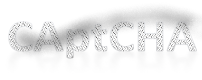
Section titled “CAPTCHA”CAPTCHAs are another special case when it comes to adding alternative text. There are many concerns and limitations associated with the use of CAPTCHAs. WCAG allows the use of CAPTCHA but with many caveats. One of those caveats requires non-text CAPTCHAs (e.g., images or audio) to provide a text alternative that identifies and describes the CAPTCHA.
The CAPTCHA example below uses an image of text that is difficult to read and is a common method of providing CAPTCHAs. The alt text for this example might be, “Type the word in the image.”
See CAPTCHA (Ta11y) for more information about using CAPTCHAs.
How to Test
Section titled “How to Test”You can use three options to find alt text in images.
- Use an accessibility test tool (browser extension) like WAVE, ANDI, Arc Toolkit, or axe DevTools.
- Use a screen reader.
- Use the Browser Inspect / DevTool.
Testers must inspect the alt text for every image and decide if:
- Images are meaningful or decorative.
- Meaningful images have an appropriate text alternative that adequately describes the image.
- Decorative images are correctly marked as decorative. See Decorative Images (Ta11y) for more information.
Option 1: Using an Accessibility Test Tool (Browser Extension)
Section titled “Option 1: Using an Accessibility Test Tool (Browser Extension)”Most browser-based accessibility test tools can check images for alt text. Some extensions, like axe DevTools, only identify images that have errors. Others, like WAVE and ANDI, identify alt text errors but also show the alt text for images in a way that is easy to see. These are preferred. It’s important to see the alt text for every image so that you can manually inspect the text and ensure it is an appropriate image description. An automated test tool can never make that decision for you.
The figure below shows the test results using WAVE for the Accessible Community home page.
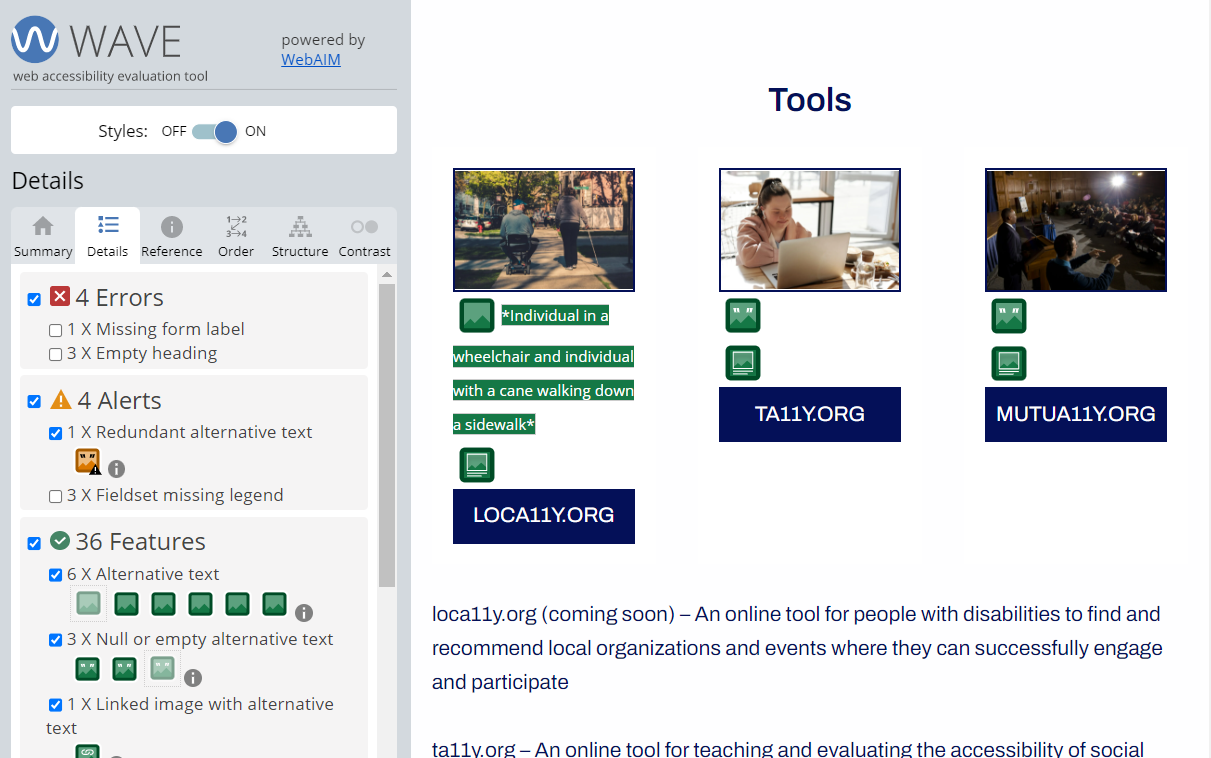
This part of the web page has three images. WAVE identifies them by adding an image icon next to each image. It also shows the alt text for each image.
- WAVE identifies two images as decorative (
alt=""), but the first image has an alternative text of “Individual in a wheelchair and individual with a cane walking down a sidewalk.” - After inspecting the images, you must decide the appropriateness of the alt text used for each image. All three of these images should likely be either informative or decorative.
You can inspect every image on the page in this same manner.
See WAVE (Ta11y) for more information on using this tool.
Option 2: Use a Screen Reader
Section titled “Option 2: Use a Screen Reader”Using a screen reader, navigate to all images (shortcut key = g) and listen to their description. The description should explain the image in a way that is appropriate for its context. Screen readers should ignore decorative images.
Some screen readers like JAWS provide a list of images, and this is an easier way to test images as you can see the alt text for all images in a single list.
See Testing with a Screen Reader (Ta11y) for more information on how to use screen readers.
Option 3: Use the Browser Inspect / DevTool
Section titled “Option 3: Use the Browser Inspect / DevTool”Inspect the code for complex images with any browser using the developer tools Inspect feature. There should be an alt text description for all images that convey content. This method of testing requires an understanding of the code.
See the Browser Inspect / DevTool (Ta11y) for information on using this feature.
References
Section titled “References”- WCAG 2.1 Success Criterion 1.1.1 Non-text Content, Level A (W3C)
- Sufficient Techniques G94: Providing short text alternative for non-text content (W3C)
- W3C WAI Images Tutorial
- WebAim: Alternative Text
- Harvard University: Write good Alt Text to describe images
- Deque: How to Design Great Alt Text
- Craig Abbott: How to write good alt text for screen readers
- Social Security Administration Guide: Alternate text for images
- DIAGRAM Center: Image Description Guidelines
- What is Affordance and How Does it Impact Design?