Identify Changing Languages within Content
Summary
Section titled “Summary”When a web page is created, the page’s primary language should be specified.
When part of a web page uses a language different from the page’s primary language, the language change must be signaled so that assistive technologies and user agents (browsers) switch language profiles. This ensures that assistive technologies, such as screen readers, present and pronounce content written in a different language according to the rules of that language.
Overview
Section titled “Overview”Most modern screen readers support multiple languages. When a screen reader user configures their software, they can install different languages. However, they must choose a default language.
Identifying the human language of each part of a page’s content (the language of parts) that differs from the defined language of the page allows both browsers and assistive technologies, such as screen readers and text-to-voice software, to switch to the correct language profile and present the content using the pronunciation and rules for that language. For example, if the page’s primary language is set to French and a screen reader encounters a sentence in German, it can switch to the correct rules and pronunciation for German if the new language is defined. If the screen reader doesn’t support that language, it will often announce the content’s language to the user if it has been identified, for example, “German.”
When a screen reader encounters content on a page that differs from the page’s defined primary language and that language is not defined, it will announce the content using the rules and pronunciation of the page’s primary language. For example, if the page’s primary language is set to French and a sentence in German is encountered, the screen reader will announce the German sentence with French pronunciation and language rules. This can make it extremely difficult for users of assistive technology to understand this content.
Steve Faulkner has made a great short video example of this - Effect of the lang attribute on screen readers.
Who is Helped?
Section titled “Who is Helped?”Defining the language of individual parts, or sections, of content on a page is very important for screen reader users.
- Most screen readers can vocalize multiple languages. However, when a screen reader user configures their software, they choose a default language. The screen reader will use the pronunciation of its default language when encountering content in a different language unless the correct language has been defined in the code.
- For example, if a screen reader has been set to English as the default language and part of the content on a page is in Spanish without a lang attribute, the screen reader will announce this content using English pronunciation.
Setting the language for parts of a page also ensures that browsers render text more accurately. This is especially important when using right-to-left languages or rendering in a language that uses a different alphabet.
Guidelines
Section titled “Guidelines”Language changes within content must be identified with a “lang” attribute. This attribute can be added to HTML tags that enclose blocks of text, like a <p> (paragraph) or <a> (anchor) tag.
<p> View this document in:</p><ul> <li lang="es">Español</li> <li lang="fr">Françias</li> <li lang="de">Deutsch</li></ul>If text in a different language is embedded within an element, you can use an inline element such as <span> (inline-level container) or <i> (idiomatic text element) with the “lang” attribute to specify the correct language. For example, <span lang="es"> . . . </span>.

Languages that read right-to-left also need to include the “dir” attribute to specify their direction. For example: <span lang="ar" dir="rtl"> . . . </span>.

A valid ISO language code must be used.
Best Practices
Section titled “Best Practices”It is possible to add multiple subtags to the lang attribute (for example, region and script). However, it is best practice to keep the language tag as short as possible.
Further information on language identification can be found in the resource W3C Internationalization - Learn to Internationalize.
Exceptions
Section titled “Exceptions”- Words that are adopted into the default language. For example, ‘Touche’ is commonly used in English and pronounced correctly by assistive technologies.
- Technical terms.
- Proper names.
- Words that don’t belong to any single known language.
How to Test
Section titled “How to Test”Read the page content and check for any words or phrases in a language other than the page’s main language. For longer content, a tool like the Unique Word Extractor can be used instead, and the list of words it generates can be reviewed.
Verify that the language attribute is used to identify sections of content on a web page using either the browser inspect tool, the language bookmarklet, or an accessibility test tool browser extension such as WAVE or the ANDI bookmarklet.
Regardless of the method used, check that the value of the “lang” attribute is a valid ISO language code. You can use the language subtag lookup tool, consult the HTML ISO Language code reference, or refer to the IANA language subtag registry.
Using the Browser Inspect Tool
Section titled “Using the Browser Inspect Tool”Check the source code for words or phrases in another language using the Browser Inspect / DevTools (Ta11y).
Ensure these words are within an element that includes the “lang” attribute set to the correct language. If the language is directional, then the “dir” attribute should also be included.
Using the Lang Bookmarklet
Section titled “Using the Lang Bookmarklet”You can use the Lang bookmarklet to quickly identify where the lang attribute has been added to the code.
Using an Automated Accessibility Test Tool
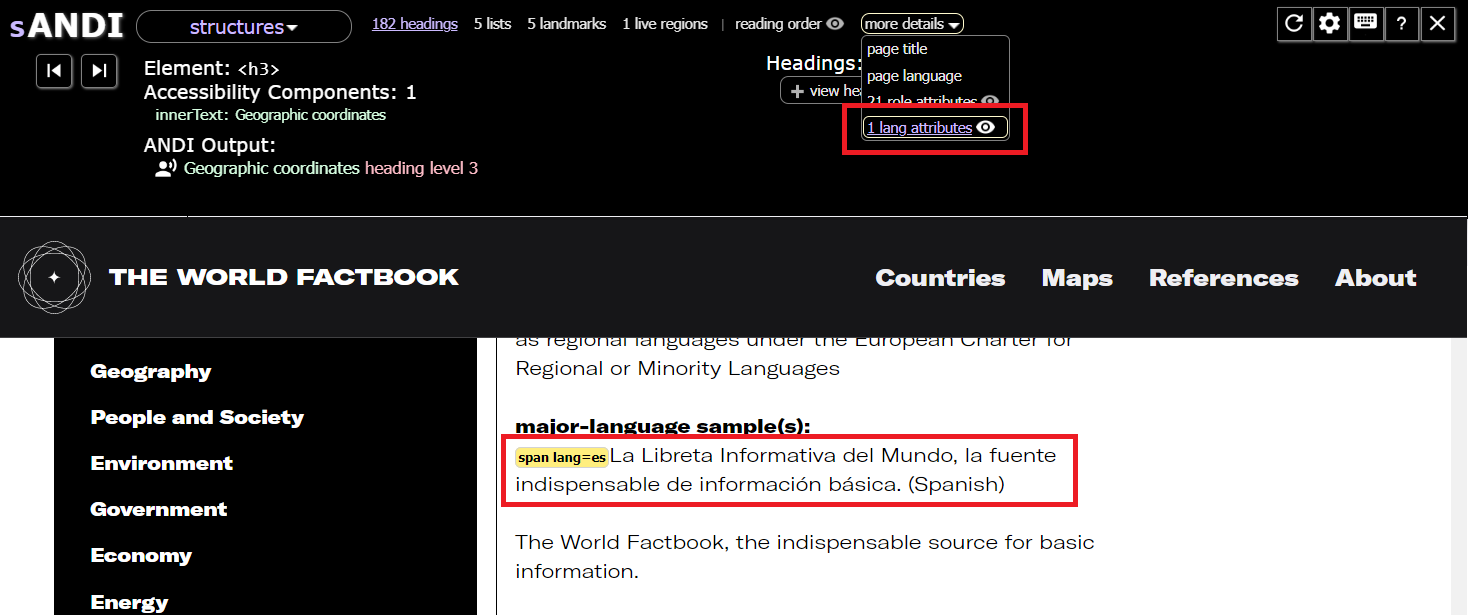
Section titled “Using an Automated Accessibility Test Tool”Use the ANDI Bookmarklet (Ta11y) or a similar tool to verify that the correct lang attribute is used for any words or phrases in another language used on a web page.
This example from the CIA’s World Factbook illustrates how an automated accessibility test tool like ANDI can be used to check a web page’s content for correctly marked changes in language. To do this using ANDI:
- Open the ANDI bookmarklet.
- Go to the Structure module.
- Select “More Details” and then select “lang attributes.”
- Markup is then added to the web page to indicate any location where a lang attribute has been added and what the language is.
References
Section titled “References”- WCAG Success Criteria 3.1.2 Language of Parts
- WCAG Success Criteria 3.1.1 Language of Page
- HTML ISO Language Code Reference
- Language subtag lookup tool
- W3C Internationalization - Learn to Internationalize
- Steve Faulkner - Effect of Language attribute on screen readers (video)
- On Use of the Lang Attribute, Adrian Roselli
- Localization Gotchas for Asian Languages (CJK), Andrew Landry