Keyboard Shortcuts
Summary
Section titled “Summary”Keyboard shortcuts are predefined key combinations that allow users to perform specific actions more quickly and efficiently than using the mouse or navigating through menus and graphical interface options. Common examples include the copy-and-paste shortcuts Ctrl+C and Ctrl+V. Keyboard shortcuts make common, repetitive tasks easier for everyone.
Web authors can add custom shortcuts to their sites to help users complete common tasks. Correctly implemented, these shortcuts can help people with disabilities interact with documents and web pages, execute actions, and complete tasks faster. However, custom shortcuts can cause problems if they are not implemented correctly. When shortcuts are made up of a single-character like “a” or “2” that cannot be modified or disabled, users may encounter difficulties. Custom shortcuts may also cause problems if they conflict with browser, operating system, or assistive technology shortcuts. People only benefit from custom keyboard shortcuts when applications avoid these conflicts.
Overview
Section titled “Overview”Correctly implemented keyboard shortcuts can help people quickly navigate to key locations on a web page or execute common, repetitive tasks. For example, a table with a list of documents might provide custom keyboard shortcuts to let people view, edit, or delete a document. This additional functionality is especially helpful for people with disabilities who a keyboard or devices that rely on keyboard focus to navigate digital content.
However, there are potential problems with the use of custom keyboard shortcuts.
- Custom keyboard shortcuts should avoid repurposing shortcuts already used by the browser, operating system, common applications, or assistive technology. For example, Ctrl + S is commonly used to save information. Using the same shortcut keys to initiate a site search will confuse users and can cause software conflicts.
- Custom keyboard shortcuts should also avoid using keys that sound phonetically like other words when spoken aloud. This can cause problems for people using voice-control software like “Dragon Speaking Naturally” or screen readers on mobile devices.
- Custom keyboard shortcuts should avoid using single printable character keys. These shortcuts cause problems for keyboard navigators, especially those who use assistive technologies like screen readers or voice-control software. Every custom shortcut composed only of a single printable character key must be configurable by the user. This requirement applies only to shortcuts that use one of these printable character keys without a modifier like the Alt key. It is essential that users can modify or turn off single-character keyboard shortcuts, or some people will have difficulty using them.
Who is Helped
Section titled “Who is Helped”Correctly implemented keyboard shortcuts help:
- People with motor disabilities: These individuals may have difficulty using a mouse or other pointing device. Keyboard shortcuts make navigating and operating an application or website easier without relying on mouse movement.
- People who are blind: These individuals cannot use a mouse and must use a keyboard or braille device. Keyboard shortcuts can make it easier for them to navigate and operate an application or website.
- People with visual disabilities: These individuals may have difficulty identifying and clicking on visual elements. Keyboard shortcuts make it easier for them to navigate and access content without using the mouse. For example, people who use a high magnification to see content can jump to a particular content section without navigating through the rest of the content.
- People with cognitive or learning disabilities: These individuals may have difficulty understanding a series of complex steps to access content. Keyboard shortcuts can simplify navigation by providing an easier way to access content.
- People with temporary or situational disabilities: These individuals may have difficulty in temporary situations, such as injuries that prevent the use of the mouse, or in environments where the use of the mouse is not practical. Keyboard shortcuts help them to navigate and access content without using the mouse.
Guidelines
Section titled “Guidelines”The purpose of keyboard shortcuts is to provide faster and more comfortable web content navigation of for all users. However, they often generate conflicts for keyboard users and users of voice-assistive technologies when browsing the web. The requirements and best practices described below ensure that custom keyboard shortcuts are accessible.
Conflicts using keyboard shortcuts
Section titled “Conflicts using keyboard shortcuts”-
Browsers, operating systems, and common applications have predefined keyboard shortcuts to perform crucial functions. If an application uses custom keyboard shortcuts that conflict with these common shortcuts, it can confuse users or prevent them from performing certain actions. These conflicts can also prevent the correct operation of the application.
- Custom shortcuts should not repurpose standard keyboard shortcuts like copy (Ctrl + C), paste (Ctrl + V), and undo (Ctrl + Z) for another use. Most users are familiar with these common shortcuts, and using them for another purpose will cause confusion. Users with cognitive disabilities may be unable to complete tasks if they are confused by this change to familiar shortcuts.
- A website uses the custom keyboard shortcut Ctrl + S to search the site. However, Ctrl + S is also the standard keyboard shortcut in Windows for saving a file. If a user attempts to search the site by pressing Ctrl + S, there could be a conflict. Instead of triggering the search action on the website, the browser could interpret this shortcut as the standard Windows save action.
-
Assistive technologies also use certain key combinations for specific commands. If these commands conflict with the custom keyboard shortcuts, it can result in malfunctions and confusion. For example, if an application uses Alt + Down Arrow to jump users to the next section of the page, it may conflict with a screen reader’s use of Alt + Down Arrow to read the next sentence.
-
Shortcuts using only a single printable character key cause problems for keyboard navigators, especially for people using assistive technology.
- Keyboard navigators could accidentally activate a single-key shortcut with unexpected results. People who have dexterity challenges or tremors can be prone to accidentally hitting keys.
- Assistive technologies like screen readers already use many single-character shortcuts, and it is hard to avoid conflicts when single-character shortcuts are used in an application.
- Single-character shortcuts also cause conflicts for speech-input users. An individual who “types” a word by speaking each letter can unintentionally trigger a single-character shortcut.
- Keyboard shortcuts that are phonetically similar to words or letters can lead to accidental activation and confusion for speech-input users. For example, someone might dictate a sentence containing the word “May” and trigger a single-key shortcut using the letter “M.”
- Voice commands issued by speech-input users that sound like a keyboard shortcut can also accidentally activate the shortcut with unwanted or unexpected results.
-
Concerns with single printable (character) key shortcuts do not apply to:
-
Any shortcut that includes a non-printable key like Shift or Control.
-
Single-key shortcuts comprised of non-printable keys.
-
Components like menus opened with a single non-printable shortcut like the Alt key before pressing a single character key to select an item. The full path to open the menu is a two-step shortcut that includes a non-printable key.
-
Shortcuts that are specified with the
accesskeyattribute because accesskeys always include browser-dependent modifier keys like the Alt key.
-
-
Some keyboard shortcuts may need key combinations that are awkward or difficult to reach on certain keyboards. This can make shortcuts impractical for some keyboard-dependent users. For example, the keyboard shortcut Ctrl + Ins + Shift + M might be awkward or difficult to reach for users with reduced mobility.
-
Navigating an interface that extensively uses custom keyboard shortcuts can be difficult for users of voice-control and voice-assistant technologies since they cannot interact directly with the keyboard. Users must learn and remember numerous key combinations or program them in their software.
Requirements for Custom Keyboard Shortcuts
Section titled “Requirements for Custom Keyboard Shortcuts”One of the best ways to prevent keyboard shortcut conflicts is to avoid single-character keyboard shortcuts composed of printable characters. Printable characters are letters, punctuation marks, numbers, or symbols. If applications must use these shortcuts, then measures must be made available to avoid the conflicts these shortcuts create, as these shortcuts often interfere with the operation of assistive technology software. Users must be able to turn off or remap these single-character shortcuts, or the shortcuts must only be available within an active component.
Note: This requirement does not apply to keyboard shortcuts containing multiple keys, as these shortcuts include non-printable keys. This includes accesskeys as they always include at least one non-printable key by default, even though they are designated by a single printable key.
The Web Content Accessibility Guidelines (WCAG) require that at least one of these mechanisms must be available for all single-character keyboard shortcuts:
- Turn off: The user must be able to turn off the shortcut.
- Remap: The user must be able to modify the shortcut so that one or more non-printable keys are included in the shortcut.
- Limit availability to focused components: The shortcut for a specific component must be active only when that component has focus. For example, web authors create a keyboard shortcut to facilitate navigation within a calendar component. In this case, the keyboard shortcut is active only while the user focuses on the calendar.
- See the Character Key Shortcuts (W3C) to learn more about keyboard shortcut customization mechanisms.
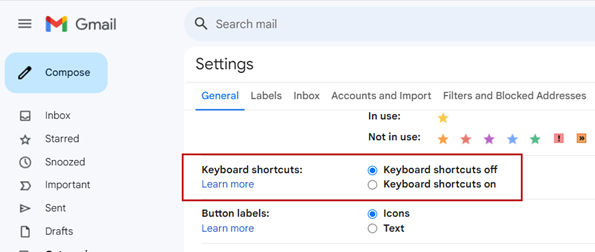
Gmail provides an example of how these requirements can be met. The Gmail configuration settings describe how to activate or deactivate keyboard shortcuts according to the user’s needs. See the Keyboard shortcuts for Gmail to learn more about how Gmail implements the functionality to turn keyboard shortcuts on and off.
Best Practices for Custom Keyboard Shortcuts
Section titled “Best Practices for Custom Keyboard Shortcuts”Custom keyboard shortcuts can break the normal operation of a keyboard interface when implemented incorrectly. These best practices are essential to ensure custom keyboard shortcuts are fully accessible.
- Consistency and predictability
- Custom keyboard shortcuts must be consistent and predictable throughout the website. Applications that use common keyboard shortcuts should duplicate their functionality as well.
- Documentation
- It is essential to provide clear documentation to inform users about custom keyboard shortcuts and how they can customize them. This documentation should be part of the application and be easy to find and understand.
- Mapping
- Cross-check all custom keyboard shortcuts against all commonly available shortcuts to ensure none are already used. See the section on “Common Keyboard Shortcuts” below.
- Assistive technology support
- Ensure assistive technologies, such as screen readers, are able to correctly detect and announce custom shortcuts to the user correctly.
- Phonetics
- Avoid assigning keyboard shortcut commands that are phonetically similar to other words or to voice commands used by assistive technologies. This concern is especially important for single-character keyboard shortcuts.
- Testing
- Conduct extensive software testing with assistive technologies. Get feedback from users with disabilities to help identify and resolve conflicts or difficulties they may encounter.
How to Test
Section titled “How to Test”It is best to test keyboard shortcuts with the keyboard. After completing keyboard testing, use an assistive technology like a screen reader or voice-control application to ensure no conflicts exist with these devices.
-
Identify all keyboard shortcuts:
-
Look for documentation that identifies custom keyboard shortcuts. Verify that the list of these shortcuts is available and that it clearly explains how to use each shortcut. If the application uses single-character keyboard shortcuts, the documentation should explain how to turn off or modify these particular shortcuts. If no documentation exists for custom shortcuts, it should be added to the application.
-
Determine if the application uses keyboard shortcuts with only a single printable character. Verify that the documentation explains how to turn these shortcuts off or remap them. Alternatively, the documentation may connect these shortcuts to a specific component where the shortcut is active only when the component receives focus.
-
-
If there are single-character keyboard shortcuts, verify that users can turn them on and off or remap them unless their functionality is limited to a specific component. Check that features are available through other methods if the user turns off these shortcuts. For example, users should still be able to search a site even when the “search” shortcut key is disabled.
-
If single-character keyboard shortcuts exist for a particular component, check that these shortcuts only work when that component is in focus. Verify that these keyboard shortcuts cannot be activated when the user moves the focus to another component.
-
Verify that keyboard shortcuts are compatible with assistive technologies such as screen readers and do not conflict with browser, operating system, or commonly used shortcuts like Ctrl+C and Ctrl+V.
Common Keyboard Shortcuts
Section titled “Common Keyboard Shortcuts”- Windows Keyboard Shortcuts (Microsoft)
- Mac Keyboard Shortcuts (Apple)
- Screen Reader Shortcuts (Deque)
- Computer Keyboard Shortcuts (Computer Hope) Includes common browsers and platforms
- Common Keyboard Shortcuts Spreadsheet (Ta11y) TBD
References
Section titled “References”- Understanding SC 2.1.4: Character Key Shortcuts (W3C)
- 2.1.4 Character Key Shortcuts (Deque)
- Understanding Character Key Shortcuts - Mobile Accessibility (W3C)
- Technique G217: Providing a mechanism to allow users to remap or turn off character key shortcuts (W3C)
- Keyboard Accessibility - The Accesskey (WebAIM)
- Understanding SC 2.1.4 Character Key Shortcuts (DigitalA11y)
- What is a Keyboard Shortcut? (Techopedia)
- WCAG – 2.1.4 Character Key Shortcuts (Holistica11y)