Motion and Animation
Summary
Section titled “Summary”When people can’t pause or stop moving content, it can distract their attention from other content. For some people, movement is so distracting that it can prevent them from finding other content. For other people, certain types of movement can cause anxiety, nausea, headaches, or even seizures.
It’s best to limit the use of motion and animations. When you include moving content on a page, you should start with all movement turned off and let people control it themselves.
Overview
Section titled “Overview”The Web Content Accessibility Guidelines (WCAG) have specific requirements regarding motion and animation. Although people often use motion and animation interchangeably, they have distinct differences in this context.
WCAG defines animations as any moving, blinking, or scrolling content. Animations include image carousels, scrolling marquees, looping GIFs, moving icons, moving background images, background videos, or similar types of movement. It can be highly distracting when individuals can’t pause, stop, or hide moving content. For some people, movement can completely distract their attention from other content.
Motion refers specifically to animations that create a sense of movement. WCAG refers to these as motion animations. Motion animations, such as parallax effects, can be very triggering for people with vestibular (inner ear) motion disorders and cause dizziness, nausea, and headaches that can last for many hours. These same types of movements can be distracting or cause anxiety for some neurodiverse people. For people with epilepsy and migraine sensitivities, they can cause nausea, headaches, or even seizures.
It’s best to limit the use of animations as much as possible. A basic principle in design is to start with content and then add other features, such as animations, only if they add value to the content. Following this principle means you should carefully consider the use of each animation in context. Sometimes, animation is the best way to help people understand a concept. When you decide to include motion or animation on a page:
- Start with the motion or animation turned off.
- Give individuals the option to control on-screen movement themselves.
Who is Helped
Section titled “Who is Helped”Providing people with the ability to pause, stop, or hide animations and certain types of motion is extremely helpful for many neurodivergent individuals. It can prevent reactions ranging from distress and anxiety to nausea and seizures.
- Constant movement is distracting for everyone. For people with attention deficit disorders, this type of movement can be so distracting that they may not be able to focus on other information on the page.
- Some types of motion can cause problems for people who are neurodivergent. The most common example is a parallax effect, where the relative direction and speed of movement are mismatched. These problems include:
- dizziness, nausea, and headaches in people with vestibular (inner ear) motion disorders
- anxiety or stress for some neurodiverse people
- nausea, headaches, or even seizures for people with epilepsy and migraine sensitivities.
- People needing help scanning text or tracking moving objects may need help understanding animations that convey content.
- Animations that convey content can cause problems for people using screen readers and other text-to-voice software. It can be difficult for these assistive technologies to access changing content.
- Any video or animation with an audio component that runs automatically when the page opens will also cause problems for people who use text-to-voice software. Understanding screen readers or similar software over running audio is almost impossible.
Guidelines
Section titled “Guidelines”WCAG Recommendations for Moving Content
Section titled “WCAG Recommendations for Moving Content”The Web Content Accessibility Guidelines (WCAG) have three criteria regarding motion and animation.
- Content must include controls for any animation that starts automatically, lasts more than five seconds, and is presented in parallel with other content unless the animation is essential to understanding functionality or information. WCAG defines animations as any moving, blinking, or scrolling information.
- Users can turn off motion animations triggered by an interaction unless the animation is essential to understanding functionality or information.
- Animations like parallax effects triggered by scrolling are an example of this.
- WCAG defines motion animation as any animation that creates a sense of movement. This guideline does not include changes in color, blurring, or opacity.
- Content must not include anything that flashes more than three times in one second or the flash is below the general flash and red flash thresholds. See Flashing (Tally) for information about flashing animations.
Note: WCAG requirements do not cover moving content that does not meet these conditions or user-controlled effects, such as zooming in and out of a map.
Types of Motion That Can Trigger Adverse Reactions
Section titled “Types of Motion That Can Trigger Adverse Reactions”Certain types of moving content can adversely impact individuals who are sensitive to motion.
- Motion or animation that starts on page load:
- Animations that start automatically when the page loads can cause problems by immediately distracting users from other content.
- Examples: Carousels or background videos that play automatically when the page opens.
- Motion or animation that loops endlessly:
- Animations that never stop can keep users from noticing other content.
- Examples: Scrollbars, scrolling marquees, or animated GIFs that loop endlessly and do not have a control to stop them.
- Motion or animation that runs for a long time:
- Prolonged movements that last for an extended time are more likely to trigger a negative response than movements of limited duration.
- Example: A decorative pattern like snowflakes slowly falling down the entire page for several minutes.
- Motion or animation that covers a large portion of the page:
- Animations that cover a large amount of the page are more likely to trigger a negative response than a small animation.
- Example: A slideshow of changing images that spans the entire page and is several inches in height.
- Mismatched direction or speed:
- When an animation moves in a different direction or at a different rate than the direction and rate at which the user is scrolling.
- Examples: Parallax and scroll jacking effects triggered when a user scrolls down a page.
- Relative size of movement:
- A significant change in an object’s position from one part of the page to another will likely trigger a negative response.
- Example: A wipe effect that goes across the entire page.
- Perceived distance of a movement:
- Objects that seem to move quickly across a large perceived distance (things that seem far away suddenly appear very close) are likely to trigger a negative response.
- Example: A transition effect that quickly zooms in or out of a page.
Strategies That Limit Adverse Reactions From Motion
Section titled “Strategies That Limit Adverse Reactions From Motion”There are three main strategies to limit the negative impact of moving content.
- Strategy 1 - Limit motion and animation
- It is best to limit motion and animation. This guideline refers to limiting how much moving content appears in a design and, when the design requires moving content, limiting the size, duration, complexity, and speed of the movement or animation.
- Strategy 2 - Give users control
- Websites should allow individuals to control motion or animation. This guideline dictates that designs include controls letting people pause, stop, or hide motion and animations. It is best to have all motion initially disabled.
- Strategy 3 - Honor system settings
- Websites should always honor system settings if the user has asked for reduced motion.
Strategy 1: Limit Motion and Animation
Section titled “Strategy 1: Limit Motion and Animation”Websites should avoid adding any movement that does not enhance the content. One of the basic rules of good design is to always start with content. You should only add images, animations, and special effects to support the content. Always stop and ask the question, “What value does this add to the content?” If the answer is “none” then don’t use it!
If the design requires motion or animations, limit their negative impact.
- Keep the moving content as small as possible.
- Keep the duration of the movement as short as possible.
- Avoid having more than one moving element on a single page.
- If there is more than one moving element on the page, avoid having more than one object move at a time.
- Limit movement to a single direction.
- Limit movement to a small area.
- Limit movement to a short distance.
- Set the moving content to only run once.
- Add a visible text alternative to the moving content.
- Ensure the user can start and stop the moving content (see Strategy #2).
Examples of limited motion and animation include:
- A small icon that blinks three times to call attention to an alert message.
- An animated GIF that runs one time unless the user chooses to play it again.
- A button that becomes slightly larger when it receives focus.
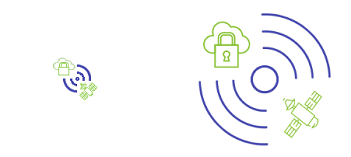
This animated image from the NSA.gov home page is small on page load but quickly expands to its full size of 100 pixels. Once the image is full size, the animation stops. Note that this page honors reduced motion settings (see Strategy #3) when the user has selected them. In this case, the animation does not run, and the image is always full-size.
Strategy 2: Give Users Control of Motion and Animation
Section titled “Strategy 2: Give Users Control of Motion and Animation”One of the best strategies to limit the negative impact of changing content is to give users control of motion and animations.
- Have all motion disabled when the page opens.
- Default to the “read” or final state of the movement or animation.
- Provide controls such as buttons to pause, stop, or hide individual animations or motion effects. Designs typically include controls like this for foreground elements, such as a scrolling marquee.
- Example: Carousels with a pause (stop/start) button.
- Example: Animated advertisements with a hide (close) button.
- Start and stop controls should be located on or adjacent to the moving content.
- Provide controls to turn on or off all background animations or CSS-generated animations or motion, such as transition effects.
- Example: Buttons are provided at the top of the page to turn off animated transitions.
- Example: During the site login, ask users if they want background videos to run automatically. Controls are also provided on each web page to start and stop background videos at the user’s discretion.
- On/off options should be available on or before the page loads or early in the page’s tab order.
- Allow only limited motion or animation without user interaction (see Strategy #1).
- Have the application remember the user’s settings where applicable.
Note: Don’t forget that all controls need to be accessible too.
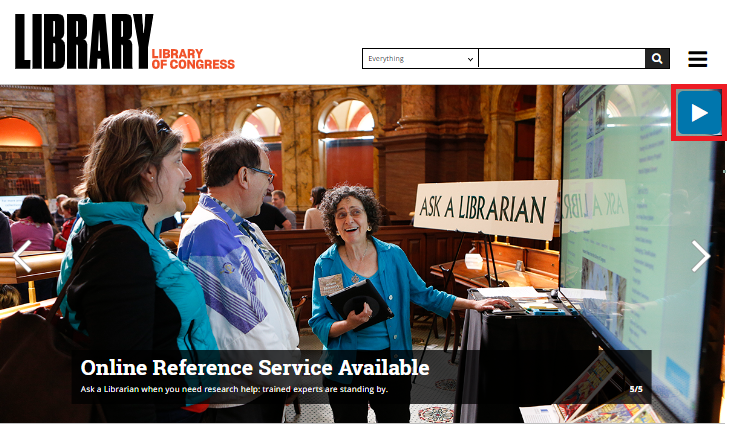
This example shows an animated carousel from the Library of Congress home page. The carousel automatically advances from one slide to the next, but users have an accessible button that they can use to stop and restart the carousel. Once the animation is stopped, accessible “Next” and “Previous” buttons control the carousel’s movement as the user directs.
Strategy 3: Honor Reduced Motion Settings
Section titled “Strategy 3: Honor Reduced Motion Settings”Another method of providing user control of motion is to check the system settings to see if the user has already selected options asking for reduced motion or disabling animation effects. You can use the “prefers-reduced-motion” media query with either CSS or JavaScript to determine if a user has requested reduced motion. An animation can be disabled, replaced with a simpler animation, or replaced with a completely different action using the media query. See Animation Control with Media Queries (Ta11y) for more information on this technique.
Note: Not everyone who benefits from reduced motion settings knows they exist. You can combine this technique with Strategy #2 for optimum results, giving users control with start/stop options and respecting reduced motion settings when users request them.
When Moving Content Is Essential
Section titled “When Moving Content Is Essential”When moving content is part of an essential activity, there is no need to provide a mechanism to control its movement.
An activity is essential if:
- no other interaction can occur during the activity for any user, and
- not indicating the activity could confuse users or cause them to think that content was frozen or broken.
One example of an essential animation is a spinning page load icon.
- The animation is the only content on the page (it isn’t presented in parallel with other content).
- The animation instructs people to wait while the page loads.
- No other interaction can occur while the page loads.
- Provide this information to prevent users from thinking the page is not loading correctly.

This page-load animation meets the requirements to be considered essential, so there is no need to provide any mechanism to control its movement, even though it may run for more than 5 seconds.
How to Test
Section titled “How to Test”Checks for moving content start with a visual inspection of the page.
- Identify all moving content.
- Determine if the page opens with all moving content disabled.
At least one of the following checks must pass if all moving content is not disabled by default when the page opens.
- Check 1: Limiting Motion and Animation
- Does all moving content meet the criteria for limited motion, such as only moving a short distance or running for a short time?
- Check 2: Providing Controls for Foreground Motion and Animation
- Are specific controls provided to pause, stop, or hide individual moving elements on the page? Foreground animations such as carousels or scrolling marquees typically have controls like this. These controls are usually located on or immediately adjacent to the moving content.
- If the page does not provide any options to control animations, turn off animations in your operating system as described in Animation Control with Media Queries (Ta11y). Reload the page and check to see if the moving content is disabled.
- Check 3: Providing Controls for Background Motion and Animation
- Are controls provided to turn off or hide moving content that runs in the page background? Usually, these controls are available on page load or early in the page’s tab order.
- If the page does not provide any options to control background animations, turn off animations in your operating system as described in Animation Control with Media Queries (Ta11y). Reload the page and check to see if the moving content is disabled.
References
Section titled “References”- WCAG 2.1 Success Criteria 2.2.2 Pause, Stop, Hide, Level A
- WCAG 2.1 Success Criteria 2.3.3 Animation from Interactions, Level AAA
- Accessible Web Animation: The WCAG on Animation Explained
- Designing Safer Web Animation For Motion Sensitivity
- Accessibility for Vestibular Disorders: How My Temporary Disability Changed My Perspective
- The Unbearable Inaccessibility of Slideshows
- Responsive Design for Motion
- Mozilla Developer Network, prefers-reduced-motion