Lists
Summary
Section titled “Summary”Lists group a series of related items. They format text in a way that simplifies the content and lowers the density of text on a page. Lists make it easier for people to quickly scan and understand information.
Overview
Section titled “Overview”Lists make it easier for people to scan a series of items. The native styling and structure of lists simplifies and organizes content to help people understand information.
Use lists to group a series of three or more related items.
- Use ordered lists for information that follows a specific order, such as a series of steps to complete a task.
- Use unordered lists for related information that does not follow a specific order, such as a shopping list.
- Websites may also include menu lists for organizing menus and definition lists to organize glossaries or similar types of content.
Basic guidelines for lists include:
- Use lists for a series of three or more related items.
- Keep items in lists concise.
- Use the correct document or web formatting to create lists.
- Do not use characters like asterisks or dashes to create the appearance of a list with bullets.
- Keep to one phrase or sentence per list item if possible.
- Avoid nested or multi-level lists if possible.
- Limit multi-level lists to two levels if they are used.
- Start each list item with the same:
- word type (such as a noun or a verb)
- tense (past, present, or future)
- sentence type (such as instructions or a question).
- Do not use tables to organize lists. See Layout Tables for more information.
Who is Helped?
Section titled “Who is Helped?”Lists simplify content and make it easier for people to understand information. This can be especially helpful for people with cognitive disabilities such as dyslexia, language-related disabilities, or memory impairment.
- Bulleted lists simplify sentence structure by replacing nesting clauses with short phrases or sentences.
- Numbered lists help to break complex processes into a series of steps.
These same techniques also make content easier for people with low vision to scan and understand.
People who use assistive technologies may be able to navigate to lists on a page using keyboard shortcuts or voice commands. Screen readers will also announce the number of items in a list and identify each list item as it is read; knowing the list length helps people who cannot see the list understand what to expect. Correctly formatted lists help these individuals move through content more efficiently and better understand a content’s structure.
Guidelines
Section titled “Guidelines”Lists must be marked up in the code using the correct semantic HTML for the type of list. The term “semantic” indicates that the HTML element conveys the meaning of its content.
Lists should never use text characters, such as asterisks, dashes, icons, or foreground images, to create the appearance of a list. While this may add visual clues for sighted users, it does not provide the necessary meaning that semantic HTML provides to make lists accessible to assistive technologies.
There are four types of lists used in digital content:
- Ordered lists
- Unordered lists
- Menu lists
- Description lists
Ordered lists <ol>
Section titled “Ordered lists <ol>”Ordered lists are used for information that follows a specific order. For example, a recipe or directions.
These lists are marked up using a <ol> parent element and <li> child elements.
Code example:
<ol> <li>Add milk</li> <li>Add flour</li> <li>Combine all ingredients</li></ol>Unordered lists <ul>
Section titled “Unordered lists <ul>”Unordered lists are used for related information that does not follow a specific order. For example, a shopping list. These lists are marked up using a <ul> parent element and <li> child elements.
Code example:
<ul><li>Tabby</li><li>Scottish fold</li><li>Persian</li></ul>Menu <menu>
Section titled “Menu <menu>”The <menu> element is an alternative to an unordered list <ul> but is intended for use with interactive items, such as a toolbar. It is exposed to assistive technologies in the same way that an unordered list is. It contains a list of items using the <li> element that represents actions or commands.
Code example:
<menu> <li><button id="save">Save this article</button></li> <li><button id="share">Share this article</button></li></menu>Description lists <dl>
Section titled “Description lists <dl>”Description lists are used for grouping terms and descriptions. For example, a glossary.
These lists are marked up using a <dl> parent element and <dt> (specifying the term) and <dd> (specifying the description) child elements.
Code example:
<dl> <dt>Fern</dt> <dd>Green flowerless plants with divided leaves that tend to grow in damp, shady areas</dd> <dt>Cactus</dt> <dd>A type of desert plant that has thick, leafless stems covered in prickly spines or sharp spikes</dd></dl>Note: How description lists are exposed to different screen readers can vary. For this reason, there must be a clear relationship in the text between the term and the description. For more information, see Adrian Roselli’s article on how description lists are exposed to assistive technology.
Exceptions
Section titled “Exceptions”In cases where native HTML cannot be used, the ARIA roles of list and listitem or menu and menuitem can be applied to elements to change the semantics. Refer to Building Elements with ARIA (Ta11y) for more information.
Best Practices
Section titled “Best Practices”General Tips
Section titled “General Tips”- Keep lists concise.
- Try to keep to one phrase or sentence per list item.
- Avoid styling lists to display in-line (unless styling a horizontal menu), as this reduces readability.
Multi-Level Lists
Section titled “Multi-Level Lists”Try to avoid multi-level lists, as they can be hard for people to follow. If you do use a multi-level list, try to limit it to two levels and use the same symbol, number, or letter for the same level in each list.
Grammatical Structure
Section titled “Grammatical Structure”It helps users if lists keep to the same grammatical structure. This means starting each list item with the same:
- word type (such as a noun or a verb)
- tense (past, present, or future)
- sentence type (such as instructions or a question).
How to Test
Section titled “How to Test”Lists can be checked using the lists bookmarklet or an accessibility test tool (browser extension) like WAVE or ANDI.
- Use the Details panel in WAVE to highlight all lists on a page.
- Use the Structures module in ANDI and select the “lists” option to see all lists on a page. The lists option is only available if there are lists on the page.
See Wave and ANDI (Ta11y) for more information about using these tools.
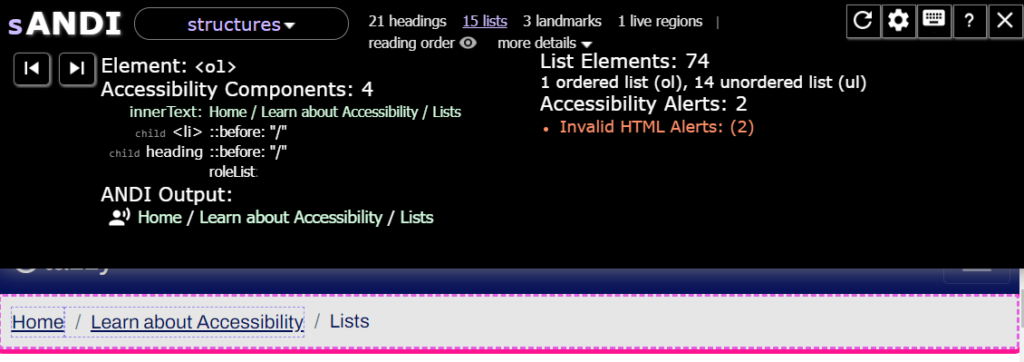
In an example from this page in Ta11y.org, the ANDI output for the Breadcrumb Links list shows the text of the three list items (Home, Learn about Accessibility, and Lists) and identifies the list as an ordered list. Cycling through the list would reveal information about each of the list items in the list.
Developers can check the source code for lists by using the Browser Inspect / DevTools (Ta11y).
- Check that everything that looks like a list is correctly coded as a list. Lists can be coded using native HTML elements (preferred) or ARIA. Refer to Building Elements with ARIA (Ta11y) for more information.
Resources
Section titled “Resources”- WCAG Success Criterion 1.3.1 Info and Relationships (W3C)
- Lists (Australian Government Style Manual)
- Making Content Usable for People with Cognitive and Learning Disabilities (W3C)
- Using CSS counters (Mozilla Developer Network)
- Semantic Structure: Regions, Headings, and Lists (WebAIM)
- Technical Writing: Lists and Tables (Google for Developers)