Skip Links
Summary
Section titled “Summary”Skip links help people directly jump to a web page’s main content or other important content sections. They provide a way to quickly bypass blocks of content that are repeated on the website, such as the site navigation. Skip links let people who can’t use a mouse reach the content they are interested in with fewer steps.
Overview
Section titled “Overview”Skip links provide direct access to key content on a web page. This functionality lets people bypass blocks of content repeated on multiple website pages, such as navigation links, headers, advertisements, etc. In this way, skip links can save time and effort when navigating a web page.
People who can view the website’s content with their eyes and navigate with a mouse can visually identify each block of content and ignore those with which they do not need to interact. You must provide a method to avoid these blocks of repeated content for people who use assistive technology, such as a screen reader, or navigate websites with a keyboard or other devices that rely on keyboard focus.
Skip links are especially critical for sighted keyboard navigators, who navigate content sequentially and often must make dozens of keystrokes before reaching the main content. This process can be slow and sometimes painful. Most sighted keyboard navigators can’t use landmark regions or headings to navigate on a web page and rely instead on techniques like skip links to make navigation easier.
Including skip links is recommended for most websites, as they support sighted keyboard navigators where headings, landmark regions, and other waypoints may not. Other bypass methods that help to support sighted keyboard navigators can include shortcut keys, a short popup menu with links to key sections of content, and locating key actions early in the tab order.
Watch this short Keyboard Compatibility video from the Web Accessibility Initiative to see how techniques like skip links support keyboard navigators.
Who is Helped
Section titled “Who is Helped”People who navigate with only a keyboard, keyboard-like interface, or some type of assistive technology that emulates keyboard navigation and requires repeated physical movement by the individual are helped by skip links. Keyboard-like interfaces and navigational devices include:
- mouth sticks,
- joysticks,
- head pointers,
- eye tracking devices,
- sip-puff devices, and
- switch devices that rely on an on/off state to operate
- can be controlled by a single movement from a finger, foot, shoulder, etc.
- are often customized to an individual.
Sighted keyboard navigators are the primary beneficiaries of skip links since they reduce the number of movements (keystrokes) necessary to get to the main content or other key content sections when navigating a web page. Other methods of bypassing content available to screen reader users often cannot be used by sighted keyboard navigators who rely on skip links, shortcut keys, and other similar functions to navigate web pages.
People using screen readers find skip links useful as they can avoid hearing redundant content like menus on every page.
People using screen magnifiers can find the content they need to access faster by using skip links. Zooming in on the screen means that only a small part of a page appears in the browser window. Someone might have to do considerable scrolling to reach the content they want to read.
Skip links help everyone to reduce the cognitive load that repeatedly accessing the same content generates while saving time by getting to the content they want to consult faster.
Guidelines
Section titled “Guidelines”The Web Content Accessibility Guidelines (WCAG) require you to provide some method to bypass blocks of content repeated across multiple pages of the website, but do not specify which specific method to use. Skip links are strongly recommended for use due to the support they provide for keyboard navigators. Other methods of bypassing content blocks, such as landmarks and headings, are not always available to these individuals. The best method for bypassing repeated content is to combine multiple techniques to support multiple user needs. At a minimum, you should use landmarks, headings, and skip links to support people using assistive technology and sighted keyboard navigators.
Adding Skip Links to a Web Page
Section titled “Adding Skip Links to a Web Page”To incorporate skip links into your website, first identify the key sections of the web page. These sections will include the main content and others that people might need to access frequently. These can be the same as the landmark regions, such as the navigation menu or the footer, or any other important website content, such as a shopping cart.
For example, skip links might be:
- Skip to main content.
- Skip to footer.
- Skip to Cart.
Try to limit skip links to no more than three, as it defeats the purpose of skip links - getting keyboard navigators to content quickly - when there are a lot of skip links to tab through.
Once the key sections of content are identified, add skip links to directly access the website’s main content and the other important sections that were previously identified. Skip links can bypass blocks of content that are repeated on a website’s pages and let people jump directly to what is most important.
- Skip links are usually located at the top of a page before any other content, but they can be located elsewhere on the page.
- Skip links are usually hidden using CSS to position them off-screen when first accessing the web page, although they can be visible.
- Hidden skip links are activated when keyboard navigators press the “TAB” key and become visible when they receive focus.
- Do not hide the skip links using “display: none;” or “visibility: invisible;” as this makes the link inaccessible to everyone.
- Skip links need to point to focusable elements on the web page.

<body> <a href="#mainContent" class=”skip”>Skip to main content</a> <nav> <ol> <li><a href="mentoring.html">Mentoring</a></li> <li><a href="resources.html">Resources</a></li> <li><a href="aboutUs.html">About</a></li> <li><a href="joinUs.html">Join Us</a></li> </ol> </nav> <main id="mainContent"> <h1>Accessible Community</h1> ... </main></body>a.skip { position: absolute; Top:-42px; Left:0px; Background:transparent; transition: top .7s .5s ease-out; background .7s linear;}a.skip:focus { Top:0px; background:#ffffff; transition: top .1s ease-in; background .25s linear;}Basic Guidelines for Skip Links
Section titled “Basic Guidelines for Skip Links”- It is a best practice to limit skip links to no more than three.
- A single skip link on most websites is sufficient.
- You can include other skip links if needed.
- Too many skip links can negatively impact keyboard navigators.
- Skip links should use descriptive text that indicates the link’s target.
- Examples: “Skip to main content” or “Go to main content.”
- Skip links should be the first interactive element on the page.
- Skip links are usually located after the
<body>tag. - Exception: If there is a pop-up at the beginning of the website that requires user action, for example, accept terms and conditions or cookies, subscribe, etc., before starting to navigate.
- Skip links are usually located after the
- Skip links should include a link that targets the page’s main content.
- This link lets people go directly to the main content and avoid repeated content like the site navigation.
- Usually, it points to the “main” landmark or
<h1>. - When the skip link is activated, the keyboard focus must go to the main content.
- The next element to receive the keyboard focus must be within the main content.
- Skip links must target focusable elements on the web page.
- Skip links can also be added at the beginning of a block of repeating content within a web page to go to the end of the block.
- For example, an e-commerce website may implement a skip link to bypass a series of product filters so users can go directly to a list of products.
- For skip links that are hidden on page load:
- Hidden skip links must be visible when they receive focus.
- Use CSS positioning to hide skip links off-screen.
- Link text and background colors must be accessible when visible.
Exceptions
Section titled “Exceptions”It is worth mentioning that if a page does not have any repeated blocks of content, then there is no need to have a mechanism to bypass content.
Examples include:
- A login page that contains only a login form.
- A search page that contains only a search input field.
- A small website that has only one or two links in its navigation.
How to Test
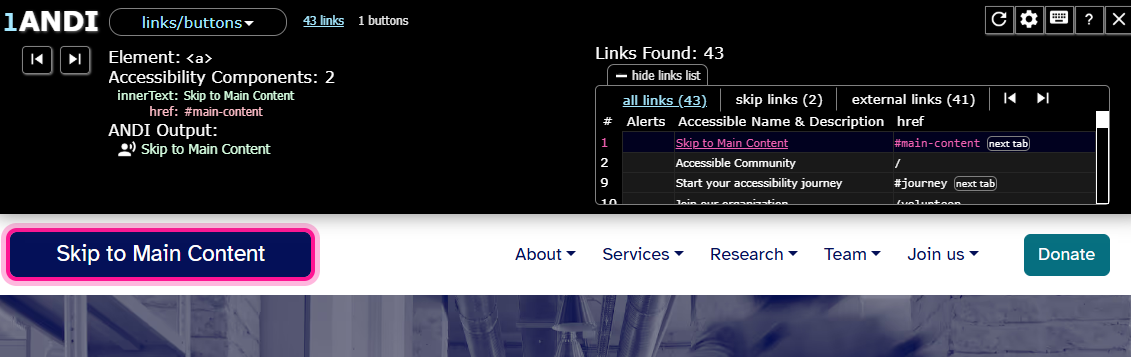
Section titled “How to Test”Navigate with the keyboard to verify the correct use of skip links. If the skip links work correctly with the keyboard, then a screen reader should be used to ensure it reads the skip link correctly. You can also use accessibility test tools like ANDI to verify that the skip link text output is usable for screen readers.
Checkpoints:
- Verify that there is at least one skip link that targets the main content.
- Verify there are not too many skip links. Somewhere around three is usually enough.
- Verify you can reach the skip links within the first few tab stops on the page.
To test the functionality of a skip link:
- Load the page.
- If a skip link is not visible at the top of the page, press “TAB” on the keyboard to check if a skip link is available. It should appear within the first few tab stops.
- Verify that the skip link is visible when it receives keyboard focus.
- Verify that the link’s text describes its target.
- If a skip link is available, press “ENTER.”
- Verify that activating the skip link moves the keyboard focus to the link’s target.
- Press the “TAB” key again.
- Verify that the keyboard focus moves to the first interactive element within the skip link’s target.
- Repeat this process for any other skip links on the page.
To test only the skip link’s output:
- Use either a screen reader or an accessibility test tool like ANDI.
- With a screen reader, display the list of links and verify that there is clear, descriptive text for all skip links.
- With ANDI, go to the “links/buttons” module and open the links list.
- The links list identifies the number of skip links on the page and lists them with the other links.
- Select each skip link in the links list.
- ANDI displays the element’s code structure and text output, and highlights the skip link on the page.
- Verify that the link’s text describes its target.
References
Section titled “References”- WCAG Success Criteria 2.4.1 Bypass Blocks, Level A (W3C)
- Accessibility Skip links, W3C School
- Skip Navigation Links, WebAIM
- The skip-link target should exist and be focusable, Deque
- Skip Links: Good and Bad Examples, Paul Adams
- Examples of Bad Skip Links, TPGI
- How to Create a “Skip to Content” Link, Paul Ryan
- Creating a Skip to Content Link, Darren Lee
- Skip Link, A11y 101
- Skip Navigation Links, Jim Thatcher