Page Titles
Summary
Section titled “Summary”Descriptive page titles help people quickly identify the main topic of a page. This is especially beneficial for people with disabilities who use assistive technology such as screen readers or who have cognitive disabilities. For example, many of us have multiple tabs open in a web browser. Without a descriptive page title, it would be impossible to navigate between them. Clear, descriptive page titles not only help those with disabilities but also those without disabilities.
Overview
Section titled “Overview”A descriptive page title helps users find content and orient themselves within a website or a large document. The title in a website’s title bar or browser tab confirms users are in the right location. When the page title shows up in other locations, such as site maps, search results, and bookmarks, it helps users quickly find the page they need. The same is true of a page or chapter title in a document’s table of contents. It is hard to identify the purpose of a page without a descriptive page title.
Who is Helped
Section titled “Who is Helped”- People who use assistive technologies like screen readers.
- Page titles allow these users to know which page they are on and decide whether to read it or switch to a different page.
- People with disabilities who use speech-to-text software.
- Concise page titles allow these users to easily select the page they want to visit from an array of open browser tabs or a document’s table of contents by simply speaking them out.
- People with certain cognitive and learning disabilities benefit from having concise, descriptive page titles as they make the purpose of the page clear.
- People without disabilities are also helped as clear titles allow any user to navigate between websites in a browser and different pages within a website or document with ease.
Guidelines
Section titled “Guidelines”- Enter the title element in the code for the document’s head:
Example of a title <head><title>Page Title</title>...</head> - A page title should usually not exceed 60 characters.
- This ensures the title is not very truncated on a browser tab or bookmark.
- It also ensures the entire title is seen in search results on the web.
- Make sure the page title is as descriptive as possible.
- This ensures there is no confusion within multiple web pages of a website.
- For example - you may have an online course where different lessons are on different web pages. Make sure each page title succinctly describes each lesson. This helps to distinguish each web page and lesson from others on the website.
- Avoid using special characters in a page title.
- Special characters add little value and may cause confusion for screen reader users or create problems for people who rely on speech-to-text software.
- Always spell-check your page titles.
How to Test
Section titled “How to Test”Test method 1: Visual Inspection
Section titled “Test method 1: Visual Inspection”The title should show up in the browser tab for the web page.
Test method 2: Use an Accessibility Test Tool
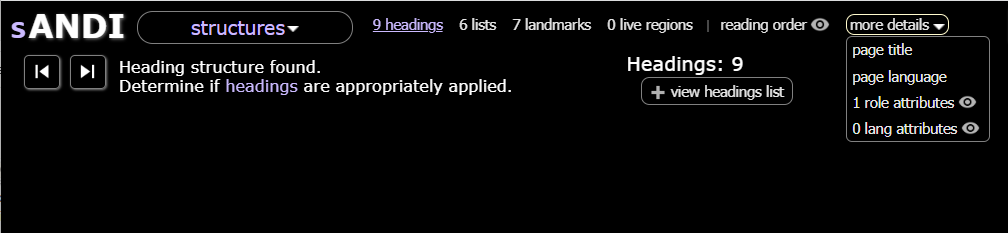
Section titled “Test method 2: Use an Accessibility Test Tool”Use an accessibility test tool like the ANDI bookmarklet to check for the page title. Open ANDI and select the “Structure” module. Look under “More Details” to check the page title.
Other automated accessibility testing tools, such as WAVE, will also scan your browser’s web page and show you if there is a missing page title.
Test method 3: Use the Browser Developer Tools
Section titled “Test method 3: Use the Browser Developer Tools”Use the F12 key to open the browser’s developer tools and inspect the code. Find the <title> tag in the document’s head to verify the page title.