Provide Autocomplete Values
Summary
Section titled “Summary”Browsers often autofill form fields containing personal information with a person’s data. Most browsers use the form field’s name to “guess” what needs to go in the field based on previous forms. When you add autocomplete to your code, you tell the browser what to use so it doesn’t need to guess. It’s easier for people to fill out forms when they don’t need to re-enter their personal information every time.
Overview
Section titled “Overview”For many people, form completion is the most complex task on websites. Forms can be highly challenging for people with cognitive disabilities. The browser’s auto-fill function helps people fill out forms by suggesting or automatically filling in an individual’s personal information. For example, if a person has entered their name and address in a form before, their browser may offer to fill in those fields automatically when it detects similar fields on a different form.
Using the autocomplete attribute:
- Helps to ensure personal data supplied by the browser is correct and consistent.
- Saves people time and effort, especially when filling out repetitive or lengthy forms.
- Reduces potential form entry errors that are a source of frustration, particularly for people with cognitive disabilities.
- Simplifies form completion for everyone regardless of our ability to fill out forms.
You can only use the autocomplete attribute with these HTML (Hypertext Markup Language) form elements:
<input><textarea><select><form>
Autocomplete values are limited to:
onoff- Predefined (fixed) values from this list of autocomplete values.
A few examples of predefined autocomplete values include:
name, used for full namebday, used for birthdayemail, used for E-mail address
When you see predefined autocomplete values like these, it is easy to understand how they help people fill out forms faster and more confidently.
Who is Helped
Section titled “Who is Helped”The autocomplete feature can be helpful for all internet users, but it is essential for some groups of people.
- People with cognitive impairments, memory loss, dyslexia, any disability affecting executive function or decision-making, and anyone who needs more time to fill out forms. For example, people with age-related forgetfulness or mild cognitive impairment could be worried about making mistakes. Autocomplete helps them feel safe and supported, knowing that the information they entered is accurate.
- Individuals with limited motor control who have problems with typing. Autocomplete helps them enter their personal information into forms correctly with less physical effort.
- People who are blind, have low vision, or for any reason use screen readers. Properly implemented autocomplete attributes help these individuals by reading available autofill options. This functionality reduces time and effort to complete forms, increases accuracy, and reduces errors.
Guidelines
Section titled “Guidelines”By default, browsers store information received from their users. How do browsers get this information? Usually, this happens when we fill out and submit forms. Browsers save our data by default and use it later based on their best judgment for tasks like auto-filling personal data in form fields. As discussed previously, you can control the browser’s “best judgment” by using the autocomplete attribute to tell the browser what data to use. You can turn it off programmatically (through the code) in cases like a one-time password field where you don’t want autocomplete to be used.
The Web Content Accessibility Guidelines (WCAG) require the addition of the correct autocomplete value to form fields that collect personal information.
- This criterion applies to input, textarea, and select fields.
- Values must be from a valid list of autocomplete values.
Autocomplete Attribute Values
Section titled “Autocomplete Attribute Values”The autocomplete attribute accepts only specific values. The following definition list below shows what values can be accepted and explains the differences.
off- Indicates that data the person enters is either sensitive or will not be reused (e.g., the verification code or the OTP (One-Time Password) for a secure single login attempt). But as any rule has exceptions, there are some edge cases, like regular login forms, for which this “off” value will not work. The article How to turn off form autocompletion (MDN) provides further explanation and other cases.
- For example, a CAPTCHA is intended to be entered once, so disabling autocomplete ensures that correct data is used each time.
Example of autocomplete off <input type="text" name="captcha" autocomplete="off" /> on- Indicates that the browser can provide the user with autocompletion values of previously submitted user data to fill in a form, but without any additional information on what kind of data is expected from the user, the browser’s suggestions will be based on its judgment. If the autocomplete attribute is absent, this value is considered the default for user agents like browsers and password managers. You can also use
autocomplete="off"for a single input if you would like to exclude this input from storing values.Example of autocomplete on but off on one field <form autocomplete="on"><label for="name">Name:</label><input type="text" id="name" name="name"><label for="email">E-mail:</label><input type="email" id="email" name="email" autocomplete="off"></form> - predefined (fixed) values
- Tokens from a list of autocomplete values, i.e., repetitive, often-used personal information, like name, address, phone, etc.
Example of autocomplete with predefined value <input type="text" name="country" autocomplete="country"> -
Tokens can be used multiple times. For example, if you need to fill out work contact information, you need to separate tokens with a space, like this:
autocomplete="token1 token2".Example of autocomplete with separate tokens <input type="tel" name="work-phone" autocomplete="work tel"><input type="email" name="work-email" autocomplete="work email"> -
Also, multiple sets of similar form fields (like two shipping addresses or two phone numbers) should sometimes be filled out. To make them auto-filled, developers need to add a
section-in an attribute name to differentiate them, like this:autocomplete="section-name1 token".Example of autocomplete with section prefixes <input type="tel" id="primary-phone" name="primary-phone" autocomplete="section-primary tel"><input type="tel" id="secondary-phone" name="secondary-phone" autocomplete="section-secondary tel">
It is important to understand that only personal information can be auto-filled. It is primarily designed to help browsers fill in user-specific information. It might not handle multiple similar data entries, like information about your children.
Another important point is that your personal information is not retained when you move from one browser, computer, or account to another. These stipulations mean that to accurately fill out a form with the help of autocomplete, the person must use:
- their personal information,
- the same computer,
- the same user account,
- the same browser.
Figure 1 below shows an example of a form field with an autocomplete value suggestion.
<input type="text" name="FirstName" id="firstNameField" autocomplete="given-name" required="">
Why The type attribute Alone Is Not Enough
Section titled “Why The type attribute Alone Is Not Enough”Although the type attribute already broadly specifies the intention of the input field and what input is expected, autocomplete prompts browsers to supply more precise information for autofill purposes. For example:
<label for="new-password">New Password:</label><input type="password" id="new-password" name="new-password" autocomplete="new-password" placeholder="Enter your new password">By using type="password" along with autocomplete="new-password", you not only ensure input is secure but also provide a hint to the browser that it’s a new password field, which can trigger its password management features.
Let’s compare two similar name input fields, one with and one without the autocomplete attribute.
-
In the first example, the browser uses its internal algorithms to determine what to autofill in the field. Depending on the person’s saved data, it could suggest a full name, first name, or last name.
<label for="name">Your name:</label><input type="text" id="name" name="name">Example 1: Without the autocompleteattribute -
The second example uses
autocomplete="family-name"that provides specific instructions to the browser to look for and suggest last names (family names) stored in its autofill database.<label for="name">Your name:</label><input type="text" id="name" name="name" autocomplete="family-name">Example 2: Using the autocompleteattribute
Using specific autocomplete values like family-name or username tells browsers to offer more specific autofill suggestions to people.
How to Test
Section titled “How to Test”Any forms requesting personnel information should be checked for correct use of the autocomplete attribute. The testing process can be done manually or with the help of automated testing tools.
Automated Testing
Section titled “Automated Testing”Verifying autocomplete attributes involves inspecting the HTML code of form fields to ensure that developers have assigned appropriate values to them. Several automated accessibility testing tools can help to verify autocomplete attributes.
- ARC Toolkit
- This testing tool provides automated checks for various accessibility features, including autocomplete attributes. Figure 2 below shows a screenshot of the ARC Toolkit report with an error message identifying an invalid autocomplete value. See ARC Toolkit (Ta11y) for more information.
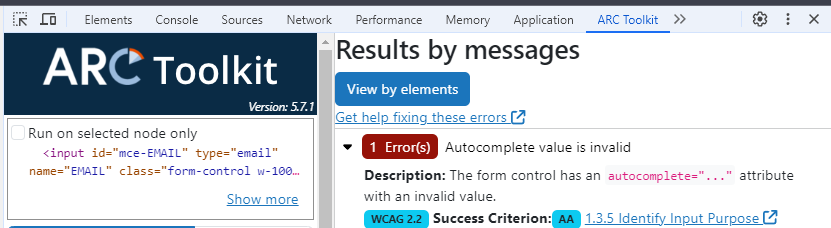
Figure 2: Excerpt from ARC Toolkit Report - axe DevTools
- This extension for Chrome and Firefox browsers can help to identify autocomplete attributes and other accessibility issues. Figure 3 below shows a screenshot of the axe DevTools report pointing to a serious error and a short explanation stating the “autocomplete attribute must be used correctly.” See axe DevTools (Ta11y) for more information.
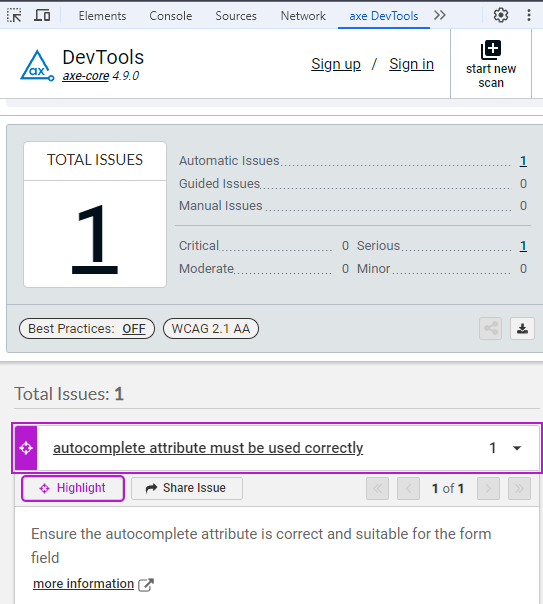
Figure 3: Excerpt from Axe DevTools Report
Manual Testing
Section titled “Manual Testing”You can manually verify autocomplete attributes by using the browser’s devtools to inspect the form fields’ HTML code.
-
Right-click on the form field and select “Inspect” from the context menu. Figure 4 below shows what this context menu looks like. This example and all others in this section are taken from the Accessible Community Volunteer page.
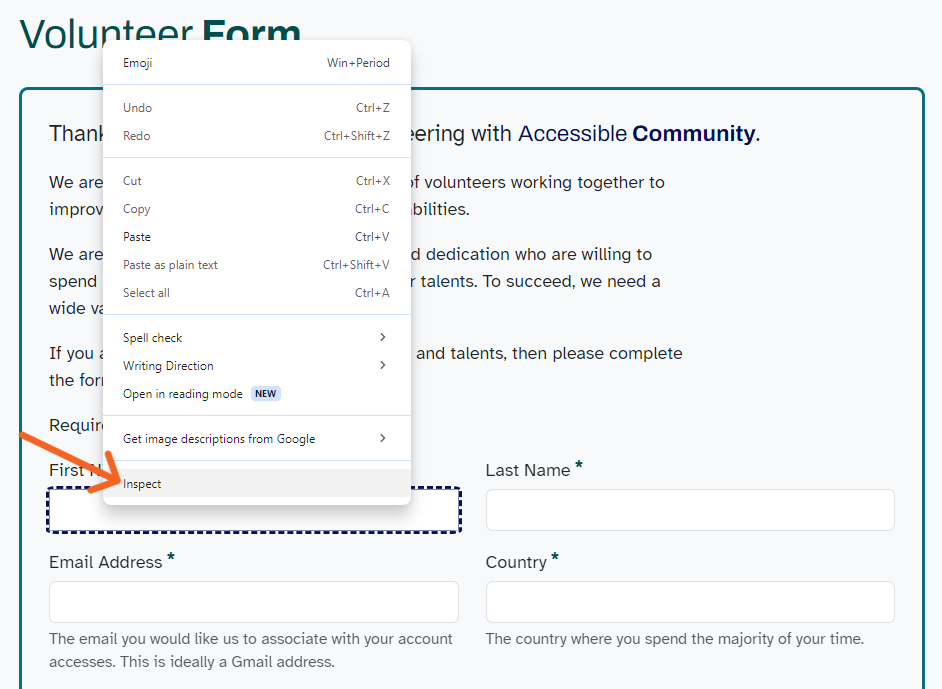
Figure 4: View of Context Menu -
Within the HTML code, locate the form field element. Figure 5 below shows the HTML code of one of the form fields.
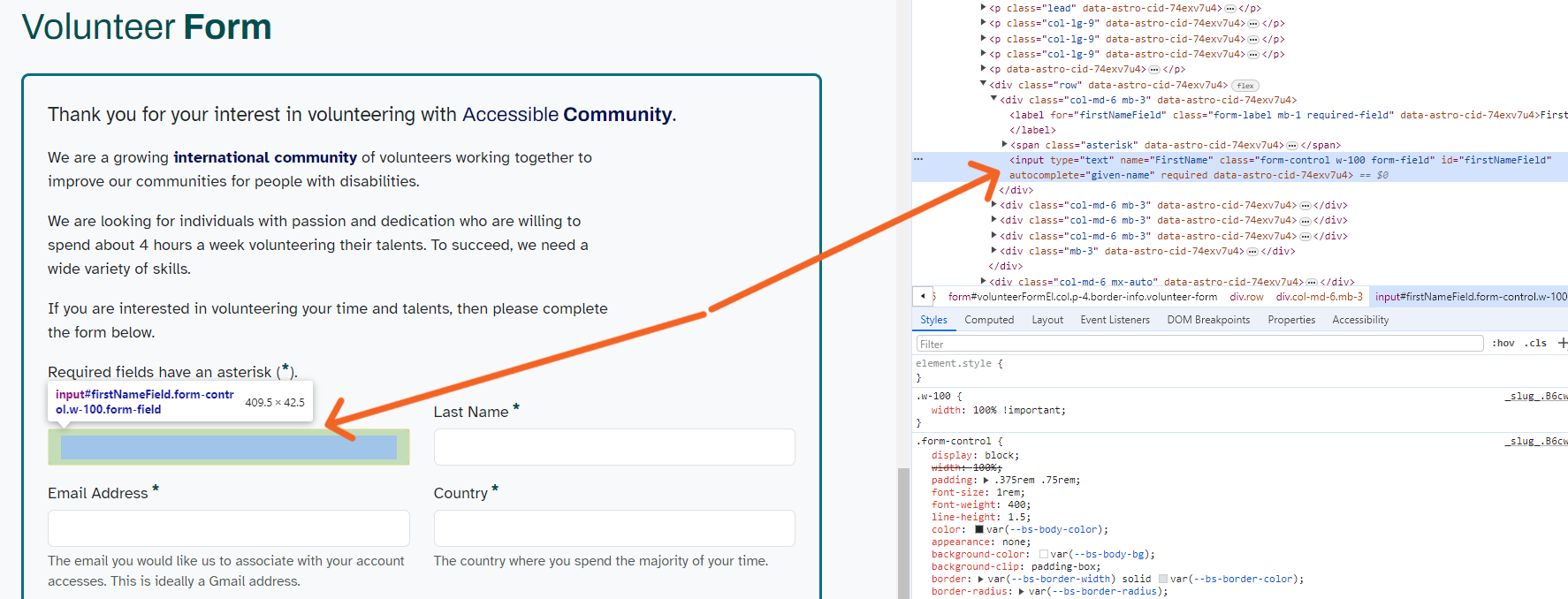
Figure 5: Form Field HTML Code in Browser DevTools -
Check if the form field has an autocomplete attribute. Figure 6 below shows the autocomplete attribute inside the HTML code.
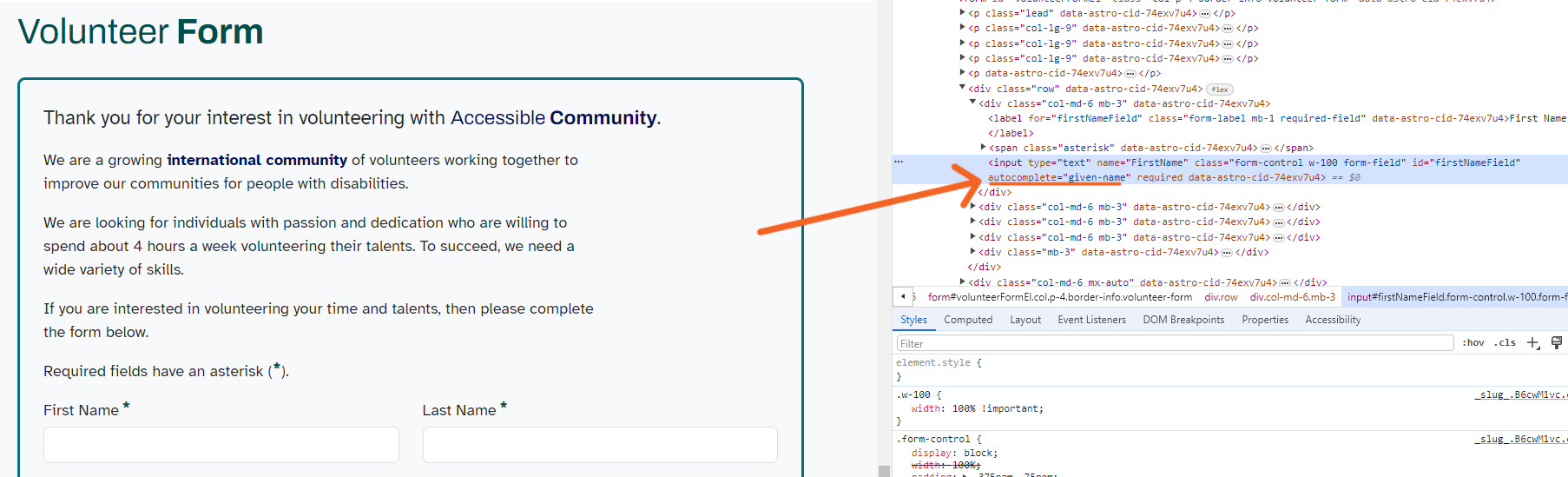
Figure 6: Autocomplete Attribute in HTML Code -
Confirm that the autocomplete attribute is used correctly according to the purpose of the form field. For instance, a field intended for the person’s first name should have the
autocompleteattribute set to"given-name"(see predefined autocomplete values). Figure 7 below shows an example of an autocomplete attribute for the “First Name” form field inside the HTML code.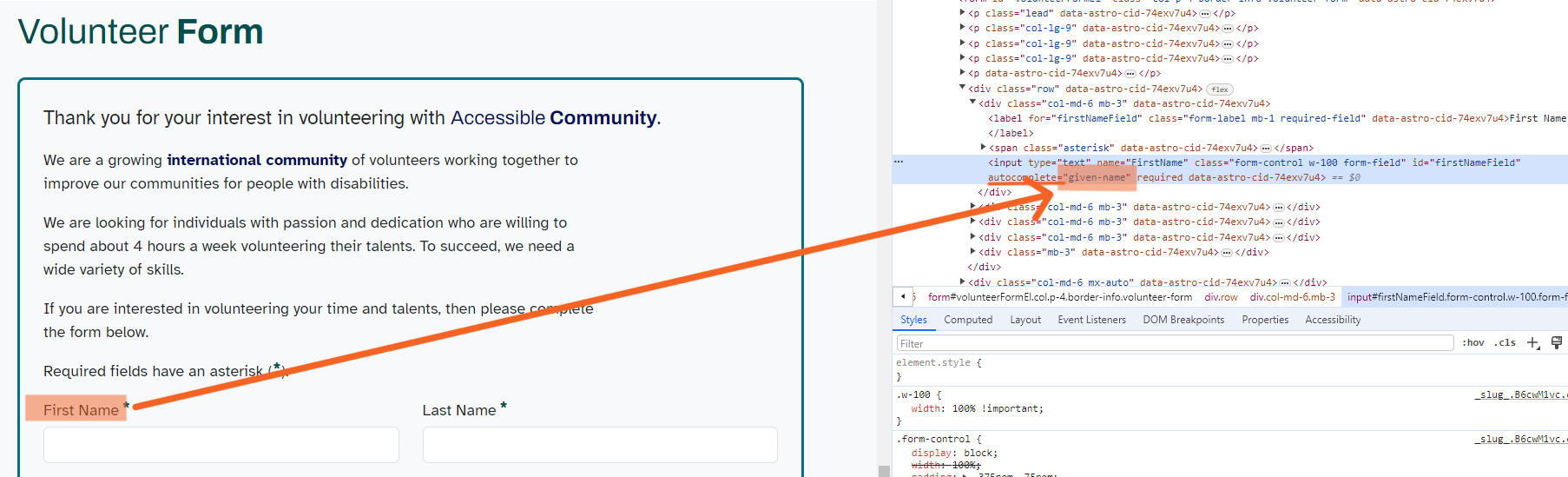
Figure 7: Autocomplete Attribute for First Name Field -
After verifying the autocomplete attribute, test the autocomplete functionality by entering partial information into the form field and checking if the browser suggests relevant options based on previously entered data. Figure 8 below shows an example of a form field with an autocomplete suggestion.
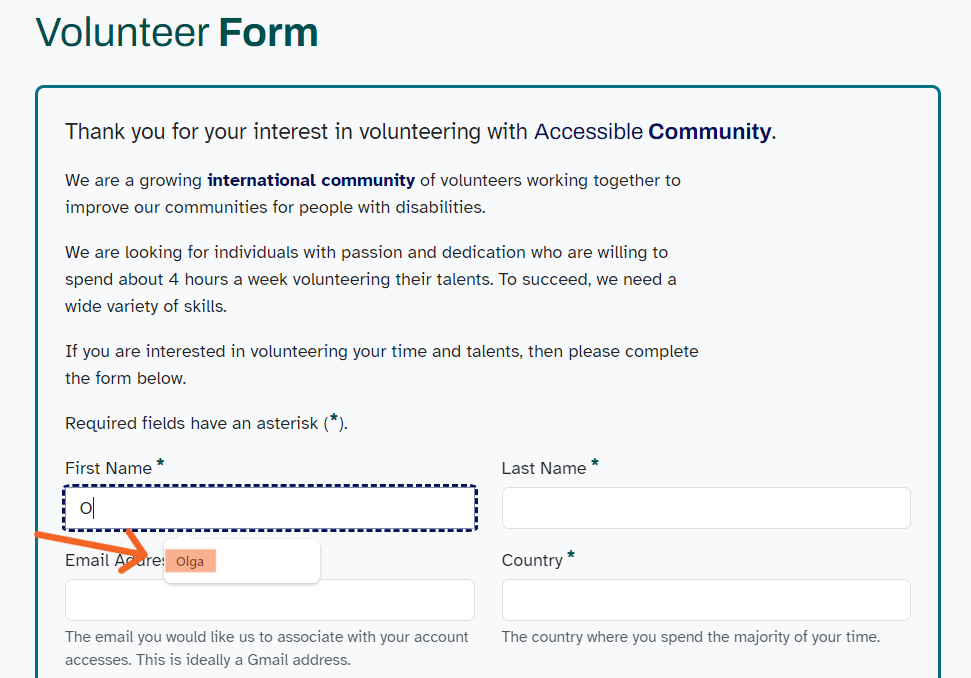
Figure 8: Autocomplete Suggestion for First Name Input Field
See Browser DevTools (Ta11y) for more information.
References
Section titled “References”- WCAG Success Criteria 1.3.5 Identify Input Purpose, Level AA (W3C)
- Understanding SC 1.3.5 Identify Input Purpose (W3C)
- Making Content Usable for People With Cognitive and Learning Disabilities (W3C):
- W3C List of autocomplete values
- Autofilling form controls (HTML spec), WHATWG
- HTML attribute: autocomplete, MDN
- How to turn off form autocompletion by MDN
- Accessibility Autocomplete, W3C Schools
- Using autocomplete for accessibility and improved user experience, Andy Carter