Font Choices
Summary
Section titled “Summary”Making the right font and font-formatting choices improves readability. Some fonts can negatively affect reading and comprehension, especially for people with low vision or disabilities impacted by reading or language processing skills. Font size, spacing, color contrast, line length, alignment, and familiarity can all impact readability for these individuals.
Overview
Section titled “Overview”Readability is the ease with which people can process and understand text. Most people read by “scanning” content, recognizing patterns, and converting those patterns into meaningful information. This process allows us to read and understand text very quickly. Your font choices can significantly impact the readability of the text.
The best font choices to improve readability include:
- simpler fonts with unambiguous letter shapes,
- common fonts that people are familiar with,
- larger font sizes,
- good color contrast,
- reasonable line length,
- adequate spacing,
- left text alignment.
The right font choices help improve reading outcomes and comprehension so that people can understand what they read and complete tasks with greater ease. This guidance is especially true for people with disabilities impacted by reading or language processing skills. The Readability Sandbox provides a quick insight into how the right font choices can improve readability for everyone.
Who is Helped
Section titled “Who is Helped”People with low vision:
- Readable fonts, larger font sizes, good color contrast, reasonable line length, and good text spacing help people with low vision or vision-related disabilities like macular degeneration.
- Accessible fonts help people with even mild vision impairments.
People with cognitive disabilities that impact reading skills, such as dyslexia.
- Line length, text alignment, and text spacing can impact the ability of some people with cognitive disabilities to read text easily.
- People with disabilities that impact reading skills are helped by having common fonts they are already familiar with or fonts with unambiguous letters (fonts designed with letters that are not easily confused with other letters).
- Having adequate text spacing is also very important for these individuals.
An estimated 20% of the world’s population has dyslexia, the most common of all neuro-cognitive disorders.
All of us benefit from having accessible text. Consider the examples of someone using a monochrome screen, such as a portable e-book reader, or using a mobile phone in bright sunlight. Good contrast and text spacing improve readability for both of these people.
Guidelines
Section titled “Guidelines”Use these guidelines to ensure good readability:
- Provide adequate font size.
- Provide adequate color contrast.
- Provide adequate text spacing.
- Choose readable text styles.
- Choose readable font styles.
- Ensure individuals can adjust fonts.
Provide Adequate Font Size
Section titled “Provide Adequate Font Size”The size of the text has a significant impact on readability. Small text is hard for most people to read, especially those with low vision. Although the Web Content Accessibility Guidelines (WCAG) do not have a minimum font size requirement, it is a best practice to avoid smaller font sizes. While some typefaces are much smaller or larger than others, these guidelines provide an adequate text size for most people.
- Varies with typeface
- Font size should be at least 12 points (16 pixels) for primary or body text.
- Font size should be at least 10 points (13.3 pixels) for any text. A smaller size is appropriate for a copyright notice, legal disclaimer, or similar content. However, you should not use small sizes for large amounts of text, like body text.

Many people will need text larger than 12 points. Since it is impossible to meet every person’s needs, you must ensure that people can enlarge fonts themselves or zoom in and out to provide the level of magnification they need.
People should be able to adjust fonts using:
- Alternative CSS style sheets (see Zoom and Reflow)
- Accessibility Bookmarklets (see Single-Purpose Bookmarklets)
- Browser Extensions
- Browser and Platform (computer) settings (see Browser and Platform Settings (Ta11y))
- Assistive technologies like ZoomText
Provide Adequate Color Contrast
Section titled “Provide Adequate Color Contrast”People with low vision and people who are colorblind both rely on good color contrast to improve readability. It is essential to have sufficient contrast between the text and the background.
See Text Contrast to learn about color contrast guidelines for text.
Provide Adequate Text Spacing
Section titled “Provide Adequate Text Spacing”Adequate background space (white space) is important for good readability. White space helps to move the viewer’s gaze from one element to the next while also giving the eye a place to rest. It visually organizes content and makes it easy for viewers to identify individual letters, words, lines of text, or sections of content.
-
Adequate space between lines, words, and letters helps people with dyslexia, low vision, and other vision-related disabilities to read text.
-
Good spacing is a crucial factor in readability for people with dyslexia. It is even more important than choosing a “dyslexic-friendly” font.

Figure 2: Tight Letter, Word & Line Spacing Makes Text Difficult to Read -
Adequate space between blocks of text can help people with cognitive disabilities recognize discrete sections of content.
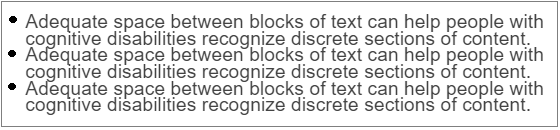
Figure 3: Tight Spacing Makes Text Difficult to Read
Guidelines cannot provide perfect text spacing for every person. Every font differs, and the letters’ size and shape impact the spacing needed. For text spacing to best support good readability:
- Start with appropriate text spacing options for the selected font.
- Ensure people can adjust text spacing to meet their needs.
See Text Size and Spacing for more information.
Choose Readable Text Styles
Section titled “Choose Readable Text Styles”Avoid text styles that detract from good readability.
-
Text alignment: Left-aligned text is best for languages like English that read from left to right, especially for body text. Justified text has uneven spacing and creates rivers of white space, making content harder to read. Centered text changes the starting position with every paragraph.
- This guidance doesn’t mean text must always be left-aligned. Specific situations may require a different text alignment
- For example, most documents center figure captions under an image.
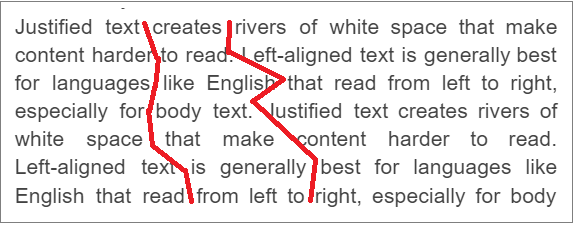
Figure 4: Justified Text Causes Rivers of White Space -
All caps: Avoid using all in capital letters (all caps) for body text. Reading body text that is in all caps is difficult for most people.
- Do use all caps for acronyms and initialisms.
- You can use all caps for short, stand-alone phrases like headlines.
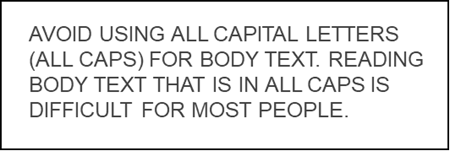
Figure 5: All Caps Make Body Text Difficult to Read -
Bold and italic text: Avoid large amounts of bold or italic text.
- Choose an overall font weight that is appropriate to the font.
- Use bold text within paragraphs only where needed for emphasis.
- Reserve italics for parenthetical information, like citations.
- Large amounts of bold or italic text can be more difficult for people to read, especially people with dyslexia.
-
Underlines: Avoid underlines for any text that is not a link.
- Never use underlining for emphasis because of its strong association with link text.
- People will click on underlined text because they expect it to be a link. This experience can be confusing when nothing happens.
-
Line length: Avoid lines of text that are too long or too short.
- An optimal line length is 9-12 words.
- When lines of text are longer, the eye needs to travel a greater distance from the ending point of one line and the starting point of the following line.
- Some people with reading or vision disabilities can have trouble keeping their place when reading long lines of text.
Choose Readable Font Styles
Section titled “Choose Readable Font Styles”Choose a font style that is appropriate to your audience and content.
Avoid overly complex or unusual fonts.
- Reading complex or unusual fonts increases people’s cognitive load.
- Use no more than three font faces. Switching fonts increases people’s cognitive load.

Common fonts are often the best choice, especially for body text, as most people are already familiar with them. Learning a new font increases people’s cognitive load. Some of the listed fonts are fully accessible. Others meet most, but not all, of the guidelines for an accessible font described in Table 1 below.
- Common fonts that are readable and relatively accessible include:
- Sans-serif fonts: Verdana, Arial, Helvetica, Calibri, Roboto, Lucida Sans, and Comic Sans.
- Serif fonts: Times New Roman, Georgia, and Book Antiqua.
- Monospaced fonts: Courier and Courier New (monospaced fonts are often used to display code).
- Internationalized fonts: Noto and Archivo are two examples of relatively accessible and common fonts supporting over 100 languages.
- Learning a new font, even one specifically created for people with dyslexia or optimum readability, increases cognitive load.
- These fonts are better for improved readability, but only once they are learned.
- All of these fonts are fully accessible.
- Dyslexic-friendly fonts: Dyslexie, Opendyslexic, EasyReading, and Read Regular.
- Optimized-readability fonts: Atkinson-Hyperlegible, Lexend, Andika, and Castledown.
- Sans-serif fonts like Arial are not always better than serif fonts like Times New Roman.
- Sans-serif fonts were a better choice in the early days of computer monitors with low screen resolution, but it is no longer a concern with modern screen displays and higher screen resolutions.
- Sans serif fonts are generally better for smaller text and screens due to their simplicity, but serif fonts can be a better choice in some situations, such as headings or long documents, due to their added details.
- In general, sans serif, monospaced, and Roman font styles are more accessible than serif, proportional, and italic fonts.
Always evaluate the legibility and readability of every typeface individually rather than relying on generalizations.
- Keep in mind that the typeface is only one factor in a font’s accessibility.
- Text size, weight, letter spacing, line spacing, and word spacing contribute to the font’s overall accessibility.
Remember to evaluate all the fonts you specify in your style sheets. This consideration especially applies to websites where developers specify several backup fonts for use if the primary font does not load. Because people seldom see these fonts, they often forget to check them.
Select Accessible Fonts
Section titled “Select Accessible Fonts”Use the guidance in the following table when selecting a new font or typeface other than a common font or one developed for people with dyslexia. For in-depth information on accessible typefaces, see Gareth Williams Ford’s article Understanding What Makes a Typeface Accessible.
| Guidance | Example |
|---|---|
| Minimize the occurrence of “imposter” letter shapes designed to be very similar to other letter shapes. | Uppercase “i,” lowercase “L,” and the number “1” should have a notable difference. Uppercase “o” and the number “0” should also be noticeably different. |
| Minimize the occurrence of mirroring letter shapes. | Letters such as d and b, or q and p, should have unique shapes. For example, the letters “q” and “p” are easily confused when they are exact mirror images of each other. |
| Have letters that are easily distinguishable from one another. | Letters such as a, e, c, and o should be easily distinguishable. For example, the letters “o” and “c” are easily confused if the opening in the “c” is too small. This confusion can occur in both upper and lower-case letters. |
| Have adequate letter spacing. | Letters such as “lo,” “rn,” or “vv” can appear joined when the letter spacing is too tight. |
| Have a visible difference between capital height and ascenders. | Letters such as capital “i” and lowercase “L” should be recognizable by their height differences. |
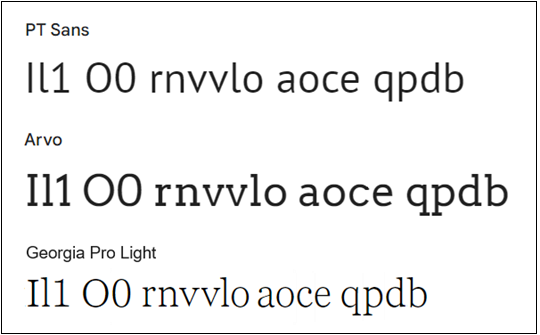
You can use a text string like “Il1 O0 rnvvlo aeco qpdb” to quickly check a font’s accessibility.
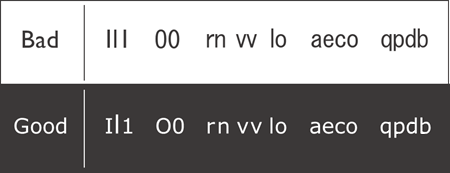
The “bad” font in the first row of text has many problems with ambiguous letter shapes and spacing.
- The uppercase “i,” lowercase “L,” and number “1” are identical.
- The uppercase “o” and number “0” are too similar.
- The letter pairs “rn” and “vv” are too tightly spaced and could be mistaken for “m” and “w.”
- The letter pairs “a e” and “c o” are difficult to distinguish.
- The mirrored shapes of d and b, or q and p, are too similar.
The “good” font in the second row is Verdana. This font has no ambiguous letter shapes, making it much easier to recognize letters and read words.
The last image below compares three fonts that “pass” the check for accessible letter shapes. Many other fonts that pass this check are available.
- The first font, PT Sans, is a sans-serif font.
- The second font, Arvo, is a slab font (slab is a variation of serif fonts).
- The last font, Georgia Pro Light, is a serif font.
Ensure People Can Adjust Fonts
Section titled “Ensure People Can Adjust Fonts”Reading needs are highly individual. No single set of font guidelines meets the needs of all individuals. For this reason, you must ensure that people can adjust font options to meet their needs.
See Text Size and Spacing and Browser and Platform Settings (Ta11y) for more information.
Font Accessibility Quick Checks
Section titled “Font Accessibility Quick Checks”- Are common or dyslexic-friendly fonts used?
- Are three fonts or less used?
- Is the font size at least 10pt for all text?
- Is the font size at least 12pt for body text?
- Is text, especially body text, left justified?
- Are “all caps” used only for acronyms?
- Are bold and italics used only for emphasis?
- Is underlined text avoided except for links?
- Are line lengths optimized at 9-12 words?
You can use the WAVE browser extension, an automated accessibility test tool, to check for very small, underlined, or justified text. See WAVE for more information on using this tool.
References
Section titled “References”- WCAG 2.1. Success Criteria 1.4.4 Resize Text, Level AA (W3C)
- WCAG 2.1, Success Criteria 1.4.8 Visual Presentation, Level AAA (W3C)
- WCAG 2.1, Success Criteria 1.4.12 Text Spacing, Level AA (W3C)
- Understanding What Makes a Typeface Accessible, Gareth Williams Ford
- Readability Matters
- Readability Sandbox
- The Effect of Font Type on Screen Readability by People with Dyslexia, Luz Rello and Ricardo Baeza-Yates
- Influence of increased letter spacing and font type on the reading ability of dyslexic children, Mirela Duranovic, Smajlagic Senka & Branka Babic-Gavric
- How to Choose Fonts for Responsive Web Interfaces, Jake Giltsoff, Adobe Design
- Best Fonts for Accessibility and Visually Impaired Users, Danielle Ellis, HubSpot
- Dyslexia Font and Style Guide, The Reading Well
- Hats Off to All Caps, Andrew Somers, Tangled Web
- A beginner’s guide to accessible text, PopeTech
- Typefaces and Fonts, WebAIM